Boost Your Productivity with the Best Dual Monitor Setups
Understanding the Benefits of Dual Monitors
In our fast-paced digital landscape, maximizing productivity has become a necessity for professionals across various industries. One of the most effective ways to enhance efficiency is through the implementation of dual monitor setups. By extending your desktop space, dual monitors allow you to manage multiple tasks simultaneously, decreasing the time spent switching between windows and applications.
Research shows that using dual monitors can increase productivity by as much as 20-30%. This improvement stems from the ease of multitasking, as users can have their email open on one screen while working on a document on another. Moreover, dual monitors can help minimize distractions and improve organization by making it easier to keep relevant information at hand.
Choosing the Right Monitors
When selecting monitors for your dual setup, consider the following factors:
1. Screen Size
Monitor size plays a significant role in your workspace. For a dual setup, 24-inch to 27-inch monitors are popular choices, providing ample screen real estate without overwhelming your workspace.
2. Resolution
Higher resolutions mean sharper images and text, which can ease the strain on your eyes during long hours of work. Look for at least 1080p (Full HD) displays, though 1440p (QHD) or 4K monitors might be ideal for graphic-intensive tasks.
3. Refresh Rate
For general productivity, a standard 60Hz refresh rate is typically sufficient. However, those working in gaming or video editing may benefit from monitors with refresh rates of 120Hz or more.
4. Connectivity Options
Check the variety of input ports available, such as HDMI, DisplayPort, or USB-C, to ensure compatibility with your computer and other devices.
5. Ergonomics
Look for monitors that allow height, tilt, and swivel adjustments to create an ergonomic setup that protects your posture and reduces discomfort during long hours of work.
Popular Dual Monitor Configurations
1. Side-by-Side Configuration
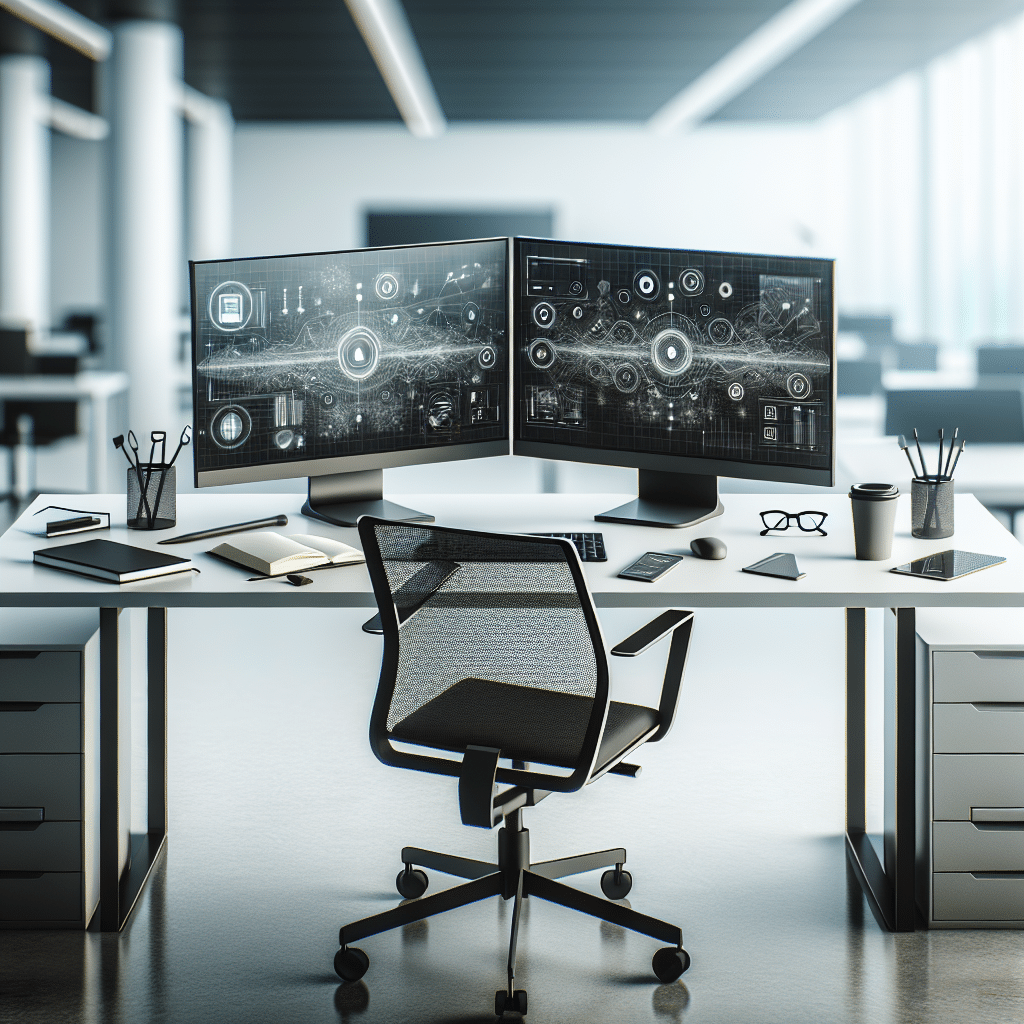
The most common dual monitor setup features two monitors placed side by side on the same desktop. This layout allows for easy comparisons and multitasking. Use one monitor for primary work tasks and the other for reference materials or communication tools.
2. Stacked Configuration
For users with limited desk space, stacking monitors vertically can optimize available area. This configuration is particularly beneficial for software developers or data analysts who need to view long lines of code or extensive spreadsheets without the need to scroll excessively.
3. Mixed Approach
This setup combines different screen types, such as a standard monitor and a portable or tablet-style screen. It’s great for professionals who require portability yet want the flexibility to set up dual displays wherever necessary.
Ergonomic Considerations for Dual Monitor Setups
To maintain a healthy dual monitor workspace, adhere to these ergonomic guidelines:
1. Monitor Height
Position your monitors at eye level or slightly below to reduce neck strain. The top of the screen should be at or just below eye level, allowing your neck to remain in a neutral position.
2. Distance from Eyes
Place your monitors 20 to 30 inches away from your face. This distance allows you to comfortably view the entire screen without straining your eyes.
3. Viewing Angles
The ideal viewing angle should be straight ahead. If the monitors are side by side, angle them slightly inward to reduce neck rotation.
Software Solutions to Enhance Dual Monitor Productivity
Utilizing software that complements your dual monitor setup is essential for optimizing your workflow. Consider the following tools:
1. DisplayFusion
This tool enhances the functionality of your multi-monitor setup with features such as multi-monitor taskbars, customizable hotkeys, and wallpaper management tailored to each screen.
2. Microsoft PowerToys
PowerToys includes FancyZones, a window manager allowing users to create predefined grid layouts on their screens. Arrange your applications efficiently across your monitors using this free tool.
3. Dual Monitor Tools
An open-source application, Dual Monitor Tools, offers various utilities to manage your dual monitors effectively, such as cursor management and screen switching capabilities.
Organizational Tips for Dual Monitor Setups
Maximizing productivity goes beyond hardware choices and requires effective organization of your digital workspace.
1. Window Management
Utilize snapping features in Windows or macOS to align applications side by side without significant effort. This tool can help minimize clutter when working with multiple applications.
2. Task Management Tools
Use task management software like Trello, Asana, or Todoist across both monitors. Keep your project timeline on one screen while detailed project tasks reside on the other.
3. Communication Tools
Remote work necessitates reliable communication channels. Open communication apps like Slack or Microsoft Teams on one monitor while keeping your main tasks on the other to ensure you’re easily reachable.
Customizing Your Workspace for Maximum Impact
To create an efficient dual monitor workspace, consider customizing the environment around you. This approach can include:
1. Cables and Power Management
Tidy up messy cables with cable management solutions to keep your workspace clear and organized. Use clips, sleeves, or under-desk trays to maintain a clean surface.
2. Lighting
Proper lighting can reduce eye strain and fatigue. Aim for indirect lighting and consider using task lighting directly over your monitor area to minimize glare.
3. Desk Space
An organized and spacious desk allows for effective work habits. Position your monitors to avoid clutter and ensure easy access to essential tools like your keyboard and mouse.
Personalizing Your Monitor Setup
Every user has different preferences when it comes to how they work. Here’s how you can customize your dual monitor setup:
1. Color Calibration
Ensure that both monitors are color-calibrated to minimize color discrepancies when working across screens, which can be particularly important for designers and photographers.
2. Screen Real Estate Optimization
Utilize virtual desktops in both Windows and macOS to create custom workspaces. Switch between different setups using keyboard shortcuts for a seamless workflow.
3. Wallpaper and Visual Aesthetics
Personalize your monitors’ background with wallpapers that inspire you or contribute to your productivity, creating a more visually appealing workspace.
In-Depth Look at Recommended Dual Monitor Models
Choosing the right monitor is crucial for building an effective dual-screen setup. Here are three highly-rated models that cater to different needs:
1. Dell UltraSharp U2720Q
With a stunning 27-inch 4K display, the Dell UltraSharp U2720Q is perfect for professionals in design or video editing. Its USB-C connectivity and ergonomic features enhance usability.
2. LG 34WN80C-B
The LG 34WN80C-B is an ultrawide monitor that can serve as a dual monitor replacement. With a 34-inch screen and 1440p resolution, it offers expansive screen space and is ideal for multitaskers.
3. ASUS ProArt PA278QV
This 27-inch display features excellent color accuracy and a robust range of connectivity options. It’s designed for creators who require precision and detail in their work.
Final Tips for an Effective Dual Monitor Setup
- Regularly update your software to enhance functionality and security.
- Take periodic breaks to prevent eye fatigue and keep your productivity levels high.
- Experiment with application layouts to find the most effective arrangement for your workflow.
By employing a dual monitor setup tailored to your specific needs, you can greatly enhance your productivity, streamline your tasks, and create an efficient workspace that promotes success. Invest in quality monitors and the right peripherals to ensure optimal performance and comfort, ultimately leading to a more fulfilling work experience.