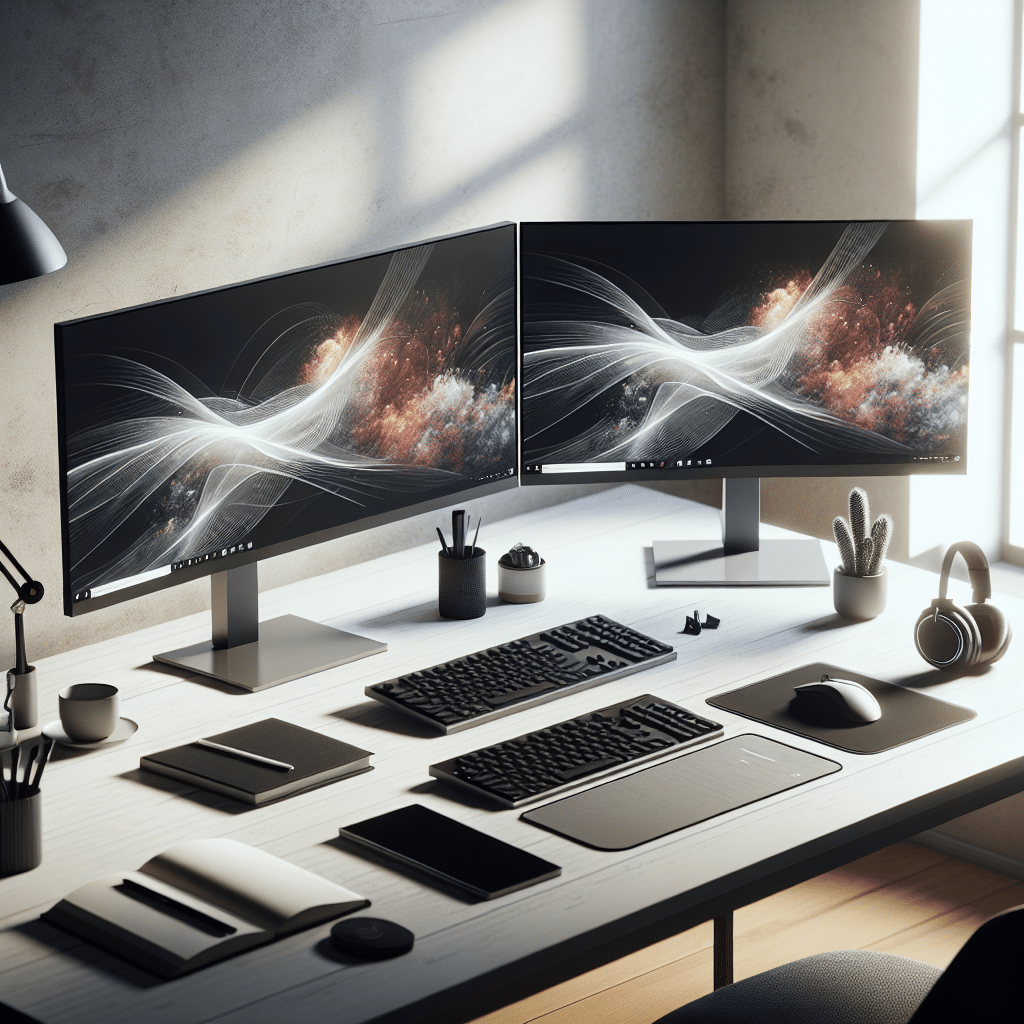
Boost Your Productivity with the Best Dual Monitor Setups
Understanding Dual Monitor Setups
Dual monitor setups have become increasingly popular in various work environments, from corporate offices to home workspaces. This configuration involves connecting two computer monitors to a single desktop or laptop, which significantly enhances productivity by offering more screen real estate. Studies have shown that dual monitor setups can improve efficiency by up to 50%, allowing users to multitask effectively, streamline their workflow, and reduce the time spent switching between tabs or applications.
Advantages of Dual Monitor Setups
-
Increased Screen Space: One of the primary benefits of using dual monitors is the additional screen space. You can open multiple applications side by side, which is invaluable for tasks like data analysis, coding, or graphic design, where you might need to observe various types of information simultaneously.
-
Enhanced Multitasking: With two screens, you can have a video call on one screen while taking notes or pulling up relevant documents on the other. This capability minimizes the need for constant tab switching, thereby improving focus and flow.
-
Improved Organization: Dual monitors allow for better organization of your digital workspace. You can dedicate one screen for emails and communications while reserving the other for project management tools or core work tasks.
-
Reduced Eye Strain: Instead of squinting at a single, smaller screen filled with windows, dual monitors can reduce eye strain by allowing for an optimized display of information. You can adjust each monitor to a comfortable height and distance.
-
Creative Freedom for Designers and Developers: For graphic designers, developers, and video editors, dual monitors can offer vast creative space. You can display your editing software on one screen while referencing a guide or inspiration on another.
Choosing the Right Monitors
Size Matters
When selecting monitors for a dual setup, size plays a critical role. Common sizes range from 24 to 32 inches, with 27 inches being a sweet spot for achieving the best balance between screen real estate and ease of viewing. Larger screens may require higher resolutions, such as 1440p or 4K, to maintain clarity and detail.
Resolution and Panel Types
-
Resolution: A higher resolution provides more detail, which is beneficial for tasks like graphic design and video editing. Full HD (1920×1080) monitors are standard, but consider 1440p or 4K for better visuals.
-
Panel Types:
- IPS (In-Plane Switching): Best for color accuracy and viewing angles, making them ideal for designers.
- TN (Twisted Nematic): Offers fast response times, great for gaming but limited color accuracy.
- VA (Vertical Alignment): Known for deep blacks and contrast, suitable for various tasks but may have slower response times than IPS.
Adjustable Stands
Ergonomics should not be overlooked. Adjustable stands that allow for height adjustments, tilt, and rotation will help maintain a comfortable viewing angle, promoting better posture and reducing strain on your neck and back.
Recommended Dual Monitor Setups
Setup 1: Standard Productivity
- Monitors: Two 27-inch IPS Full HD Monitors (Dell UltraSharp U2720Q).
- Stand: Dual monitor arm (VIVO Dual LCD Monitor Desk Mount).
- Resolution: 1920×1080 for each monitor.
This standard setup is perfect for users engaged in office tasks, whether it be data entry, programming, or design.
Setup 2: Content Creation and Design
- Monitors: Dual 32-inch 4K UHD monitors (LG UltraFine UHD).
- Stand: Height-adjustable desk with a monitor stand.
- Color Accuracy: 99% sRGB and Adobe RGB color spaces.
This configuration is tailored for graphic designers or video editors who require precise color accuracy and ample screen space for their projects.
Setup 3: Gaming and Productivity Hybrid
- Monitors: Dual 27-inch 144Hz gaming monitors (Acer Predator XB273).
- Stand: Dual monitor mount that allows tilting and panning.
- Resolution: 2560×1440 for immersive graphics.
This setup is ideal for gamers who want to enjoy high-fidelity graphics while also being able to manage streaming software or chat windows.
Setup 4: Multi-Tasking Essential
- Monitors: One ultrawide 34-inch curved monitor (Dell UltraSharp U3419W) and one standard 24-inch monitor.
- Stand: Adjustable dual monitor arm.
- Resolution: 3440×1440 for ultrawide, 1920×1080 for secondary monitor.
This unique setup allows simultaneous viewing of multiple applications on one large screen while still having dedicated space for tasks like email and chat on the smaller monitor.
Software and Tools to Maximize Dual Monitor Functionality
Multi-Monitor Management Software
To streamline your dual monitor experience, consider using software that assists in managing windows across multiple screens.
-
DisplayFusion: This robust tool allows for fine-tuning display settings, including taskbar management, window snapping, and wallpaper customization.
-
Actual Multiple Monitors: A powerful utility that adds more functionality to your taskbar, making it easier to manage windows across monitors.
-
Dual Monitor Tools: An open-source option that aids in managing windows, swapping screens, and handling mouse actions across multiple monitors.
Tips for an Optimal Dual Monitor Experience
-
Proper Alignment: Ensure that the monitors are at eye level and aligned to minimize neck strain. The top of the screens should likely be at or slightly below eye level.
-
Color Calibration: Regularly calibrate your monitors, especially if your work demands color accuracy, like design work or photography.
-
Cable Management: Use cable management solutions to avoid clutter. This will not only enhance the aesthetic appeal but also keep your workspace organized.
-
Explore Workspace Configurations: Experiment with different monitor setups, such as placing them side by side or one above the other, to find what works best for your productivity.
-
Shortcuts and Hotkeys: Learn and utilize operating system shortcuts to quickly switch between applications and manage windows. Productivity tools like PowerToys for Windows can enhance this functionality further.
Frequently Asked Questions (FAQs)
1. Will a dual monitor setup work with my laptop?
Yes, most laptops support dual monitors via HDMI, DisplayPort, or USB-C connections. Check your laptop’s specifications for the number of supported external displays.
2. Do I need a dedicated graphics card for dual monitors?
While integrated graphics may handle dual monitors, a dedicated graphics card can offer better performance, especially for high-performance tasks like gaming or video editing.
3. Can I use different monitor brands?
Yes, you can mix and match brands and models, but it’s beneficial to keep the resolutions the same to ensure smoother transitions between screens.
Using the right dual monitor setup can profoundly enhance your everyday productivity. With proper configuration, ergonomics, and tools, you can maximize the advantages of dual monitors, streamline your workflow, and elevate your work performance. Whether for office tasks or creative projects, a dual monitor system can be your ticket to a more efficient and organized workspace.