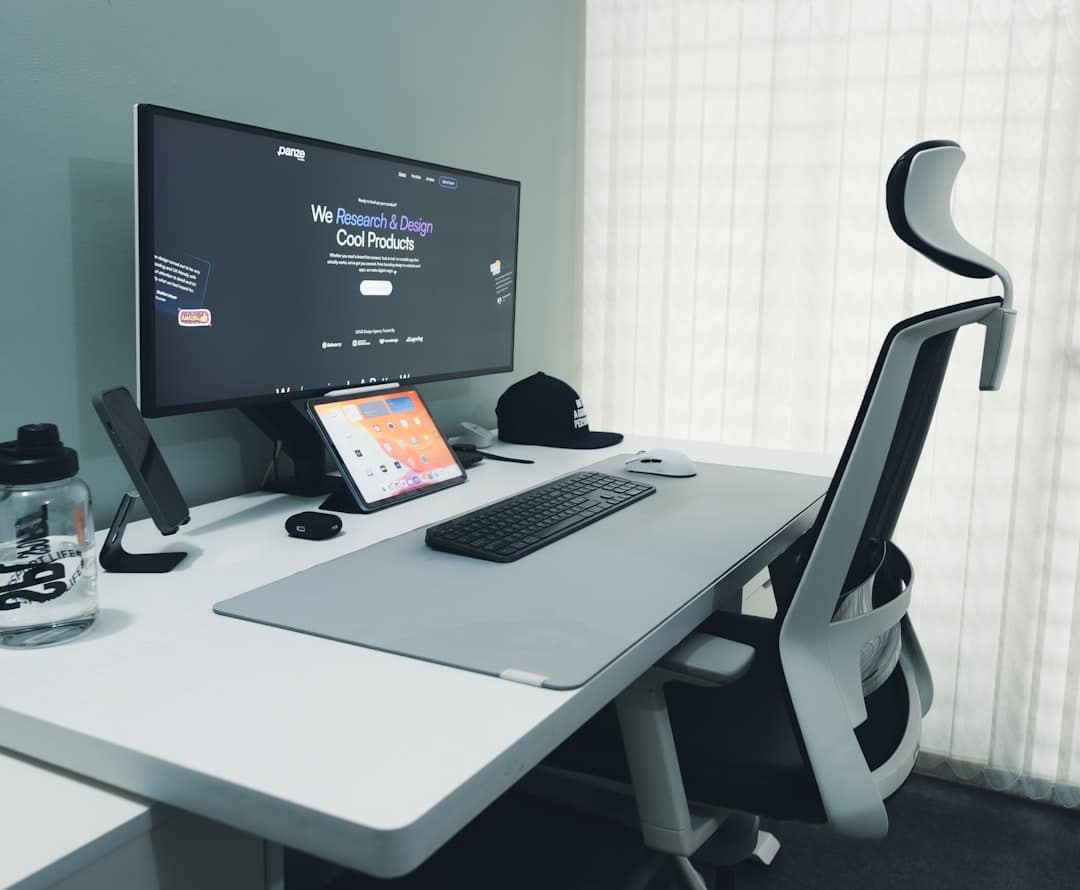
The Hidden Cost of Daily Computer Use on Your Body
How to prevent repetitive strain injury when using a computer is something every office worker and heavy computer user should understand — before pain forces the issue.
Here’s a quick summary of the most effective prevention steps:
- Set up an ergonomic workstation — monitor at eye level, keyboard at elbow height, chair with lumbar support
- Keep wrists neutral — straight, not bent up or down while typing
- Take microbreaks — 30-60 seconds every 10 minutes; stand or walk every hour
- Use the 20-20-20 rule — every 20 minutes, look 20 feet away for 20 seconds
- Alternate tasks — rotate between typing, reading, and other activities throughout the day
- Stretch regularly — focus on wrists, fingers, shoulders, and neck
- Consider ergonomic tools — alternative keyboards, vertical mice, and wrist supports
- Aim to stand 20-30 minutes per hour if you have an adjustable desk
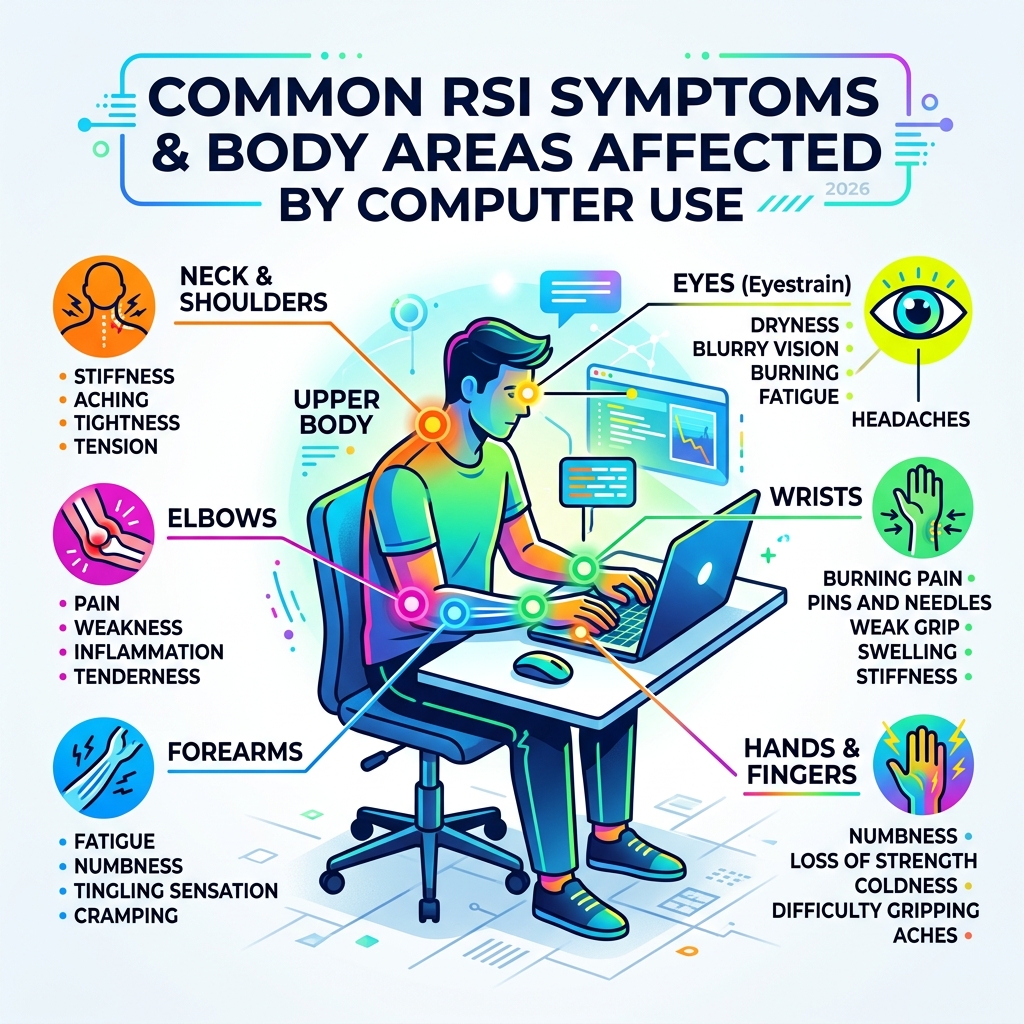
Repetitive strain injury (RSI) is damage to your muscles, tendons, or nerves caused by repeated motions and constant use. It most commonly affects the hands, wrists, forearms, elbows, shoulders, and neck — exactly the areas under stress during a long day at a computer.
The problem is gradual. Most people don’t notice it until the pain becomes hard to ignore.
In fact, eyestrain alone — the most common computer-related RSI — affects anyone who spends more than three hours a day in front of a screen. And conditions like carpal tunnel syndrome, tendinitis, and tennis elbow can develop quietly over months or years of poor habits.
The good news? Most of this is preventable with small, consistent adjustments to how you sit, type, and move throughout your day.
Understanding the Causes of Computer-Related RSI
To effectively tackle the question of how to prevent repetitive strain injury when using a computer, we first need to look at what’s actually happening under the skin. RSI isn’t a single “event” like a broken bone; it’s a cumulative process where tiny bits of damage add up faster than the body can repair them.
The primary culprit is repetitive motion. When we type or click a mouse, we perform the same small movements thousands of times a day. This constant friction can lead to tendon inflammation and microscopic tears in the soft tissues. When these tissues swell, they can press against nearby nerves, leading to the “pins and needles” sensation many of us know all too well.
However, it’s not just the movement that hurts us; it’s also the lack of it. Static posture—staying in one position for hours—forces our muscles to work in a “static load” capacity. Imagine holding a bag of groceries at arm’s length. It’s fine for ten seconds, but after five minutes, your arm is screaming. That is essentially what we do to our neck and shoulder muscles when we slouch over a laptop.
Other environmental factors play a surprisingly large role:
- Force Levels: Typing with “heavy hands” or gripping a mouse too tightly increases the strain on small hand muscles.
- Cold Environments: Muscles and tendons are less flexible when cold, making them more susceptible to injury. Keeping your workspace at a comfortable temperature is a legitimate health strategy.
- Psychological Stress: When we’re stressed, we unconsciously tense our shoulders and breathe more shallowly, which reduces oxygen flow to the very muscles we’re overusing.
According to the NHS, RSI symptoms often start gradually and can become constant if the underlying cause isn’t addressed. It’s a “listen to your body” situation—if it tingles, it’s talking to you.
How to Prevent Repetitive Strain Injury When Using a Computer
Prevention is about creating an environment where your body can work in its “natural” state. We often try to adapt our bodies to our desks, but we should be doing the opposite. A proper workstation assessment is the first step in identifying high-risk factors.

The gold standard for computer work is neutral posture. This means your joints are naturally aligned, reducing stress on the surrounding muscles and tendons.
Key Elements of a Preventative Workstation:
- Keyboard Alignment: Your keyboard should be at a height that allows your elbows to stay open at a 100-110 degree angle. Crucially, your wrists should be neutral—neither bent up (extension) nor down (flexion).
- Mouse Proximity: Keep your mouse as close to the keyboard as possible. Reaching out to the side puts unnecessary strain on your shoulder and rotator cuff.
- Forearm Support: Using a forearm support or a chair with adjustable armrests can take the weight of your arms off your neck and shoulders.
Sitting vs. Standing: Finding the Balance
Many people think switching to a standing desk is a “cure-all,” but standing still for eight hours carries its own risks, like lower back strain and circulatory issues. The secret is task rotation and movement.
| Feature | Sitting Desk | Standing Desk | The “Hybrid” Goal |
|---|---|---|---|
| Muscle Load | High on lower back/neck | High on legs/feet | Distributed throughout day |
| Caloric Burn | Lower | Higher | Optimized |
| Risk Factor | Disc compression | Varicose veins/foot pain | Minimized through movement |
| Best Practice | Stand every 30-60 mins | Sit every 20-30 mins | Alternate every hour |
Ergonomic Setup: How to Prevent Repetitive Strain Injury When Using a Computer
Let’s get into the nitty-gritty of the “perfect” desk setup. If you’re wondering how to prevent repetitive strain injury when using a computer, these measurements are your blueprint:
- Monitor Height and Distance: Your screen should be about an arm’s length away (20-40 inches). The top of the screen should be at or slightly below eye level. This prevents you from tilting your head back or tucking your chin, both of which cause neck strain.
- The Chair: A good chair is an investment in your health. It must provide lumbar support to maintain the natural curve of your lower spine. Your feet should be flat on the floor; if they aren’t, use a footrest.
- The Keyboard Tray: If your desk is too high (as most standard desks are), a keyboard tray with negative tilt (tilting the back of the keyboard down) can help keep your wrists in that elusive neutral position.
- Lighting: Reduce glare by positioning your monitor away from direct window light. Glare leads to squinting, which leads to leaning forward, which ruins your posture.
Behavioral Habits: How to Prevent Repetitive Strain Injury When Using a Computer
Even the most expensive ergonomic chair won’t save you if you sit in it for six hours straight. Our bodies were designed for movement, not for holding a “perfect” pose indefinitely.
The Power of Microbreaks Research suggests that taking a 30-60 second break every 10 minutes is more effective at preventing RSI than taking one long break for lunch. During these microbreaks, simply drop your hands to your sides and shake them out.
The 20-20-20 Rule for Eye Health Eyestrain is the most common RSI. To combat it, every 20 minutes, look at something 20 feet away for at least 20 seconds. This allows the small muscles in your eyes to relax from the “close-up” focus required by screens.
Light Touch Typing Are you a “key-pounder”? Many of us type with much more force than necessary. Modern keyboards require very little pressure. Practice a “feather-light” touch to reduce the impact on your finger joints. Similarly, hold your mouse lightly—don’t “death grip” it as if it’s trying to escape.
As noted in Health.com, staying hydrated and managing stress are also key lifestyle factors. Water keeps your tissues supple, and stress management prevents the muscle tension that accelerates injury.
Essential Stretches and Exercises for Office Workers
If you want to know how to prevent repetitive strain injury when using a computer, you have to look at your body as an athletic machine. Just as a runner stretches their calves, a “computer athlete” must stretch their upper body.
Here are the most effective stretches to incorporate into your day:
- The Wrist Wave: Extend your arm in front of you, palm facing out (like you’re telling someone to stop). Use your other hand to gently pull your fingers back. Hold for 15 seconds, then point your fingers down and repeat.
- Finger Extensions: Spread your fingers as wide as possible, hold for five seconds, then make a tight fist. This helps combat the “claw” position we often adopt while mousing.
- Shoulder Rolls: Draw your shoulders up to your ears, then roll them back and down. This opens up the chest and releases tension in the trapezius muscles.
- Neck Rotations: Slowly tuck your chin to your chest, then ear-to-shoulder on each side. Never “roll” your neck in a full circle, as this can compress the cervical spine.
- Upper Back Stretch: Interlace your fingers in front of you and push your palms away, rounding your upper back. This is the perfect antidote to “computer slouch.”
Beyond daily stretches, resistance training has shown strong evidence for preventing upper extremity musculoskeletal disorders. Strengthening your core, shoulders, and back provides a stable base, making it easier to maintain good posture throughout the day. Yoga is also highly recommended for improving flexibility and body awareness.
For more detailed movements, check out the UCLA Ergonomics guide.
Software and Tools to Reduce Physical Strain
Sometimes, the best way to prevent injury is to change the tools of the trade. We provide extensive guides on ergonomic keyboard and mouse setups because we’ve seen how much they can help.
Alternative Keyboards and Mice
- Split Keyboards: These allow your hands to stay shoulder-width apart, preventing “ulnar deviation” (bending your wrists outward).
- Vertical Mice: These allow you to hold the mouse in a “handshake” position, which prevents the bones in your forearm from crossing and putting pressure on the nerves.
- Trackballs: These eliminate the need to move your entire arm to move the cursor.
Software Tweaks You can actually use software to make your computer work for you.
- Speech Recognition: Dictating your emails instead of typing them gives your hands a total rest.
- StickyKeys: This accessibility feature allows you to press one key at a time for commands like Ctrl+Alt+Del, reducing “finger gymnastics.”
- Break Reminders: Programs like “Mousetool” or dedicated break apps can force you to take rests by locking your screen or providing a pop-up reminder.
- Mouse Speed: Increasing your mouse sensitivity means you have to move your hand less distance to move the cursor across the screen.
Other Helpful Tools
- Telephone Headsets: Never cradle a phone between your ear and shoulder; it’s a fast track to a pinched nerve.
- Padded Wrist Rests: These are great for resting your palms between typing sessions, but avoid resting your wrists on them while typing, as this can compress the carpal tunnel.
Frequently Asked Questions about RSI Prevention
What are the first signs of RSI?
The early warning signs are often subtle. You might notice a dull ache in your wrist after a long day, or a slight tingling (the “pins and needles” feeling) in your thumb or first two fingers. Other signs include loss of grip strength (dropping things unexpectedly), stiffness in the morning, or even a localized “heat” or throbbing in the affected joint. If you notice sensitivity to cold or heat in your hands, your nerves might already be under pressure.
How often should I take breaks to avoid injury?
The “Goldilocks” zone for breaks is frequent and short. We recommend a 30-60 second microbreak every 10 to 15 minutes. Every hour, you should get up, walk around, and stretch for at least 2 to 5 minutes. If you use a standing desk, aim to alternate between sitting and standing every 20-30 minutes. The goal is to never let your muscles stay in a static position long enough to fatigue.
Is carpal tunnel the same as RSI?
Not exactly. Repetitive Strain Injury is an “umbrella term” that covers many different conditions. Carpal Tunnel Syndrome is a specific type of RSI where the median nerve is compressed as it passes through the wrist. Other conditions under the RSI umbrella include:
- Tendonitis: Inflammation of the tendons.
- Bursitis: Inflammation of the fluid-filled sacs that cushion joints.
- Lateral Epicondylitis: Commonly known as “tennis elbow.”
- De Quervain’s Tenosynovitis: Pain affecting the tendons on the thumb side of the wrist.
Conclusion
Learning how to prevent repetitive strain injury when using a computer is an ongoing process of self-awareness. It starts with a proper workstation setup—ensuring your monitor, chair, and keyboard are working with your body, not against it. But it continues with the small habits you practice every hour: the microbreaks, the light typing touch, and the regular stretches.
If you do start to feel symptoms, don’t “play through the pain.” Early intervention is key. Many people find relief using the R.I.C.E. method (Rest, Ice, Compression, Elevation) for minor flare-ups, but if symptoms persist or interfere with your daily life, consult a healthcare provider or a physical therapist.
At Dims Finance, we believe that productivity shouldn’t come at the cost of your health. By implementing these science-based ergonomic strategies, you can boost your well-being and ensure your “digital career” is a long and pain-free one. For more tips on optimizing your workspace, explore our guide to ergonomic desk accessories.
Remember: Your body is the only one you’ve got. Treat it with as much care as you treat your hardware!