Your Desk Is Either Working For You or Against You
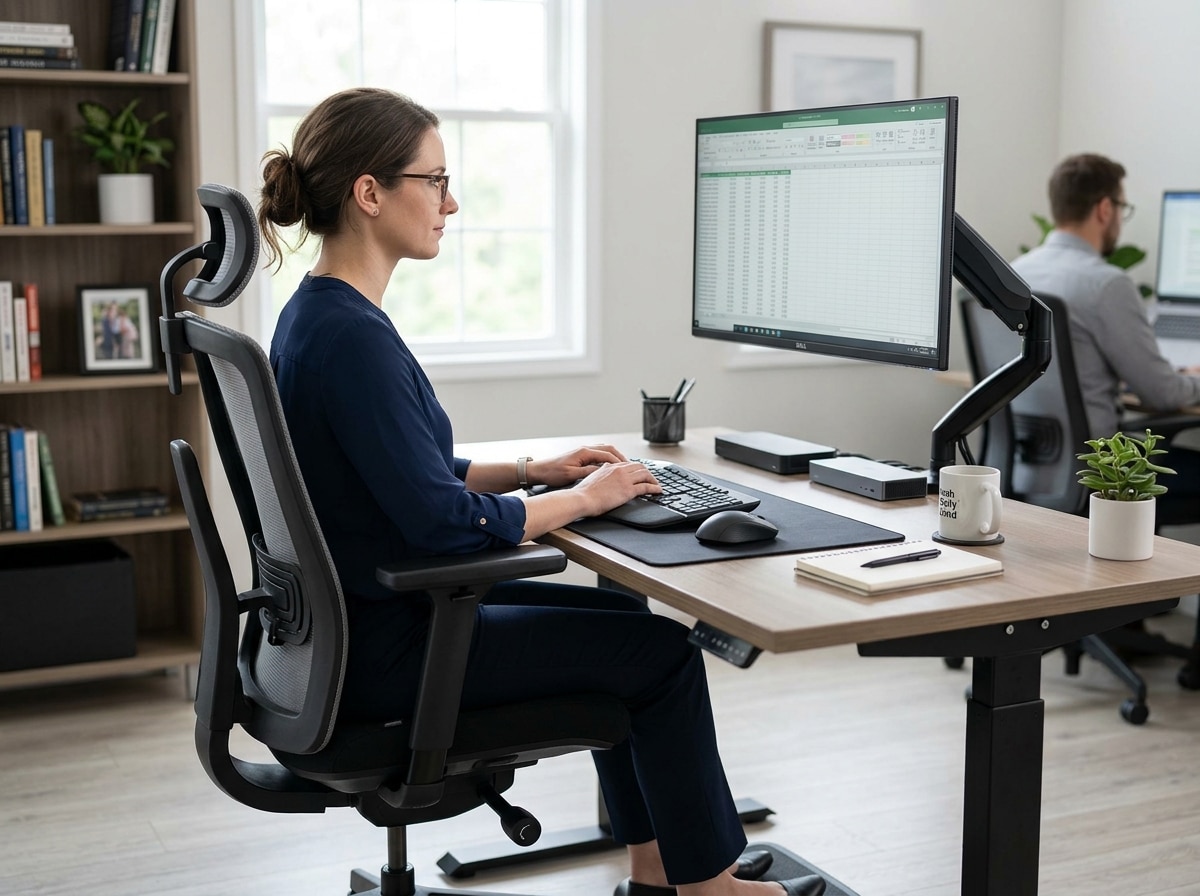
Desk ergonomics injury prevention is the practice of setting up your workspace — chair, desk, monitor, keyboard, and mouse — so your body stays in a neutral, low-strain position throughout the workday.
Here is what that means in practice:
- Chair: Feet flat on the floor, knees at roughly 90°, lumbar support in the curve of your lower back
- Desk: Keyboard and mouse at elbow height so your wrists stay straight
- Monitor: Top of screen at or just below eye level, about an arm’s length away (50–100 cm)
- Posture: Shoulders relaxed, elbows close to your sides, head upright — not tilted forward
- Movement: Stand, stretch, or walk for 1–3 minutes every 30–60 minutes
Most people assume sitting at a desk all day is low-risk. It isn’t.
Research shows 59% of office workers hunch over their desks, quietly building up strain that leads to chronic neck pain, wrist injuries, and lower back problems. Work-related musculoskeletal disorders (MSDs) — things like carpal tunnel syndrome, tendinitis, and lower back injuries — are among the most common causes of lost work time.
The good news? Most of these injuries are preventable. The fix isn’t expensive equipment or a complete office overhaul. It starts with understanding how your body reacts to the way you sit, reach, and repeat the same motions hour after hour.
Think of your head as a bowling ball. At a neutral position, it weighs about 10–12 pounds on your spine. Tilt it forward just 45 degrees — the way most people look at a laptop — and that effective load jumps to nearly 50 pounds of force on your neck. Do that for eight hours a day, five days a week, and the cumulative damage adds up fast.
This guide gives you the straightforward, science-backed steps to set up your workstation so your body stops absorbing that kind of punishment.
Why Desk Ergonomics Injury Prevention Matters
When we talk about desk ergonomics injury prevention, we aren’t just talking about being “comfortable.” We are talking about preventing Musculoskeletal Disorders (MSDs). These are injuries that affect your muscles, nerves, blood vessels, ligaments, and tendons.
The Bureau of Labor Statistics notes that high-risk occupations for these injuries include registered nurses, laborers, and truck drivers, but office workers are catching up rapidly due to sedentary lifestyles and poor setups. According to Office ergonomics: Your how-to guide, proper ergonomics can lower stress, prevent injuries caused by awkward positions, and even reduce headaches and eyestrain.
Repetitive strain is the “silent” enemy. Doing the same small motion — like clicking a mouse or typing on a cramped keyboard — thousands of times a day creates micro-trauma. Without an ergonomic intervention, these small strains turn into chronic conditions. We’ve explored this in depth in our guide on How Employees Can Stop Repetitive Strain Injuries Before They Start.
Beyond personal health, there is a “participatory” element to ergonomics. This means that both employers and employees play a role. Employers are responsible for providing a safe environment, but we, as workers, must actively adjust our tools to fit our unique body proportions. This ongoing function is what leads to long-term wellness and prevents the “burnout” of our joints and muscles.
Common Office Injuries and Warning Signs
It’s easy to ignore a slight tingle in your wrist or a dull ache in your lower back, but these are often the first warning signs of a looming injury. Here are the most common culprits:
- Carpal Tunnel Syndrome: Pressure on the median nerve in your wrist, often caused by typing with “bent” wrists.
- Tendinitis & Epicondylitis: Inflammation of the tendons, frequently affecting the elbow (tennis elbow) or the wrist.
- Lower Back Pain: Often caused by “slumping” or sitting in a chair that lacks proper lumbar support.
- Neck Strain (Tech Neck): Caused by tilting the head down to look at a monitor or laptop.
- Eye Fatigue: Resulting from poor lighting, glare, or a monitor placed at the wrong distance.
- Bursitis: Inflammation of the fluid-filled sacs that cushion your joints, often from leaning on hard desk edges (contact stress).
If you’ve ever felt like your hands were “on strike,” you might be dealing with a Keyboard Wrist Injury. Other symptoms to watch for include numbness, swelling, restricted range of motion, and persistent headaches.
According to a Mayo Clinic Q and A: Avoiding pain while working at a desk, many people adapt to their technology rather than making the technology adapt to them. If you find yourself leaning forward to read your screen or reaching up to use your mouse, you are inviting injury.
The Blueprint for an Ergonomic Workstation Setup
Creating a workspace that supports desk ergonomics injury prevention is about finding your “neutral position.” This is the posture where your body is most efficient and least stressed.

The goal is to bring the work to you. You shouldn’t have to reach, bend, or twist to do your job. For a deep dive into the specifics, check out our guide on How to Set Up Workstation Ergonomically for Peak Comfort.
Comparing Sitting vs. Standing Desk Posture
| Feature | Sitting Ergonomics | Standing Ergonomics |
|---|---|---|
| Elbow Angle | 90–110 degrees | 90–110 degrees |
| Eye Level | Top 1/3 of screen | Top 1/3 of screen |
| Back Support | Lumbar support essential | Engage core, don’t lock knees |
| Foot Placement | Flat on floor or footrest | Shift weight, use an anti-fatigue mat |
| Wrist Position | Neutral (straight) | Neutral (straight) |
Don’t forget the small things: Document holders should be level with your monitor to prevent neck twisting, and telephone headsets are a must if you spend more than an hour a day on calls. Cradling a phone between your ear and shoulder is a recipe for a pinched nerve.
Optimizing Your Chair and Desk for Desk Ergonomics Injury Prevention
Your chair is the foundation of your workstation. It needs to support the natural “S” curve of your spine. Look for a chair with:
- Adjustable Lumbar Support: To fill the gap in your lower back.
- Adjustable Height: So your feet are flat and your thighs are parallel to the floor.
- Seat Depth: There should be 2–4 fingers of space between the edge of the seat and the back of your knees.
- Armrests: These should allow your shoulders to relax while your elbows rest at a 90-degree angle.
If you are looking for specific recommendations, we have curated a list of the Best Ergonomic Office Chairs for Home Use and provided Office Chair Tips for Posture Improvement.
As for the desk, height is everything. If your desk is too high, you’ll find your shoulders shrugging up toward your ears. If it’s too low, you’ll hunch. This is Why an Adjustable Height Work Table with Drawers is a Total Game Changer — it allows you to fine-tune the surface to your exact elbow height.
Perfecting Peripheral Placement for Desk Ergonomics Injury Prevention
Once your chair and desk are set, it’s time to place your tools.
The Monitor: Place your monitor directly in front of you (not off to the side) about an arm’s length away. The top of the screen should be at or slightly below eye level. If you wear bifocals, lower the monitor another 1–2 inches to avoid tilting your head back. Using Monitor Stands for Better Posture can help you achieve this height without using a stack of old phone books.
The Keyboard and Mouse: Your keyboard should be at a height that allows your wrists to remain straight. We call this the “handshake” position. Avoid “planting” your wrists on the desk; instead, let them float or use a pad to rest the palms of your hands during breaks.
For a complete walkthrough, see our Ergonomic Keyboard and Mouse Setup for Enhanced Comfort and our tips on Mastering the Neutral Wrist Position. If you find yourself gripping your mouse too tight, consider an ergonomic or vertical mouse to reduce strain. We have a guide on Finding the Best RSI Mouse to help you scroll pain-free.
Beyond the Desk: Movement and Environmental Factors
Even a “perfect” setup can become harmful if you stay in it too long. Static posture is the enemy of circulation. We like to say, “The best posture is your next posture.”
The 20-20-20 Rule and Micro-breaks
To prevent eye strain, follow the 20-20-20 rule: Every 20 minutes, look at something 20 feet away for at least 20 seconds. This allows the muscles in your eyes to relax.
For your body, we recommend the 30-60 rule: Every 30 to 60 minutes, stand up and move. This doesn’t have to be a full workout; just walking to get a glass of water or doing some “active sitting” helps. You can learn more about Active Sitting 101 to keep your core engaged even while you work.
Environmental Factors
Your environment affects your physical health more than you might think.
- Lighting: Position your monitor at a 90-degree angle to windows to reduce glare. Use full-spectrum or task lighting to prevent squinting.
- Noise: Chronic noise produces tension and stress. Acoustic ceiling tiles, carpets, or even simple earplugs can help manage noise levels.
- Temperature: A room that is too cold can cause muscles to stiffen, increasing the risk of strain.
According to Office Ergonomics | HealthLink BC, evaluating your work process — like task variety and worker rotation — is just as important as the physical furniture.
Specialized Setups: Laptops and Children
Laptops were designed for mobility, not for 8-hour workdays. Because the screen and keyboard are connected, you are forced to choose between straining your neck (looking down) or straining your wrists (reaching up).
The Laptop Fix: Don’t use a laptop as your primary computer without help. Use Ergonomic Laptop Stands to raise the screen to eye level, and plug in an external keyboard and mouse. This allows you to sit back and maintain a neutral spine.
Ergonomics for Children: With more kids using computers for school, we need to apply these rules to them, too.
- Seat Height: Ensure their feet aren’t dangling. Use a footrest or a stack of books.
- Wrist Position: Adjust the keyboard so their wrists are straight, not reaching up to a high kitchen table.
- Back Support: If the chair is too deep, put a firm pillow behind them so they can sit against the backrest.
When it comes to carrying laptops, use a backpack with two padded straps to distribute weight evenly. Carrying a heavy bag on one shoulder is a fast track to neck and shoulder misalignment.
Frequently Asked Questions about Desk Ergonomics
How often should I take breaks to prevent injury?
You should aim for a “micro-break” every 20–30 minutes. This can be as simple as standing up for 10 seconds or stretching your wrists. Every hour, take a longer 3–5 minute break to walk around. This improves circulation and prevents your joints from “locking” into a static position. For more on this, revisit our Workstation Setup Guide.
Can a standing desk really fix my back pain?
Standing desks place around 90% less stress on your back than sitting, but there is a catch: you have to use them correctly. Standing still for eight hours is just as bad as sitting for eight hours. The key is alternating. We recommend standing for 20 minutes, then sitting for 40. Make sure you use an anti-fatigue mat and keep your weight distributed evenly. If you have a small home office, there are many Affordable Standing Desks Perfect for Small Spaces.
When should I see a doctor for workstation pain?
If you experience persistent pain, numbness, or tingling that lasts for more than 7 continuous days, it’s time to call a professional. You might start with self-care — ice for swelling, heat for stiffness, and gentle stretching — but if the pain doesn’t budge, consult a physical therapist or occupational health specialist. Early intervention is the difference between a week of rest and a lifetime of chronic pain. You can find more resources on seeking help at Office Ergonomics (U of M Health).
Conclusion
At Dims Finance, we believe that your health is your most valuable asset. Desk ergonomics injury prevention isn’t a one-time task; it’s a commitment to your long-term well-being. By applying science-based advice to your workstation, you can significantly reduce the risk of RSIs and boost your daily productivity.
Whether you are looking for the right Desk Accessories to complete your setup or need more tips on neutral positioning, small changes lead to big results. Start by raising your monitor or adjusting your chair height today — your body will thank you tomorrow.