Why You Need a Workstation Ergonomics PDF for Your Office
We often think of workplace injuries as dramatic accidents, but the reality for office workers is much subtler. Musculoskeletal disorders (MSDs) are “cumulative trauma” injuries. They happen when we ignore the small signals our bodies send us while we type, click, and hunch over our screens for eight hours a day.
According to the Bureau of Labor Statistics, MSDs account for a staggering 33% of all lost workday injuries and illnesses. The financial toll is just as heavy; the average cost for a single carpal tunnel syndrome case can reach nearly $9,000 in medical and compensation costs. For an employer, ergonomic-related injuries account for roughly $20 billion in workers’ compensation costs annually.
When we look at How Employees Can Stop Repetitive Strain Injuries Before They Start, the focus is always on early intervention. Repetitive motion—such as the thousands of keystrokes you perform daily—can lead to tendonitis or carpal tunnel if your wrists aren’t neutral. In fact, research from a Computer Workstation Ergonomics Guide suggests that an ergonomic environment can increase productivity by an average of 11%. Simply put, when you aren’t in pain, you do better work.
The Ultimate Workstation Ergonomics PDF Checklist: Step-by-Step Setup

The foundation of any ergonomic setup is your chair. Most of us sit down and never touch the levers again, but your chair should be a dynamic tool, not a static throne.
- Chair Height: Adjust your seat so your feet rest flat on the floor. If your feet dangle, you’re putting pressure on the back of your thighs, which can restrict circulation. If your desk is too high and you have to raise your chair, use a footrest.
- The 90-Degree Rule: Your hips, knees, and elbows should all hover around a 90- to 120-degree angle.
- Lumbar Support: This is non-negotiable. Look for Office Chairs with Lumbar Support that fit the natural inward curve of your lower back. If your chair doesn’t have it, a rolled-up towel can work as a temporary fix.
- Seat Pan Depth: You should be able to sit with your back against the backrest and still have a 2- to 4-inch gap (about the width of your fist) between the edge of the seat and the back of your knees.
- Stability: Ensure your chair has a five-point base with casters appropriate for your flooring (hard casters for carpet, soft for tile or wood).
Before you buy your next seat, check out our Ergonomic Office Chair Buying Guide to ensure you’re getting the features that actually protect your spine.
Adjusting Your Monitor for Visual Comfort
Your neck is essentially a crane holding up a 10-pound bowling ball (your head). If you tilt that ball forward to look at a low screen, the effective weight on your neck muscles triples.
- Height: The top line of text on your screen should be at or slightly below eye level. If you wear bifocals, you may need to lower the monitor further to avoid tilting your head back.
- Distance: Position the monitor about an arm’s length away (roughly 20 to 28 inches). If you find yourself leaning forward to read, increase the font size rather than moving your body.
- Glare: Position your monitor perpendicular to windows. Glare causes eye strain and leads to “turtle necking”—leaning in to see past the reflection.
- The 20-20-20 Rule: Every 20 minutes, look at something 20 feet away for 20 seconds. This allows the tiny muscles in your eyes to relax.
Using Monitor Stands That Promote Better Posture and Comfort is a simple way to achieve the correct height without resorting to a stack of old phone books. For more detailed specs, the Ergonomic Checklist for General Industry Workstation Adjustments provides excellent measurement standards.
Mastering the Workstation Ergonomics PDF for Keyboard and Mouse Placement
This is where most Repetitive Strain Injuries (RSIs) are born. We want to achieve a “neutral wrist” position, meaning your wrists are straight, not bent up, down, or to the side.
- Elbow Height: Your keyboard and mouse should be at the same height as your elbows when your arms are hanging naturally at your sides.
- Negative Tilt: Most keyboards have little feet at the back. Don’t use them. Propping up the back of the keyboard forces your wrists into “extension” (bending up). An ideal Ergonomic Keyboard and Mouse Setup often involves a slight negative tilt—where the top of the keyboard is lower than the bottom.
- The “Floating” Technique: Don’t plant your wrists on a wrist rest while typing. Use the rest only for breaks between typing. When you type, your hands should float, allowing you to use your larger arm muscles rather than just your small finger tendons.
- Mouse Proximity: Keep your mouse as close to the keyboard as possible. Overreaching for the mouse throughout the day creates significant strain on the shoulder and neck.
To dive deeper into the mechanics of hand health, read our guide on Mastering the Neutral Wrist Position for Your Keyboard Setup.
Advanced Adjustments: Laptops, Dual Monitors, and Standing Desks
Modern work rarely happens on a single desktop PC anymore. We are a mobile workforce, but portability often comes at the cost of posture.
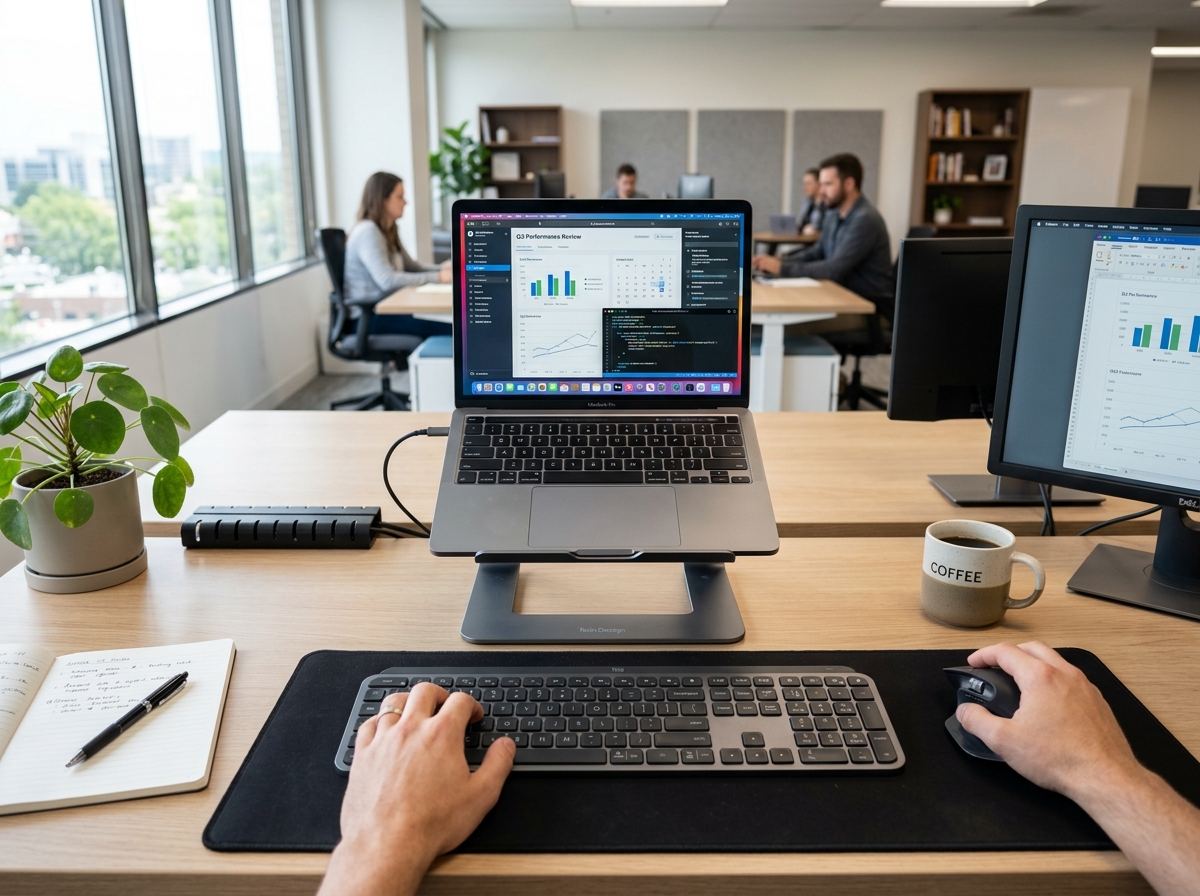
The Laptop Trap Laptops are an ergonomic nightmare because the screen and keyboard are joined. If the keyboard is at the right height for your arms, the screen is too low for your neck. If the screen is at the right height, the keyboard is too high.
- The Solution: Use Ergonomic Laptop Stands for a Comfortable Desk Setup to lift the screen to eye level, and always use an external keyboard and mouse.
Dual Monitor Mastery If you use two monitors equally, place them in a “V” shape directly in front of you, meeting at the center. If one is your primary screen, place it directly in front and the secondary screen to the side. Avoid twisting your neck to look at a side monitor for long periods. For those with massive setups, The Ultimate Guide to Heavy Duty Monitor Arms for Ultrawide Screens can help manage the weight while maintaining flexibility.
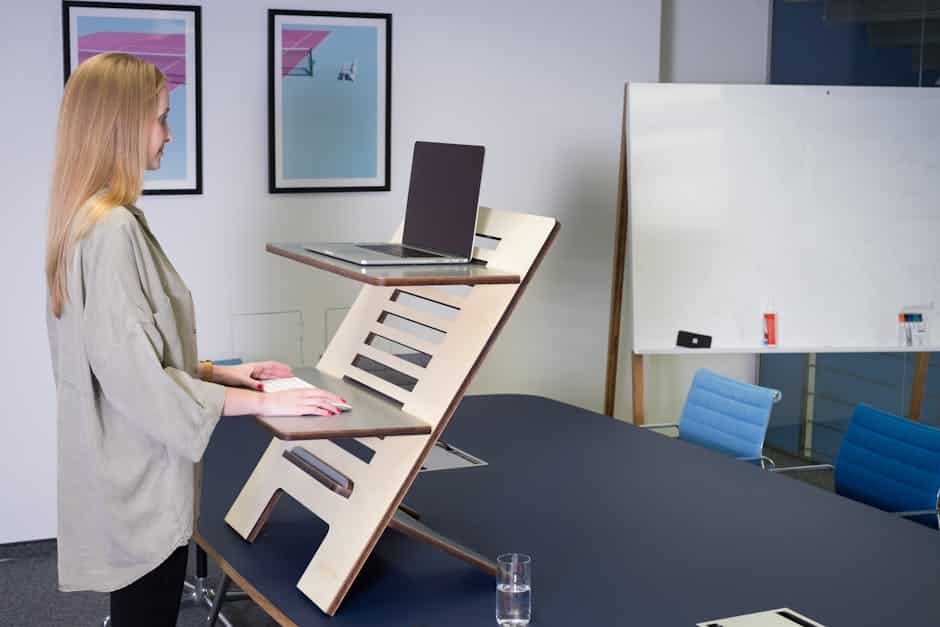
The Standing Desk Equation Standing all day is just as bad as sitting all day—it leads to varicose veins and lower back fatigue. The goal is movement. We recommend a sitting-to-standing ratio of 1:1 or 1:3. For every hour, try to stand for 20 minutes. If you are looking for a home setup, Adjustable Standing Desks for Work From Home are essential for keeping your energy up and your spine happy. Don’t forget an anti-fatigue mat to cushion your feet!
Essential Habits and Accessories to Prevent Injury

Even the most expensive ergonomic setup can’t save you if you stay frozen in one position for eight hours. We believe that “the best posture is your next posture.”
- Micro-breaks: Every 30 minutes, take a 1- to 2-minute break. Stand up, stretch your chest, and roll your shoulders.
- Document Holders: If you frequently look at paper documents, don’t lay them flat on the desk. Use an in-line document holder between your keyboard and monitor to prevent neck twisting.
- Headsets: Never cradle a phone between your ear and shoulder. This constricts the median nerve and causes instant neck strain.
- Active Sitting: Consider tools that allow for small movements. Active Sitting 101 and How to Burn Calories While You Work explains how subtle shifts can keep your core engaged and blood flowing.
Our favorite Ergonomic Desk Accessories for Comfort include footrests for shorter users and vertical mice for those already feeling wrist twinges.
Using Your Workstation Ergonomics PDF for Remote Work Success
Working from home shouldn’t mean working from the couch. While the couch is comfortable for 20 minutes, it provides zero support for your spine, leading to what experts call “physical exhaustion” by the end of the day.
- Dedicated Space: Even in a small apartment, create a dedicated zone. Small Desk Setups for Remote Work show that you don’t need a massive office to be ergonomic.
- Cable Management: Clutter isn’t just a mental distraction; it can be a physical hazard. Keep cords tucked away to ensure you have full legroom under your desk.
- Mouse Pads: Don’t underestimate the Best Mouse Pads for Work From Home. A pad with a built-in wrist rest (used only for support during breaks) can keep your setup consistent.
- Lighting: Utilize natural light but avoid placing your monitor directly in front of a bright window, which creates a harsh contrast that tires the eyes.
Frequently Asked Questions about Workstation Ergonomics
How often should I take breaks according to a workstation ergonomics pdf?
Most workstation ergonomics pdf guides recommend a “micro-break” every 30 minutes. This isn’t a 15-minute coffee break; it’s a 60-second reset. Stand up, reach for the ceiling, and look away from your screen. Every two hours, take a longer 5- to 10-minute break to walk around and get your blood circulating.
What are the most common ergonomic risk factors in an office?
The “Big Four” are:
- Awkward Posture: Bending your neck or wrists.
- Repetitive Motion: Typing for hours without a break.
- Static Loading: Holding your muscles in one position for too long.
- Contact Stress: Resting your wrists or forearms on a sharp desk edge.
Can I use an exercise ball instead of an ergonomic chair?
Actually, most ergonomists advise against this for full-time work. While exercise balls are great for core workouts, they lack lumbar support and a backrest. Over time, your muscles fatigue, and you end up slouching more than you would in a chair. There is also a higher risk of falls and restricted circulation to the legs.
Conclusion
At Dims Finance, we believe that your health is your most valuable asset. By using a workstation ergonomics pdf to audit your space, you aren’t just preventing a sore back—you’re investing in your long-term career and well-being. From mastering your neutral wrist position to choosing the right standing desk, every small adjustment counts.
Ready to upgrade your workspace? Browse our full range of ergonomic desk accessories and start working pain-free today!