Your Wrists Are Paying the Price for Every Click and Keystroke
The best mouse for long typing sessions is one that keeps your wrist in a natural, neutral position — reducing strain, preventing injury, and letting you work longer without pain.
Quick picks by design type:
| Mouse Type | Best For | Example |
|---|---|---|
| Vertical ergonomic | Severe wrist/forearm pain | Logitech MX Vertical |
| Contoured ergonomic | General all-day comfort | Logitech MX Master 3S |
| Trackball | Minimal arm movement needed | Logitech ERGO M575 |
| Compact wireless | Mobile or small-desk setups | Logitech MX Anywhere 3S |
Office workers rack up over 2,000 hours of repetitive motion every year. That’s thousands of clicks, scrolls, and wrist twists — most of them in positions your body was never designed to hold for long.
A standard mouse forces your forearm to rotate palm-down. Do that for eight hours a day, and you’re asking for trouble. Wrist pain, hand strain, and repetitive strain injuries (RSI) affect millions of people who spend their days typing and clicking.
The good news? The right mouse can make a real difference — and this guide walks you through exactly what to look for.
The Science of Ergonomics: Why Your Mouse Matters for Long Typing Sessions
When we talk about a mouse for long typing sessions, we aren’t just talking about a peripheral that sits next to your keyboard. We are talking about a tool that dictates the health of your entire upper extremity. To understand why your current setup might be causing that “click-induced cringe,” we have to look at the anatomy of the forearm.

Most traditional mice require what is known as forearm pronation. This occurs when you turn your palm flat against the desk, causing the radius bone to twist over the ulna. Over hours of work, this sustained twist creates tension in the muscles and compresses the median nerve. This is a primary contributor to carpal tunnel syndrome, where the narrow passageway in your wrist becomes inflamed, leading to numbness and tingling.
Furthermore, standard setups often force the wrist into extension (bending upward) or ulnar deviation (bending sideways toward the pinky). These positions are the “danger zones” for office workers. By mastering the neutral wrist position for your keyboard setup, you can begin to align your joints in a way that minimizes ligament strain.
At Dims Finance, we believe that understanding how employees can stop repetitive strain injuries before they start is the first step toward a pain-free career. A neutral wrist position—often described as the “handshake position”—is the gold standard for ergonomic health.
Top Mouse Designs and Recommendations for Wrist Comfort
If you’ve ever felt a twinge in your wrist after a marathon spreadsheet session, you know that not all mice are created equal. The market has evolved far beyond the basic plastic “soap bar” shape. Today, we have hand-sculpted, contoured, and vertical designs specifically engineered to mirror the natural resting state of the human hand.
A proper ergonomic keyboard and mouse setup is about more than just comfort; it’s about efficiency. When your hand is supported by a contoured shape, your muscles don’t have to work as hard just to “hold” the device. This reduces fatigue and allows you to focus on your typing. For those already dealing with discomfort, wrist management: finding the best RSI mouse for pain-free scrolling is a critical deep dive into specialized hardware.
Choosing the Best Mouse for Long Typing Sessions by Design
When selecting a mouse for long typing sessions, the design is your first line of defense.
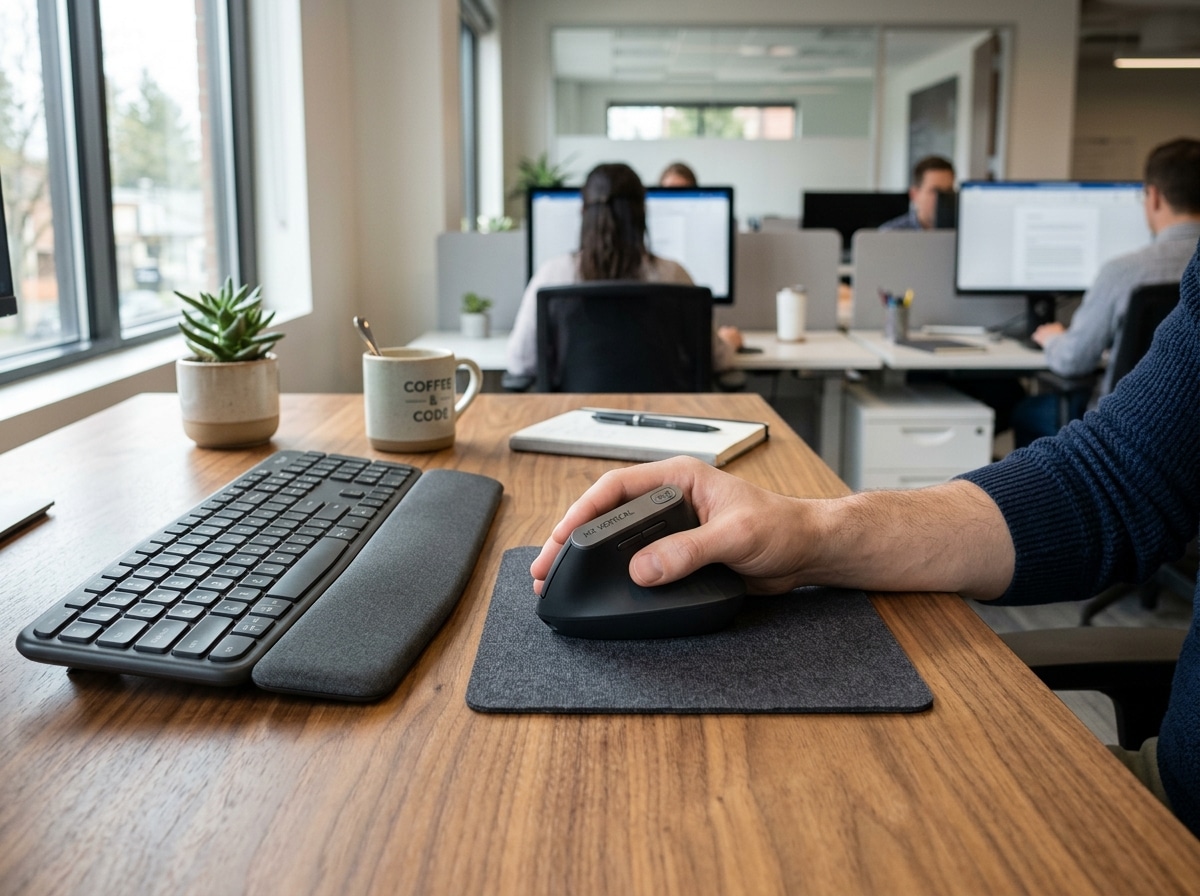
- Vertical Mice: These are the heavy hitters of the ergonomic world. Devices like the Logitech MX Vertical or the HP 925 feature a 57-degree vertical angle. This angle places your hand in a natural handshake position, which reduces muscular strain by up to 10% compared to a traditional mouse.
- Contoured Performance Mice: If a full vertical mouse feels too radical, a hand-sculpted mouse like the MX Master 3s Wireless Mouse – 8K Optical Sensor offers a middle ground. It provides a deep thumb rest and a slight tilt that supports the palm while offering high-end productivity features. For professional environments, the MX Master 3S for Business Wireless Mouse adds enterprise-level security and deployment features.
- Trackball Mice: These are stationary wonders. Instead of moving the entire mouse, you roll a ball with your thumb or fingers. This is a game-changer for users with limited desk space or those who experience shoulder pain from reaching and moving a traditional mouse.
Comparing Vertical vs. Trackball Performance
Choosing between vertical and trackball often comes down to where you feel the most strain.
| Feature | Vertical Mouse (e.g., HP 925) | Trackball Mouse (e.g., ERGO M575) |
|---|---|---|
| Wrist Position | Handshake (57-degree tilt) | Flat or slight tilt |
| Muscle Engagement | Uses forearm and shoulder | Minimal movement; thumb/fingers only |
| Desk Space | Requires room to glide | Stationary; requires zero glide room |
| Learning Curve | Moderate (1-2 weeks) | High (requires fine motor retraining) |
| Best For | Pronation pain and carpal tunnel | Shoulder strain and limited space |
Vertical mice excel at reducing the “twist” in your forearm, while trackballs like the Kensington Expert Mouse or Logitech ERGO M575 eliminate the need for repetitive arm movements entirely.
Essential Features for Productivity
A mouse for long typing sessions shouldn’t just be comfortable; it needs to keep up with a high-speed workflow. If you are constantly switching between your keyboard and your mouse, you want that transition to be as seamless as possible.
Modern high-performance mice, such as the MX series, feature 8000 DPI (Dots Per Inch) tracking. This high sensitivity means you can move the cursor across a 4K monitor with only a tiny flick of the wrist. Furthermore, Darkfield tracking technology allows these mice to work on almost any surface—including glass—which is a lifesaver if your home office setup is a bit unconventional.
For those who navigate long documents, the MagSpeed Electromagnetic Scroll Wheel is a revelation. It can scroll 1,000 lines per second, yet it’s precise enough to stop on a single pixel. Integrating these features into an ergonomic keyboard and mouse setup for enhanced comfort ensures that your hardware is working for you, not against you.
Key Technical Specs in a Mouse for Long Typing Sessions
- Quiet Click Technology: Nothing breaks a flow state like a loud, plastic “click-click-click.” Modern mice now feature 90% noise reduction, providing the same tactile feel without the auditory distraction.
- Connectivity (Logi Bolt & Bluetooth): A clutter-free desk is an ergonomic desk. Wireless technology like Logi Bolt offers a secure, high-performance connection even in crowded wireless environments, while Bluetooth allows for easy pairing with tablets and laptops.
- Multi-Device Switching: If your workflow involves a Mac for design and a PC for data, look for mice with “Easy-Switch” technology. This allows you to control up to three computers with a single mouse.
- Customizable Buttons: Using software like Logi Options+, you can map repetitive tasks (like “Copy,” “Paste,” or “Undo”) to side buttons. This reduces the number of awkward reaches your fingers have to make on the keyboard.
Transitioning to an Ergonomic Setup: Tips and Timelines
Switching to a mouse for long typing sessions—especially a vertical or trackball model—can feel a bit like learning to write with your non-dominant hand at first. Don’t be discouraged! Your brain and muscles need time to rewrite their “movement maps.”
Typically, the adaptation period lasts 1 to 2 weeks. For the first 3 to 5 days, you might actually feel a bit slower or slightly clumsy. This is normal. We recommend starting with 30-minute sessions and then switching back to your old mouse for the rest of the day. Gradually increase the time as your comfort grows.
Think of it as deliberate practice. Just as you might retrain your typing speed on a new split keyboard, you are retraining your hand to embrace a healthier posture. If you ignore the warning signs of discomfort, you risk a keyboard wrist injury: when your hands go on strike, which can take months to heal. Investing two weeks into a transition is a small price to pay for years of pain-free productivity.
Frequently Asked Questions
Should I buy a keyboard-mouse combo or individual mice?
Combos, such as the MX Keys S Combo, often offer the best value and a cohesive aesthetic. They usually share a single wireless receiver, which saves USB ports. However, if you have very specific ergonomic needs—such as a severe split keyboard requirement but a preference for a trackball mouse—buying individual peripherals allows for ultimate customization. You can explore wireless keyboard and mouse combos for seamless work to see if a pre-bundled set fits your needs.
Can an ergonomic mouse prevent carpal tunnel?
While no device can “cure” a medical condition, ergonomic mice are designed to reduce the primary risk factors for carpal tunnel: compression of the median nerve and repetitive strain. By promoting a neutral handshake position and reducing the force required to click, these mice distribute pressure more evenly across the hand. We always recommend consulting a healthcare professional if you are experiencing persistent pain.
How do I set up my mouse with my keyboard for maximum comfort?
Placement is key. Your mouse should be at the same height as your keyboard, and close enough that you don’t have to reach outward with your shoulder. Reaching forward or to the side puts unnecessary strain on your rotator cuff. If possible, use a keyboard with a negative tilt (the back of the keyboard is lower than the front) to keep your wrists flat. For more detailed layouts, check out our guide on ergonomic keyboard and mouse setups for maximum comfort.
Conclusion
At Dims Finance, we are dedicated to helping you build a workstation that supports your health as much as your career. Choosing the right mouse for long typing sessions is a critical component of workplace wellness. Whether you opt for the precision of an MX Master 3S or the radical comfort of a vertical design, the goal is the same: to boost your productivity without sacrificing your well-being.
By investing in tools engineered with sustainability and science-based ergonomics in mind, you aren’t just buying a gadget—you’re investing in a pain-free future. Ready to complete your setup? Explore ergonomic desk accessories to find the final pieces of your comfort puzzle.