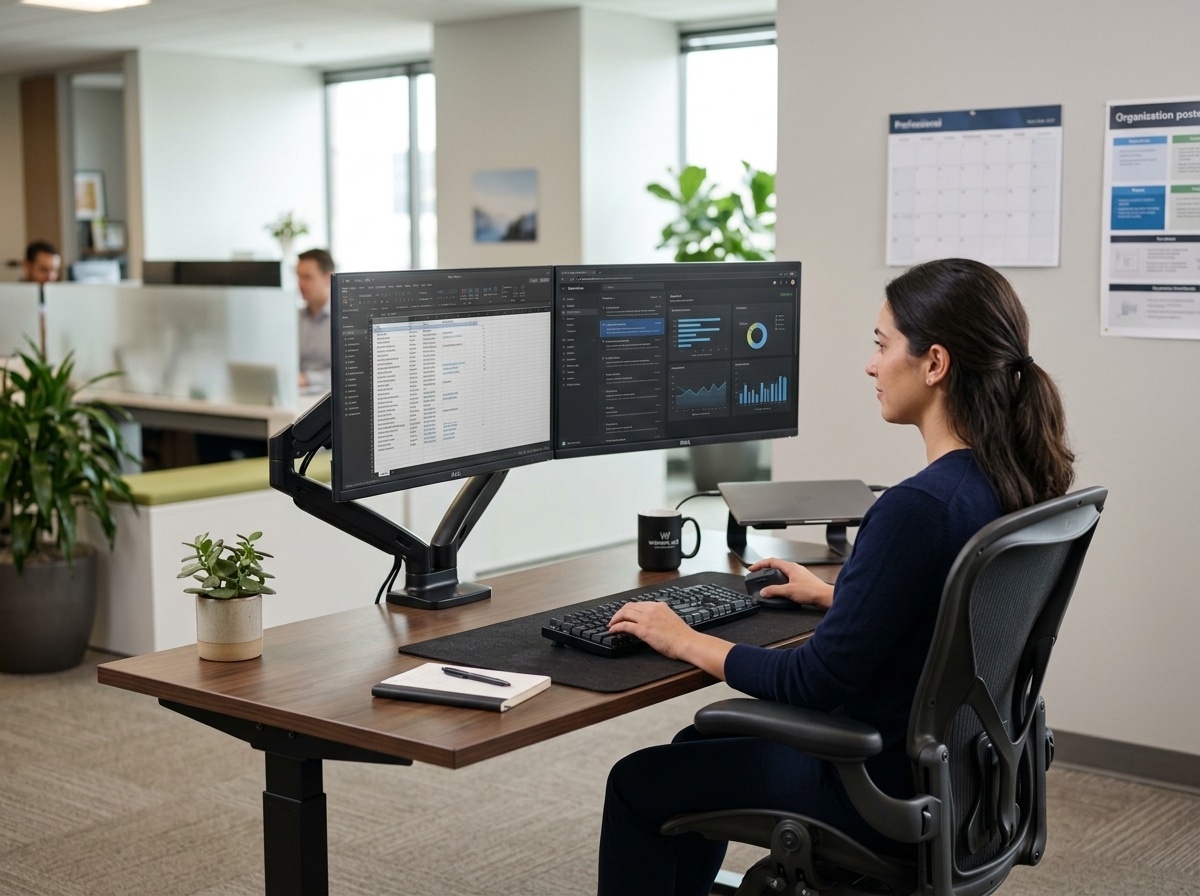
Why Your Ergonomic Setup for Dual Monitors Matters More Than You Think
An ergonomic setup dual monitors is one of the most impactful changes you can make to your workstation — but only if you get the positioning right.
Quick answer: How to set up dual monitors ergonomically
- Place your primary monitor directly in front of you, centered with your keyboard
- Position both screens at arm’s length (20–28 inches from your eyes)
- Align the top third of each screen at or just below eye level
- Angle monitors 15–30 degrees inward toward you
- Match brightness, contrast, and color temperature across both screens
- Orient your mouse toward your primary monitor to avoid overreaching
Here’s the uncomfortable truth: a second monitor doesn’t automatically make you more productive. In fact, most dual monitor setups cause more physical strain than a single screen — not less.
Studies show dual monitors can boost productivity by up to 42% and reduce errors by 33%. There’s been a 70% increase in dual monitor use since 2002. But those gains disappear fast when poor positioning leads to neck pain, eye fatigue, and repetitive strain injuries.
About 66% of people who use screens regularly experience digital eye strain. And incorrect monitor height alone can increase pressure on your neck by up to 400%.
The good news? Small, deliberate adjustments to your setup fix most of these problems quickly.

The Core Principles of an Ergonomic Setup for Dual Monitors
When we add a second screen, we often just “squeeze it in” wherever there is space on the desk. This is what we call an “ergonomic disaster in disguise.” To build a healthy workspace, we need to follow the core physics of human posture.
The most critical factor is the relationship between your eyes and the glass. If your monitors are too high, you’ll tilt your head back, straining the small muscles at the base of your skull. If they’re too low, you’ll hunch forward, creating that “tech neck” we all want to avoid. Research shows that correct screen positioning can reduce pressure on your neck by 400%. That is the difference between feeling energized at 5:00 PM and feeling like you need a professional massage.
The “Arm’s Length” Rule
Your monitors should be approximately 20 to 40 inches away from your face. A quick way to test this is to sit back in your chair and extend your arm. Your middle finger should just barely touch the screen.
If you find yourself leaning forward to read text, don’t move the monitor closer — increase the font size or scaling in your operating system settings instead. Leaning forward ruins your spinal alignment and puts immense pressure on your lower back.

Height and Alignment
We want the top third of the screen to be at or slightly below eye level. Why the top third? Because our natural gaze hangs slightly downward (about 15 to 30 degrees). When you look straight ahead, your eyes should land on the top section of the screen. This allows you to scan the rest of the display by moving your eyes, not your entire head.
| Monitor Size | Recommended Viewing Distance | Height Adjustment Tip |
|---|---|---|
| 24-inch | 20–30 inches | Top of bezel at eye level |
| 27-inch | 30–36 inches | Top 2-3 inches of screen at eye level |
| 32-inch | 36–40+ inches | Mid-upper section at eye level |
Choosing Your Layout: Primary/Secondary vs. Equal Use
One of the biggest mistakes we see is people choosing a layout based on how “cool” it looks rather than how they actually work. Your workflow should dictate your ergonomic setup dual monitors.
There are two main ways to arrange your screens:
- Primary/Secondary (80/20 Rule): One monitor is your “home base” where you do 80% of your typing and clicking. The other is for reference.
- Equal Use (50/50 Rule): You spend equal time looking at both screens, perhaps comparing two large spreadsheets or coding on one and viewing a live preview on the other.
Before you move a single cable, ask yourself: “Which screen do I look at most?”
Dominant Eye Placement
Here is a pro tip that most guides miss: place your secondary monitor on the side of your dominant eye. To find your dominant eye, make a small triangle with your hands, center a distant object in that triangle with both eyes open, then close one eye at a time. The eye that keeps the object centered is your dominant eye. Placing your reference screen on this side reduces the mental load and “visual hunting” your brain has to do.
To help achieve these heights, you might consider monitor stands for better posture or monitor risers for home office setup to ensure your screens aren’t sitting too low on a flat desk.
Optimizing the Primary/Secondary Ergonomic Setup for Dual Monitors
If you use one screen significantly more than the other, the “Symmetrical” look is your enemy.
In this setup, you should center the primary monitor directly in front of your nose. Your keyboard and mouse should also be centered on this monitor. The secondary monitor should be placed to the side (dominant eye side!) and angled inward toward you at about 15 to 30 degrees.
This layout is the “gold standard” for preventing neck pain. It ensures that for 80% of your day, your neck is in a neutral, forward-facing position. You only use your peripheral vision or a slight neck turn to glance at the secondary screen.
Common Mistake: Placing the “seam” or the bezels of the two monitors directly in front of you when you only use one screen. This forces you to keep your head turned at a slight angle all day, which leads to chronic shoulder tension on one side.
Achieving Symmetry in an Equal Use Ergonomic Setup for Dual Monitors
For those of us who truly use both screens equally, we recommend the “Cockpit” or “V-shape” alignment.
In this setup, you bring the monitors together so their inner edges touch directly in front of you. You then angle both monitors inward toward you, creating a concave arc. Your nose should point directly at the seam where the two monitors meet.
Because you will be looking left and right frequently, it is vital to use your chair’s swivel function. Do not just twist your neck; rotate your entire torso to face the screen you are currently working on. This protects your cervical spine from repetitive twisting.
To maintain this symmetry, high-quality hardware is a must. You can find more info about monitor stands that improve posture and health to help you keep both screens perfectly level with one another. Even a half-inch difference in height between two “equal use” monitors can cause significant eye strain as your brain struggles to align the two images.
Essential Accessories for a Healthy Multi-Screen Workspace
A great ergonomic setup dual monitors is often limited by the desk it sits on. If your desk is too shallow, you won’t be able to achieve the proper viewing distance. We recommend a desk depth of at least 30 inches to accommodate two screens comfortably.
The Power of Monitor Arms
If you are still using the plastic stands that came in the box, you are missing out. Monitor arms (especially those with gas spring technology) are the single best investment for a dual-screen setup. They allow you to:
- Adjust height, tilt, and swivel on the fly.
- Clear up valuable desk real estate.
- Pull screens closer for detailed work and push them back for general browsing.
- Switch one monitor to vertical (portrait) mode instantly.
Don’t Forget the “Input” Ergonomics
Your monitors are only half the battle. Your hands and wrists are just as prone to injury. When you have two screens, you tend to move your mouse across a much larger surface area. This can lead to “mouse shoulder” if you are reaching too far.
Make sure to check out our guides on ergonomic keyboard and mouse setup and consider using ergonomic wrist rests for typing to keep your joints in a neutral position. We always recommend orienting your mouse toward your primary monitor to keep your elbow tucked in and your shoulder relaxed.
Lighting Solutions to Combat Digital Eye Strain
Lighting is the most overlooked factor in workspace health. When you have two bright screens, they create a massive amount of “contrast glare” against the wall behind them. This makes your pupils constantly dilate and constrict, leading to headaches.
- Monitor Light Bars: These sit on top of your screens and use asymmetrical beams to light your desk without hitting the screen itself. This eliminates reflections.
- Bias Lighting: Placing a soft LED strip behind your monitors helps “bloom” the light against the wall, reducing the harsh contrast between the screen and the room.
- Brightness Matching: Ensure both monitors are set to the same brightness and color temperature. A warm “night mode” or “coding mode” can significantly reduce blue light exposure during long hours.
Integrating Laptops and Specialized Workflows
Many of us use a laptop as one of our two screens. This is a recipe for back pain if you leave the laptop sitting flat on the desk. You will inevitably look down at the laptop and up at the monitor, creating a “see-saw” motion with your neck.
To fix this, use a laptop stand to raise the laptop screen to the same height as your external monitor. Use a docking station to keep your cables organized and ensure you have enough ports for your high-quality peripherals.
Vertical Monitor Orientation
For programmers, writers, and data analysts, turning one monitor 90 degrees (vertical) is a game-changer. It allows you to see hundreds of lines of code or a full page of a document without scrolling.
Ergonomic Tip for Vertical Screens: Do not place the center of a vertical monitor at eye level. Instead, keep the top of the vertical screen at eye level. If it’s too high, you’ll be constantly looking up, which is much more straining than looking down.
For more on choosing the right support for your body while navigating these complex setups, see our ergonomic office chair buying guide and our picks for office chairs with lumbar support.
Frequently Asked Questions about Dual Monitor Ergonomics
Do I need one or two monitor light bars for dual screens?
This depends on your desk width.
- Under 47 inches: One high-quality light bar centered on the “seam” (if equal use) or on the primary monitor may suffice.
- Over 55 inches: You will likely need two light bars to ensure even illumination across the entire workspace.
- L-Shaped Desks: Two light bars are essential to cover the different angles of the desk surface.
How do I prevent neck pain if my monitors are different sizes?
Mismatched monitors are common but tricky. The key is to align the top edges of the screens, not the bottoms. This creates a consistent visual anchor for your eyes. You should also adjust the “scaling” in your OS settings so that a window dragged from the large screen to the small screen doesn’t suddenly shrink or grow. Consistency is the secret to reducing “visual jump” and eye fatigue.
You might find that monitor stands that promote better posture and comfort are necessary here to get that smaller monitor up to the height of the larger one.
Should I use a curved ultrawide instead of two monitors?
Curved ultrawides are fantastic for “bezel-free” viewing and can reduce neck rotation because the edges of the screen are curved toward your peripheral vision. However, they lack the flexibility of dual monitors. With two screens, you can angle them sharply or turn one vertically. If you do a lot of “window snapping” and like having physical borders between tasks, dual monitors are usually better. If you want an immersive experience for video editing or gaming, the ultrawide wins.
Conclusion: The Path to a Pain-Free Workspace
Creating an ergonomic setup dual monitors isn’t a “one-and-done” task. It is a continuous process of self-auditing and fine-tuning. We recommend performing a quick check once a month:
- Are you leaning forward?
- Is your neck sore on one side?
- Are you reaching too far for your mouse?
- Is the top of your screen still at eye level (or has your chair height changed)?
At Dims Finance, we believe that your health is your most valuable asset. By taking the time to align your screens, match your lighting, and invest in the right supports, you aren’t just “fixing a desk” — you’re protecting your long-term well-being and boosting your daily focus.
Ready to finish your ergonomic transformation? Explore more of our expert guides on desk accessories to find the perfect tools for your unique workflow. Your neck (and your productivity) will thank you.