Why Knowing How to Set Up Workstation Ergonomically Can Save Your Health
Knowing how to set up workstation ergonomically is one of the most impactful things you can do for your long-term health and daily comfort at work.
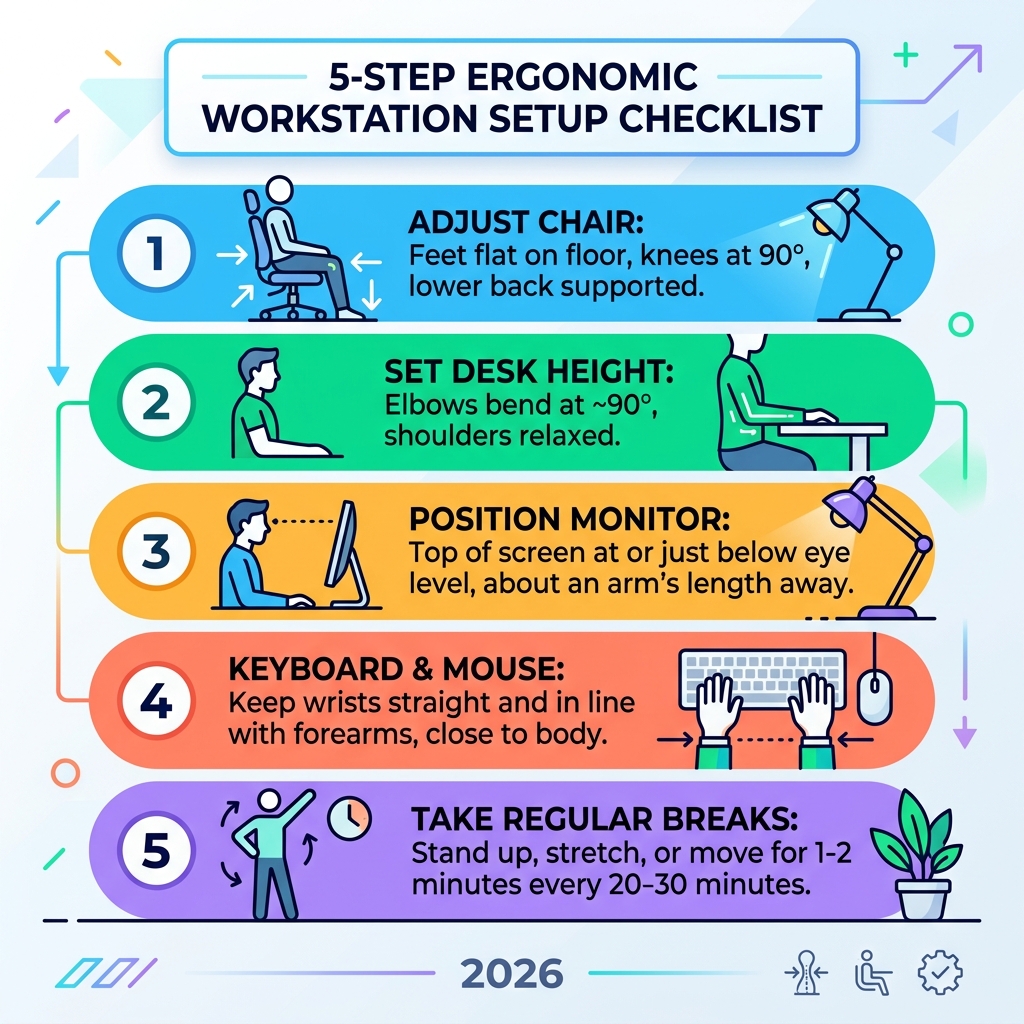
Here is a quick overview of the core steps:
- Adjust your chair so your feet are flat on the floor, knees at or just below hip level, and lower back supported
- Set your desk height so your elbows bend at about 90 degrees with shoulders relaxed
- Position your monitor at arm’s length away, with the top of the screen at or just below eye level
- Place your keyboard and mouse close to your body, keeping wrists straight and in line with your forearms
- Take regular breaks — stand up or stretch for 1-2 minutes every 20-30 minutes
Most of us spend 8 or more hours a day at a desk. That kind of prolonged sitting, especially in a poorly arranged workspace, contributes directly to neck pain, back pain, sore wrists, and shoulder tension.
The good news? You don’t need expensive equipment to fix it. Most ergonomic improvements come from small, free adjustments to what you already have.
This guide walks you through every part of your workstation — chair, desk, monitor, keyboard, mouse, and environment — so you can work without pain.
The Foundation: How to Set Up Workstation Ergonomically Starting with Your Chair
When we talk about how to set up workstation ergonomically, everything starts with the chair. Think of your chair as the cockpit of your productivity. If the seat is wrong, nothing else will feel right.
The goal is to achieve a “neutral posture.” This is the position where your body is aligned and balanced, placing the least amount of stress on your muscles and joints. According to Office ergonomics: Your how-to guide, a chair that supports your spine is non-negotiable.
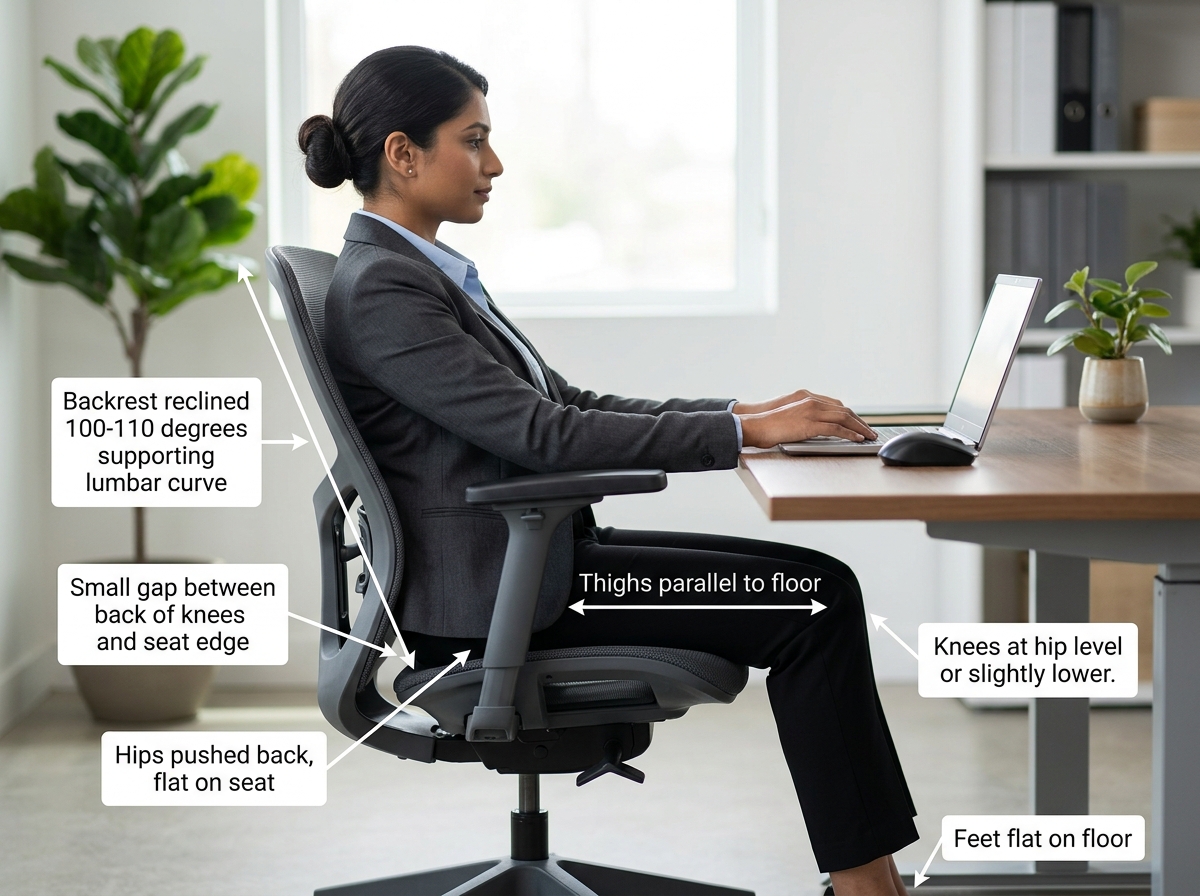
First, let’s look at your hips and legs. You want your hips to be pushed as far back in the chair as possible. Your thighs should be parallel to the floor, and your knees should be at the same level as—or slightly lower than—your hips. This helps maintain the natural curve of your lower spine.
One common mistake we see is “perching” on the edge of the seat. This leaves your back unsupported and puts immense pressure on your pelvis. Instead, ensure there is a small gap (about 2 to 3 fingers wide) between the back of your knees and the front edge of the seat. This ensures optimal circulation to your lower legs.
Adjusting Chair Height and Backrest for Spine Health
Once your hips are settled, it’s time to look at the backrest. A good ergonomic chair should have dedicated lumbar support that fits into the curve of your lower back. If your chair lacks this, a rolled-up towel or a small cushion can work wonders in a pinch.
We recommend a backrest recline of about 100 to 110 degrees. Sitting bolt upright at 90 degrees can actually be quite taxing on the spine over long periods. A slight recline helps distribute your weight more evenly. If your chair has an “active back mechanism,” use it! This allows the chair to move with you, encouraging “dynamic sitting” rather than staying frozen in one spot.
Don’t forget the armrests. They should be adjusted so your shoulders are relaxed and your elbows are close to your body. If the armrests are too high, they’ll hunch your shoulders; if they’re too low, you’ll lean to one side, throwing your spine out of alignment.
Optimizing Your Desk, Keyboard, and Mouse Placement
Your desk height is the next critical piece of the puzzle. The most common issue we encounter is a desk that is too high, forcing the user to shrug their shoulders just to reach the keyboard.
Ideally, your desk should be at “elbow height.” With your shoulders relaxed, bend your elbows to roughly 90 degrees. Your keyboard and mouse should live right at that level. If your desk isn’t adjustable and it’s too high, raise your chair and use a footrest to keep your feet supported. If it’s too low, you can use sturdy blocks or risers to lift the desk legs.
To help you visualize the ideal heights, we’ve put together this comparison:
| User Height | Ideal Sitting Desk Height | Ideal Standing Desk Height |
|---|---|---|
| 5’0″ (152 cm) | 23″ (58 cm) | 37″ (94 cm) |
| 5’6″ (168 cm) | 25″ (64 cm) | 41″ (104 cm) |
| 6’0″ (183 cm) | 28″ (71 cm) | 45″ (114 cm) |
For more deep dives into layout efficiency, check out this guide on How to create an ergonomic desk setup and productive workstation.
How to Set Up Workstation Ergonomically for Typing and Mousing
At Dims Finance, we specialize in keyboard and mouse ergonomics because these are the primary tools of modern work—and the primary causes of Repetitive Strain Injuries (RSIs).
When positioning your keyboard, center it in front of you. A great trick is to align the “B” key or the space between the “G” and “H” keys with your midline. This ensures your arms aren’t reaching across your body.
One of the most important tips from Your Guide to a Perfect Ergonomic Desk Setup (+ Expert Tips) is to keep your keyboard flat. Those little plastic “feet” at the back of many keyboards are actually a trap! They tilt the keyboard upward, forcing your wrists to bend back (extension), which compresses the carpal tunnel. Keep it flat, or even slightly tilted away from you (negative tilt) if you are sitting in a reclined position.
As for the mouse, keep it as close to the keyboard as possible. You want to move the mouse using your whole arm—pivoting from the elbow—rather than flicking your wrist. Flicking leads to “wrist pivoting,” which is a fast track to discomfort.
Managing Peripherals and Reach Zones
Think of your desk as an aircraft cockpit. Everything you use frequently should be within the “Primary Reach Zone”—the area you can reach by just moving your forearms with your elbows at your sides.
- Primary Zone: Keyboard, mouse, and phone (if used constantly).
- Secondary Zone: Items you use occasionally, like a stapler or a coffee mug, reachable by extending your arms.
- Tertiary Zone: Items you rarely use, which should require a full lean or standing up to reach.
If you spend a lot of time on the phone, please stop cradling the handset between your ear and shoulder! This creates massive “contact stress” and neck misalignment. Use a headset or speakerphone instead. Also, if you work from paper documents, use an in-line document holder placed between the keyboard and monitor to prevent constant neck twisting.
Monitor Positioning and Environmental Factors
Your eyes and neck are often the first to complain when you don’t know how to set up workstation ergonomically. If you find yourself leaning forward to read, your monitor is likely too far away or the font is too small.
The gold standard for monitor distance is roughly an arm’s length, or between 20 and 40 inches (50–100 cm). The height is even more crucial: the top third of the screen should be at your seated eye level. This allows you to look slightly downward at the center of the screen without tilting your head.
For our friends who wear bifocals, there’s a special rule: lower the monitor an additional 1 to 2 inches. This prevents you from having to tilt your head back to see through the bottom of your lenses.
How to Set Up Workstation Ergonomically with Laptops and Dual Screens
Laptops are an ergonomic nightmare because the screen and keyboard are tethered together. If the keyboard is at the right height, the screen is too low; if the screen is at the right height, the keyboard is too high.
The solution? Treat your laptop like a desktop brain. Use a laptop stand (or a stack of books) to get the screen to eye level, and plug in an external keyboard and mouse.
If you use dual screens, placement depends on how you use them:
- Equal usage: Place them side-by-side, touching in the middle, centered directly in front of you.
- One primary screen: Place the main monitor directly in front and the secondary monitor to the side, angled toward you.
Don’t ignore the environment, either. Optimal office temperature is between 71.6 and 75.2°F (22 to 24°C). Lighting should be bright but indirect—position your monitor perpendicular to windows to avoid glare, which causes eye strain and “computer vision syndrome.”
Movement, Breaks, and Standing Desk Best Practices
Even the most perfect ergonomic setup can’t save you from the dangers of a static posture. Human bodies were made to move. Prolonged sitting inhibits blood circulation and takes a toll on your sense of wellbeing.
If you use a sit-stand desk, standing all day is just as bad as sitting all day. Research shows that 87% of users felt more energized after 4 weeks of alternating between sitting and standing. However, we recommend standing for no more than 4 hours a day in total.
A good ratio to aim for is 20 minutes of sitting, 8 minutes of standing, and 2 minutes of walking or stretching. This “20-8-2” rule keeps your metabolism active and prevents muscle fatigue.
When standing, keep your weight balanced evenly on both feet. Avoid leaning on one hip. Using an anti-fatigue mat can provide much-needed cushioning for your joints. For more on the specifics of transitions, see 4 Steps to Set Up Your Workstation | Ergonomics.
We also highly recommend the 20-20-20 rule for eye health: every 20 minutes, look at something 20 feet away for at least 20 seconds. It’s like a mini-vacation for your eye muscles.
Frequently Asked Questions about Ergonomic Setups
How can I improve my ergonomics on a budget?
You don’t need a $1,000 chair to be comfortable. Here are some “hacks” we love:
- Monitor Riser: Use a stack of sturdy textbooks or a firm shoebox.
- Lumbar Support: Roll up a bath towel and secure it with rubber bands, then place it in the small of your back.
- Footrest: An old briefcase, a ream of paper, or a sturdy plastic bin can keep your feet flat.
- Laptop Stand: Use a kitchen cooling rack or a stack of books.
The most important “budget” move is simply taking more breaks—which costs exactly zero dollars.
What should I do if I still feel pain after making adjustments?
Ergonomics is a process of progress, not immediate perfection. It can take a few days for your body to adjust to a new, healthier position. However, if you experience persistent numbness, tingling, or sharp pain, it’s time to consult a professional.
RSIs like Carpal Tunnel Syndrome or Tendonitis often require medical intervention alongside ergonomic changes. Don’t ignore the “whispers” of pain before they become “screams.” A professional ergonomic evaluation can help identify subtle issues you might have missed.
How do I set up an ergonomic office in a small apartment?
In tight spaces, verticality is your friend. Use wall-mounted shelves to keep your desk surface clear of clutter, which reduces mental stress and “frictional” reaching.
If you don’t have room for a dedicated desk, a “portable laptop kit” (laptop stand + external peripherals) allows you to turn a dining table into an ergonomic station in seconds. Just remember to clear it away at the end of the day to maintain a healthy work-life boundary!
Conclusion
Mastering how to set up workstation ergonomically is an investment in your future self. By maintaining a neutral posture, optimizing your reach zones, and committing to regular movement, you can drastically reduce the risk of chronic pain and boost your daily productivity.
At Dims Finance, we believe that work shouldn’t hurt. Our science-based advice is designed to help you navigate the complexities of modern office life while keeping your musculoskeletal health a top priority. Whether you are adjusting a high-end office chair or propping up a monitor on a stack of books, every small change counts toward a more comfortable, injury-free career.
Ready to upgrade your space? Check out More info about office furniture to find the right tools for your ergonomic journey. Stay comfortable, stay productive, and keep moving!