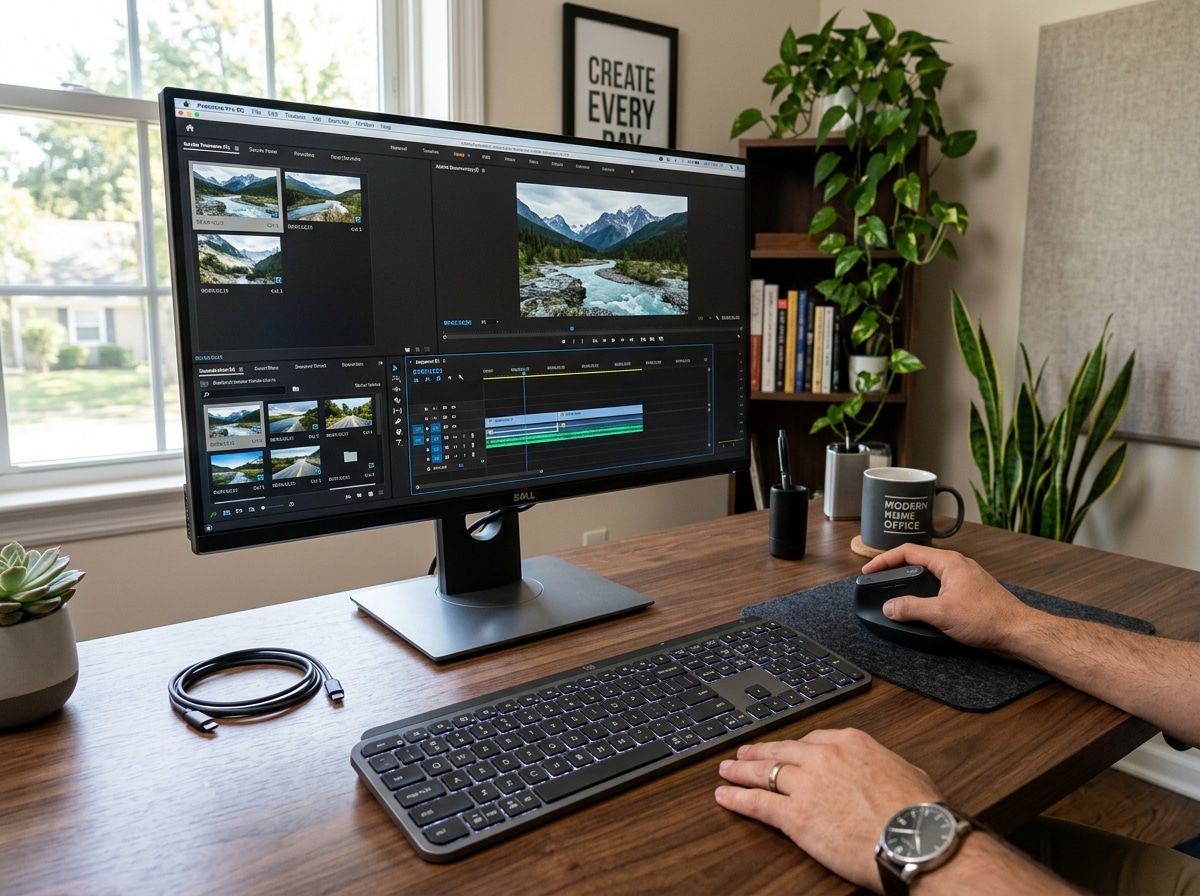
When Your Mouse Becomes a Health Hazard: Editing and Tendonitis
If you’re searching for the best mouse for editing software tendonitis, here are the top options to consider right now:
| Device Type | Best Pick | Why It Helps |
|---|---|---|
| Vertical Mouse | Logitech MX Master 3S | Handshake grip reduces forearm twisting |
| Trackball | Logitech MX Ergo S | Eliminates wrist movement entirely |
| Sculpted Ergonomic | Razer Pro Click V2 | Wide thumb rest, wrist support, low strain |
| Pen Tablet | Wacom Intuos | Distributes strain across different muscles |
Video editors. Audio engineers. Photo retouchers. These are the people most likely to spend 6–10 hours a day gripping a mouse — clicking, scrubbing timelines, dragging faders, adjusting curves.
That kind of repetitive motion adds up fast.
Repetitive Strain Injury (RSI) — which includes tendonitis — is the number one occupational hazard in the USA, and computer workers are among the most affected. The culprit isn’t just how long you use a mouse. It’s the position your hand is forced into.
A traditional mouse makes you rotate your forearm downward (called pronation), which twists the tendons in your wrist and forearm. Do that for hours every day, and inflammation follows. Editors are especially vulnerable because editing software demands constant, precise mouse movements with very little rest.
The good news? The right input device can make a real difference. Studies show that angled and vertical mice reduce discomfort without significantly hurting accuracy, because they keep your hand closer to its natural resting position.
This guide breaks down exactly which mice and alternatives work best for editors dealing with wrist pain — and how to choose the right one for your workflow.

Understanding Mouse for Editing Software Tendonitis and RSI
To fix the pain, we first have to understand why it’s happening. When we use a standard mouse, our palm faces the desk. This position, known as pronation, requires the two bones in your forearm (the radius and ulna) to cross over each other. This “twist” puts constant tension on the muscles and tendons.
For an editor, the strain is amplified. Think about your daily workflow:
- Timeline Scrubbing: Constant back-and-forth horizontal movements.
- Precision Clicking: Selecting tiny edit points or keyframes requires micro-tensions in the hand.
- Repetitive Dragging: Holding down a click while moving the mouse is a high-strain activity for the finger tendons.
Over time, this leads to muscle fatigue and eventually inflammation. If you’ve felt a dull ache in your wrist or a sharp pull in your forearm, your body is sending a warning signal. We’ve seen many cases where ignoring these signs leads to a full-blown keyboard wrist injury when your hands go on strike, making professional work nearly impossible.

The goal of a specialized mouse for editing software tendonitis is to “untwist” the arm. By moving to a neutral posture—often called the “handshake position”—we can significantly reduce the pressure on the carpal tunnel and the tendons. It’s about working with your anatomy, not against it. To dive deeper into how these injuries form and how to spot them early, check out our guide on how employees can stop repetitive strain injuries before they start.
Top Ergonomic Mouse Categories for Video and Audio Editors
There is no “one size fits all” solution for RSI. The best device for you depends on your specific pain points and your editing style. Here is a quick look at the three main categories we recommend for professionals:
| Category | Best For… | Ergonomic Benefit |
|---|---|---|
| Vertical Mice | General editing, high precision | Neutral “handshake” grip; reduces forearm rotation. |
| Trackball Mice | Tight desk spaces, wrist pain | Zero wrist movement; controlled entirely by fingers/thumb. |
| Pen Tablets | Color grading, masking, retouching | Absolute positioning; uses “writing” muscles instead of “clicking” muscles. |
Choosing between these requires understanding your grip style and how much precision you need for your specific software. For a deeper dive into the mechanics of scrolling and clicking without pain, see our article on wrist management: finding the best RSI mouse for pain-free scrolling. We also have extensive resources on ergonomic keyboard and mouse setups for maximum comfort to help you build a holistic workstation.
Why a Vertical Mouse for Editing Software Tendonitis Works
A vertical mouse is essentially a standard mouse turned on its side. Most high-quality models, like the MX Master 3S for Business Wireless Mouse, feature a 57-degree angle. This specific tilt is the “sweet spot” for ergonomics—it’s enough to keep your forearm in a neutral handshake position while still feeling familiar enough to use for high-speed editing.
Why does this matter for editors?
- Reduced Muscle Activity: Studies show that using a vertical mouse can reduce muscle activity in the forearm by up to 10-20%.
- Thumb Support: Most vertical mice have a deep thumb rest, which prevents your thumb from dragging on the desk—a common cause of irritation during long sessions.
- Familiarity: Unlike trackballs, you still move the mouse across the desk, so your accuracy in software like Premiere Pro or DaVinci Resolve remains high from day one.
For those in a corporate or shared studio environment, the Signature Wired M520 L Mouse for Business | Logitech offers a contoured design that provides a more ergonomic experience than standard office mice, even in a more traditional (though highly sculpted) form factor.
Trackball Mice: Eliminating Wrist Movement in the Studio
If your pain is centered specifically in the wrist joint, a trackball might be your best friend. With a trackball, the mouse stays in one place. You move the cursor by rolling a ball with your thumb or fingers.
The MX Ergo S – Wireless Trackball Mouse | Logitech is a favorite among audio engineers. It features a unique adjustable hinge that allows you to tilt the device up to 20 degrees. This combines the “handshake” benefit of a vertical mouse with the “zero-movement” benefit of a trackball.
Pros for Editors:
- Desk Space: You don’t need a large mousepad. This is great for crowded editing desks filled with monitors and control surfaces.
- Precision: Once you get through the learning curve, trackballs are excellent for long, smooth movements across multiple monitors.
- Reduced Fatigue: Because your arm and wrist never move, you eliminate the “lifting and repositioning” motion that many editors do hundreds of times a day.
The Logitech MX ERGO Advanced Wireless Trackball Mouse also offers a “Precision Mode” button. When you’re doing fine work—like adjusting a tiny audio crossfade—you can instantly slow down the cursor for pixel-perfect control.
Advanced Alternatives: Pen Tablets and Control Surfaces
Sometimes, the best mouse for editing software tendonitis isn’t a mouse at all. Many professional editors have switched entirely to pen tablets (like Wacom) or dedicated control surfaces to bypass the “claw grip” entirely.
Pen tablets offer “absolute positioning.” On a mouse, if you move to the edge of the pad, you have to lift and reset. On a tablet, the top-right corner of the tablet is the top-right corner of your screen. This allows for much faster navigation once you master the “hover” technique. For more on how to integrate these into your desk, see our guide on ergonomic keyboard and mouse setup.
Transitioning to a Pen Tablet as a Mouse for Editing Software Tendonitis
Using a stylus like the Wacom Intuos mimics the way we’ve held pens since childhood. This uses a completely different set of muscles than a mouse. Instead of clicking with a downward force from your index finger, you tap the pen tip.
Why it works for RSI:
- Bimanual Operation: You can use the pen in your dominant hand and a dedicated ergonomic keyboard or shortcut remote in the other.
- Muscle Rotation: It encourages movement from the elbow and shoulder rather than just the wrist.
- Pressure Sensitivity: Great for “painting” in masks or adjustments in photo editing software.
If you are a left-handed editor, tablets are naturally ambidextrous, though you might also want to look into the best left-handed wireless mouse for sinister comfort if you prefer a traditional pointing device.
Optimizing Your Editing Suite to Prevent Further Injury
Even the most expensive ergonomic mouse won’t help if your desk is set up poorly. Ergonomics is a system, not a single purchase. To ensure your new mouse for editing software tendonitis actually does its job, you need to look at your overall workstation.
- The 90-Degree Rule: Your elbows should be at a 90-degree angle, resting comfortably at your sides. If your desk is too high, you’ll find yourself “shrugging” your shoulders, which leads to neck pain and referred pain in the arms.
- Neutral Wrist Position: Avoid using wrist rests that put pressure on the underside of your wrist (the carpal tunnel). Instead, aim for a neutral wrist position for your keyboard setup where your hand floats or rests on the heel of the palm.
- Keyboard Placement: Keep your mouse and keyboard close together. Reaching far to the right for your mouse creates “abduction” in the shoulder, which can cause pain all the way down to the hand.
- Keyboard Shortcuts: The best way to reduce mouse strain is to use the mouse less. Learn your J-K-L editing shortcuts and use ergonomic wrist rests for typing to keep your hands ready for action.
For a full walkthrough on creating a healthy workspace, we recommend our comprehensive guide on how to set up your workstation ergonomically for peak comfort.
Frequently Asked Questions about Editing Mice and RSI
Can I use a gaming mouse for professional editing?
Yes, but with caveats. High-end gaming mice like the Razer Pro Click V2 – Wireless Ergonomic Mouse | Razer United States are actually excellent for editing. They offer high DPI (sensitivity), which means you can move the cursor across the screen with very tiny physical movements of your hand. This reduces the total “mileage” your wrist travels in a day.
However, many gaming mice are designed for “claw” or “fingertip” grips which can actually increase tension. If you go this route, look for “productivity” gaming hybrids like the Buy MX Anywhere 3S Wireless Bluetooth Mouse | Logitech, which tracks on glass and offers a more relaxed shape.
How long does it take to adapt to a trackball or vertical mouse?
Generally, it takes about 3 to 7 days of consistent use to regain your professional editing speed.
- Vertical Mice: Almost instant. You’ll feel 90% comfortable within an hour.
- Trackballs: This takes longer. Your thumb has to develop new muscle memory for fine movements. We recommend using it for light tasks (email, browsing) for a few days before jumping into a high-stakes edit.
- Pen Tablets: Expect a week of “clumsiness.” Once you get it, though, most editors find they actually work faster than they did with a mouse.
Should I use multiple input devices simultaneously?
Absolutely. This is the secret weapon of pro editors. By rotating between a vertical mouse, a trackball, and a pen tablet, you ensure that no single muscle group is overworked.
We often suggest a “Mouse and Trackball Combo.” Use the vertical mouse for your primary editing and switch to the trackball for long sessions of timeline scrolling or audio mixing. This variation is the best defense against repetitive strain.
Conclusion
At Dims Finance, we believe that your career shouldn’t come at the cost of your physical health. Editing is a marathon, not a sprint, and the tools you choose today will determine how your hands feel ten years from now.
Investing in a high-quality mouse for editing software tendonitis is more than just a gear upgrade—it’s a commitment to your long-term well-being. Whether you choose the handshake grip of a vertical mouse, the stationary precision of a trackball, or the natural flow of a pen tablet, the goal is the same: reducing strain and boosting your creative longevity.
Ready to take your comfort to the next level? Explore more ergonomic desk accessories and start building a workspace that works for you.