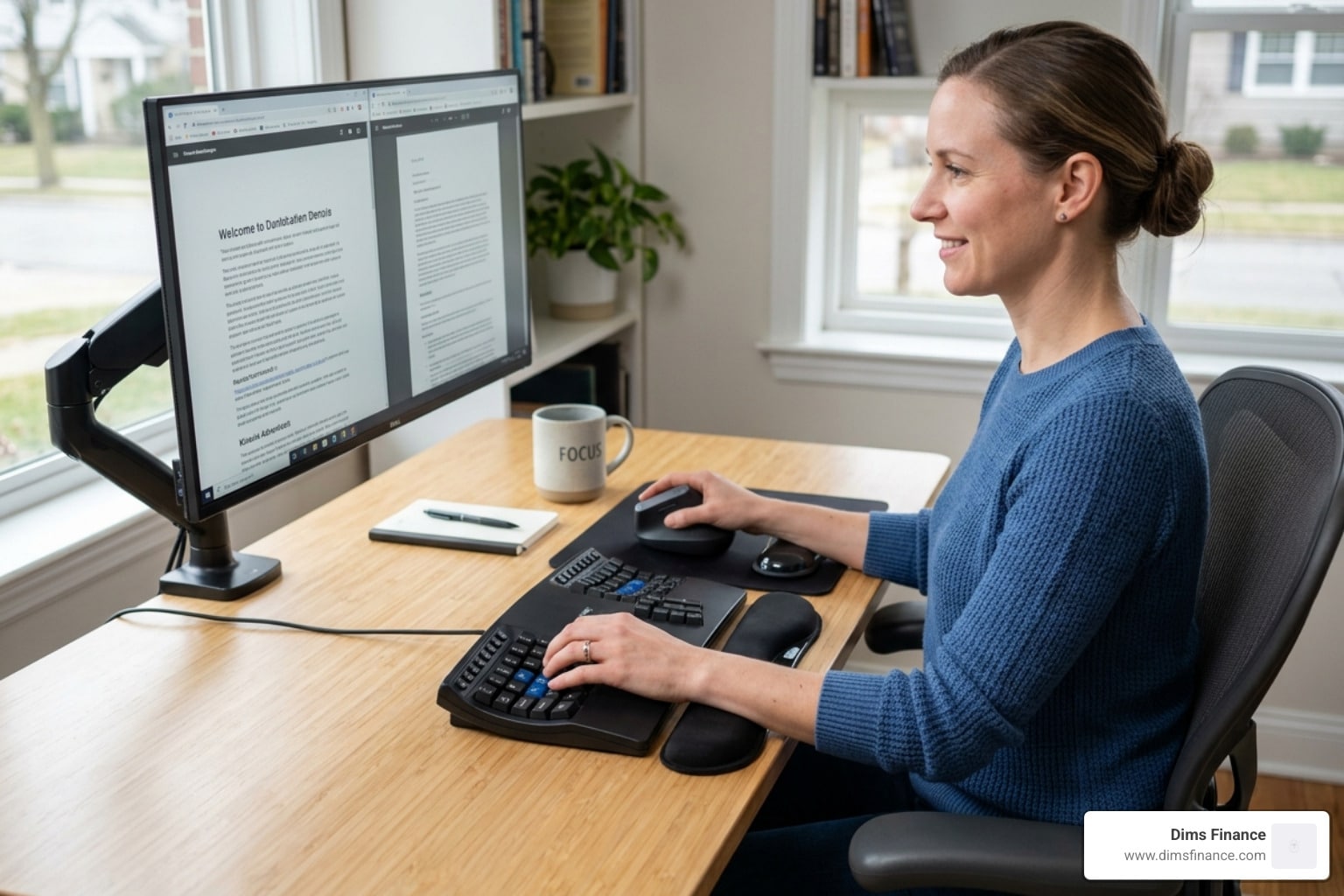
Why Your Keyboard Could Be Hurting Your Wrists Right Now
Wrist pain computer keyboard setups are a bigger problem than most desk workers realize — and the right gear can make or break your long-term hand health.
Quick answer: Best ergonomic keyboards for wrist pain relief (2026)
| Type | Best For | Key Feature |
|---|---|---|
| Split keyboard | Broad shoulders, all-day typing | Eliminates ulnar deviation |
| Tented keyboard | Forearm fatigue, pronation pain | Raises thumb side to neutral |
| Low-profile keyboard | Wrist extension pain | Reduces upward wrist bending |
| Tenkeyless (TKL) | Mouse overreach pain | Keeps mouse closer to shoulder |
You probably don’t think of typing as a physical activity. But your wrists tell a different story after eight hours at a keyboard.
The core problem is position. Standard keyboards force your wrists into unnatural angles — bent outward, rotated flat, or tilted upward. Hold any joint in a strained position long enough, and tissue starts to complain.
Over time, this repetitive strain can aggravate real conditions: tendonitis, carpal tunnel syndrome, and ulnar wrist pain among them. The good news? The right keyboard — paired with a smart workstation setup — can take most of that stress away.
This guide covers the best picks for 2026, what features actually matter, and how to set everything up so you can type pain-free.
Biomechanics and Essential Features of a Wrist Pain Computer Keyboard
To understand why your current setup hurts, we have to look at the “Big Three” of poor typing posture: ulnar deviation, forearm pronation, and wrist extension. When we use a standard, flat keyboard, we are essentially forcing our complex anatomy into a rigid, rectangular box that wasn’t designed for human curves.
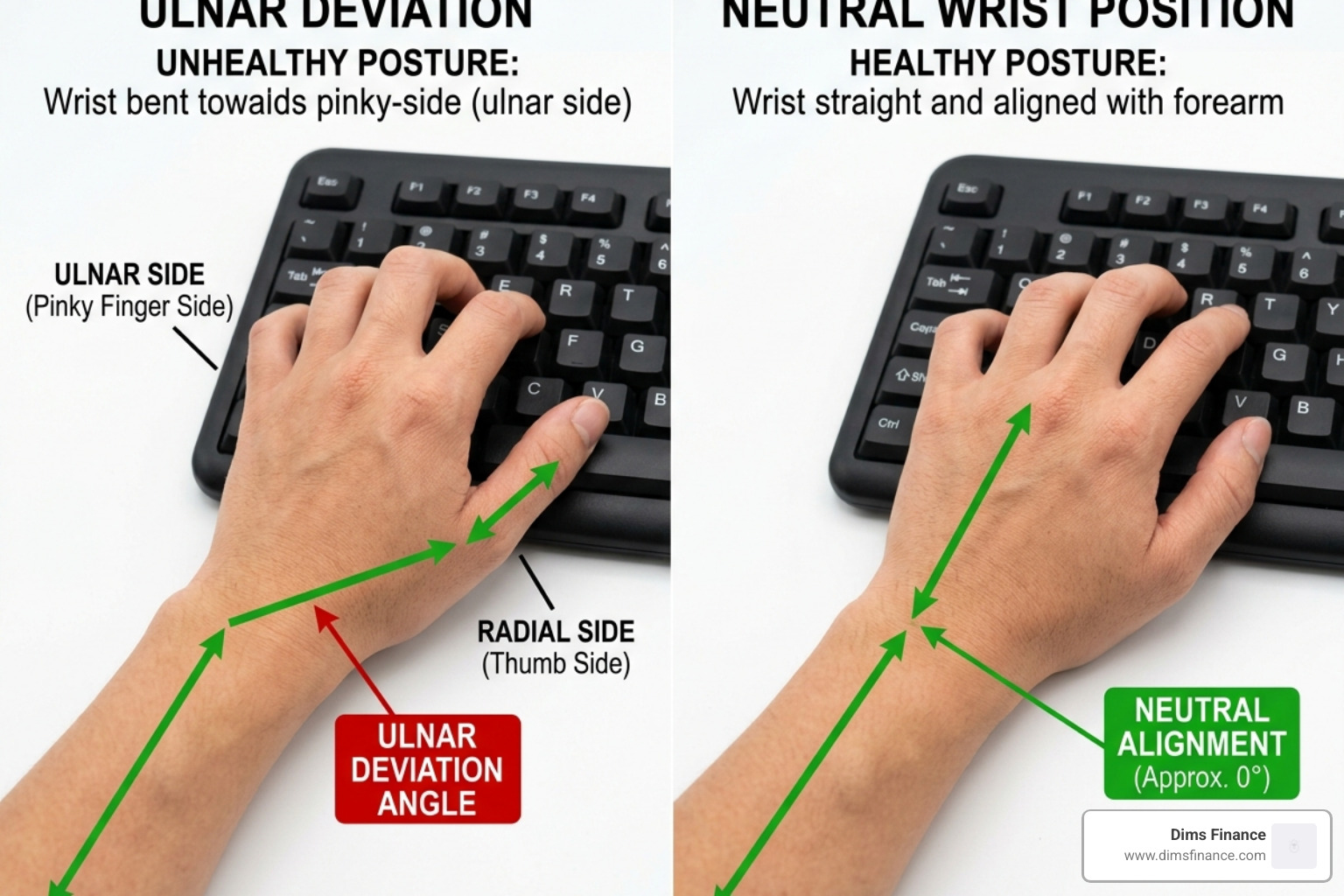
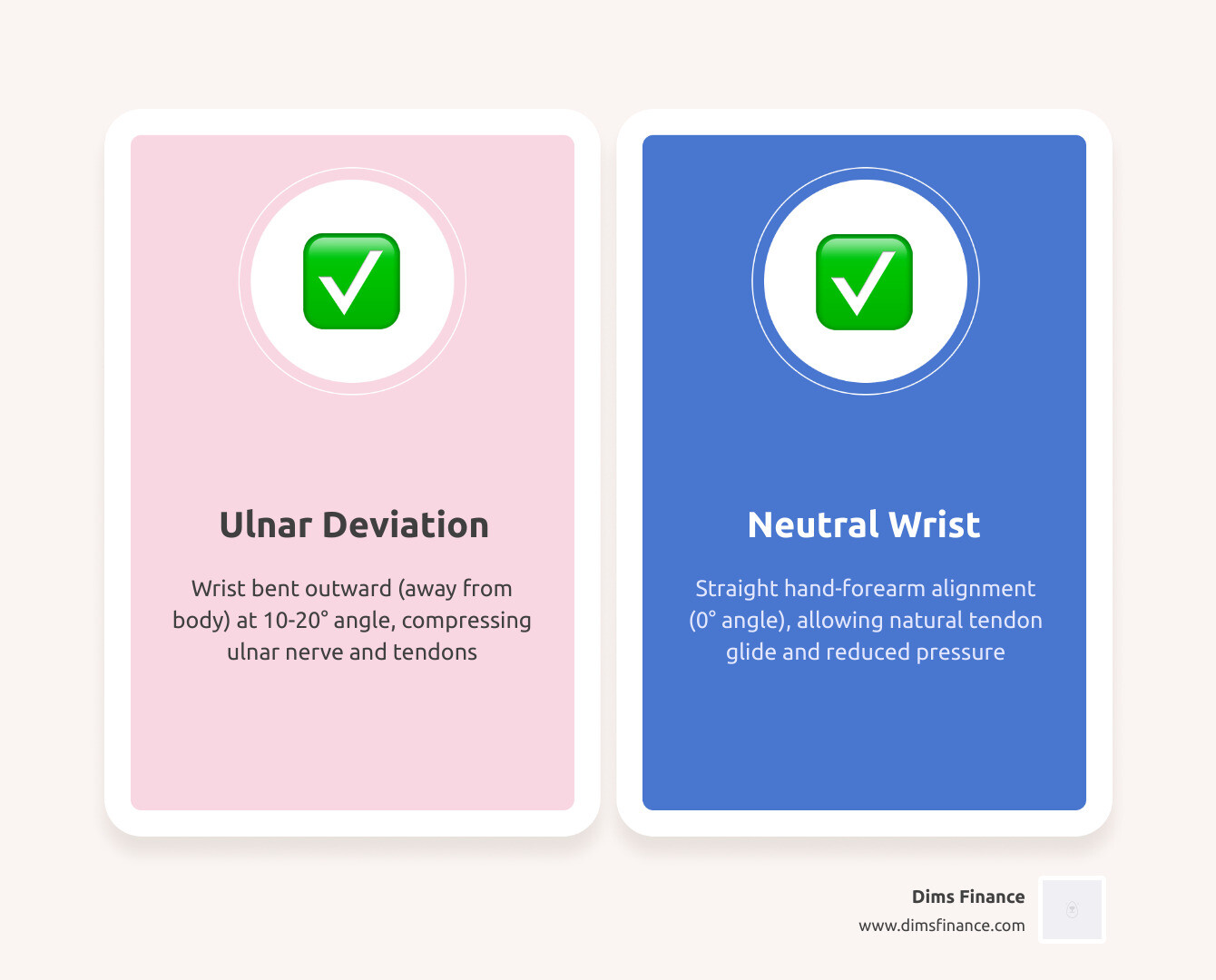
First, let’s talk about ulnar deviation. This happens when you bend your wrists outward toward your pinky fingers to reach the keys. Because standard keyboards are narrow, your hands have to “pivot” at the wrist to stay on the home row. This position constricts blood flow and puts static tension on the ulnar wrist pain area, leading to that sharp, nagging ache on the outside of your hand.
Then there is forearm pronation. This is the act of turning your palms face-down to type. In a natural, relaxed state, your hands should rest at a slight angle (like holding a steering wheel at 10 and 2). Forcing them flat rotates the two bones in your forearm (the radius and ulna), which can lead to repetitive strain over time. This is often why your current keyboard is a pain in the wrist.
Finally, wrist extension occurs when your keyboard is angled upward (often by those little plastic feet at the back). This forces your hands to “cock back,” compressing the carpal tunnel and putting your finger muscles at a mechanical disadvantage.
| Feature | Standard Keyboard | Ergonomic Keyboard | Benefit |
|---|---|---|---|
| Angle | Flat (0°) or Positive Slope | Negative Slope or Flat | Reduces wrist extension |
| Layout | Straight Row | Split or Splayed | Eliminates ulnar deviation |
| Tenting | None (Flat) | 5° to 90° adjustable | Reduces forearm pronation |
| Palm Support | None or Hard Edge | Integrated Cushioned Support | Maintains neutral wrist position |
Split Designs: The Ultimate Wrist Pain Computer Keyboard Solution
The most effective way to combat ulnar deviation is to move the keys to where your hands naturally want to be. A split keyboard allows you to separate the left and right halves of the keyboard. This means you can keep your hands aligned with your shoulders rather than scrunching them together in the middle of your desk.
For those with broad shoulders, a split design is a game-changer. By increasing the distance between the modules, you allow your chest to open up and your wrists to stay perfectly straight. If you are looking for specific gear, check out our guide on split keyboard wrist relief top rated supports to see how these modular designs can revolutionize your workflow in April 2026.
Neutral Wrist Alignment and Tenting
“Tenting” refers to raising the inner edge of the keyboard halves so they resemble a tent. This allows you to type with your hands in a more vertical, “handshake” position. Research shows that even a small tenting angle of 5 to 15 degrees can significantly reduce the pressure on your forearm muscles.
When combined with integrated palm supports, tenting helps you achieve the “neutral zone.” Unlike a “wrist rest,” which can actually put pressure on the sensitive carpal tunnel, a palm support carries the weight of your hand through the fleshy heel of the palm. This is the secret to mastering the neutral wrist position for your keyboard setup.
Top Ergonomic Picks for 2026
As we move through April 2026, the technology behind the wrist pain computer keyboard has evolved. We no longer have to choose between “clunky” and “comfortable.” The latest mechanical ergonomic boards offer high-end switches that require very little effort to press, which is vital for preventing finger fatigue.

When selecting a board, we recommend looking for “Tenkeyless” (TKL) designs. These keyboards remove the dedicated number pad on the right side. While it might seem like a loss, it allows your mouse to sit much closer to your body, preventing “mouse overreach” — a hidden cause of shoulder and wrist strain. If you’re overwhelmed by the options, our guide on how to choose an RSI friendly keyboard without the stress breaks down the specs you need.
Low-Force Switches for Your Wrist Pain Computer Keyboard
Not all keys are created equal. Standard “membrane” keyboards often require you to “bottom out” the key (press it all the way down) to register a stroke. This creates a micro-impact on your finger joints thousands of times a day.
In contrast, high-quality mechanical switches have a specific activation force, usually measured in grams (g).
- 35g – 45g (Light): Ideal for those with existing joint pain or arthritis.
- 50g – 55g (Medium): Great for typists who want tactile feedback without the strain.
Tactile feedback is a tiny “bump” you feel when the key registers. This trains your brain to stop pressing before the key hits the bottom, significantly reducing the impact on your hands.
Compact Tenkeyless and Embedded Keypads
One of the biggest ergonomic mistakes we see is the “extra wide” keyboard. If you have a full-size keyboard with a number pad, you are likely reaching far to the right to use your mouse. This forces your shoulder into an awkward rotation and puts your wrist at an angle.
By choosing a compact or tenkeyless design, you keep your mouse directly in front of your shoulder. If you do heavy data entry, you can always add a standalone numeric keypad that you only pull out when needed. This approach allows you to stop reaching and start typing with these adjustable keyboard trays and compact layouts.
Optimizing Your Workstation for Relief
Even the best wrist pain computer keyboard can’t save you if your desk is at the wrong height. If your keyboard is too high, you’ll naturally shrug your shoulders and bend your wrists up. If it’s too low, you’ll slouch.
Your goal is to have your elbows at roughly a 90-degree angle, with your forearms parallel to the floor. Your wrists should “float” over the keys or rest lightly on a palm support, never bent upward. Using the ultimate guide to setting up your keyboard tray height can help you find that “sweet spot” where gravity does the work for you.
To further reduce typing related wrist strain before it becomes a problem, ensure your monitor is at eye level. If you’re looking down at a laptop, your whole posture collapses, which “kinks the hose” of the nerves running from your neck down to your fingertips.
Stretches and Microbreaks
We like to advocate for the “20/20/20 rule,” but for your wrists. Every 20 minutes, take 20 seconds to look 20 feet away and move your hands. These “exercise snacks” prevent your muscles from locking into a static, strained posture.
Try these simple movements to keep the blood flowing:
- Finger Fans: Spread your fingers as wide as possible, then make a tight fist. Repeat 5 times.
- Wrist Windmills: With your arms extended, slowly rotate your wrists in circles, first clockwise, then counter-clockwise.
- The Prayer Stretch: Place your palms together in front of your chest and slowly lower them toward your waist until you feel a gentle stretch in your underside forearms.
For more routines, see our guide on typing without the tension.
Immediate Remedies for Acute Pain
If you are already in the “ouch” zone, you need immediate relief. For new injuries or sudden flare-ups, ice is your best friend. Apply an ice pack (wrapped in a thin towel) for 10-15 minutes every hour to reduce inflammation.
According to MedlinePlus, over-the-counter anti-inflammatories like ibuprofen can help manage the swelling. You might also consider a wrist brace, but be careful: braces should generally be worn at night to prevent you from curling your wrists while you sleep. If you wear one during the day, ensure it still allows for full finger movement so you don’t create new strains while trying to “fix” the old one.
Frequently Asked Questions about Typing Strain
Can typing cause carpal tunnel syndrome or tendonitis?
This is a common concern for any “keyboard warrior.” The latest medical consensus, including insights from the Cleveland Clinic, suggests that typing doesn’t cause carpal tunnel syndrome (CTS) directly. CTS is often linked to genetics, hormonal changes, or underlying health conditions.
However, typing in a non-neutral position definitely makes CTS symptoms much worse. The median nerve, which runs through the “tunnel” in your wrist, gets pinched when the wrist is extended or deviated. Similarly, tendonitis (inflammation of the tendons) is a direct result of the repetitive friction caused by thousands of keystrokes in a strained position.
How often should you take breaks when typing?
Static posture is the enemy of health. We recommend taking a “microbreak” every 20 to 30 minutes. This doesn’t mean you have to stop working; it just means you need to stop typing. Switch to a phone call, do some filing, or simply stand up and stretch for 20 seconds.
Consistent movement helps flush out metabolic waste from your muscles and brings in fresh, oxygenated blood. For a deeper dive into timing, read the keyboard warriors guide to preventing repetitive strain.
When should you see a doctor for wrist pain from typing?
While most typing-related aches can be solved with better gear and better habits, some symptoms require professional help. You should see a hand specialist or your primary care doctor if you experience:
- Numbness or tingling that wakes you up at night.
- Weakness in your grip (e.g., dropping your coffee mug or struggling to open a jar).
- Persistent pain that doesn’t improve after two weeks of rest and ergonomic changes.
- Redness, warmth, or fever, which could indicate an infection.
Conclusion
At Dims Finance, we believe that your career shouldn’t come at the cost of your physical health. Investing in a high-quality wrist pain computer keyboard isn’t just a “tech upgrade” — it’s an investment in your long-term productivity and well-being.
By choosing gear that supports your natural anatomy, taking frequent breaks, and optimizing your workstation height, you can turn your desk from a place of strain into a place of comfort. Don’t wait until the pain becomes a permanent distraction. Take the first step today and learn how to stop RSI before it starts. Your wrists will thank you for years to come.