Why Your Typing Posture Could Be Hurting You Right Now
An ergonomic typing posture guide helps you set up your body and workspace to prevent pain, reduce injury risk, and type comfortably for longer. Here’s the quick version:
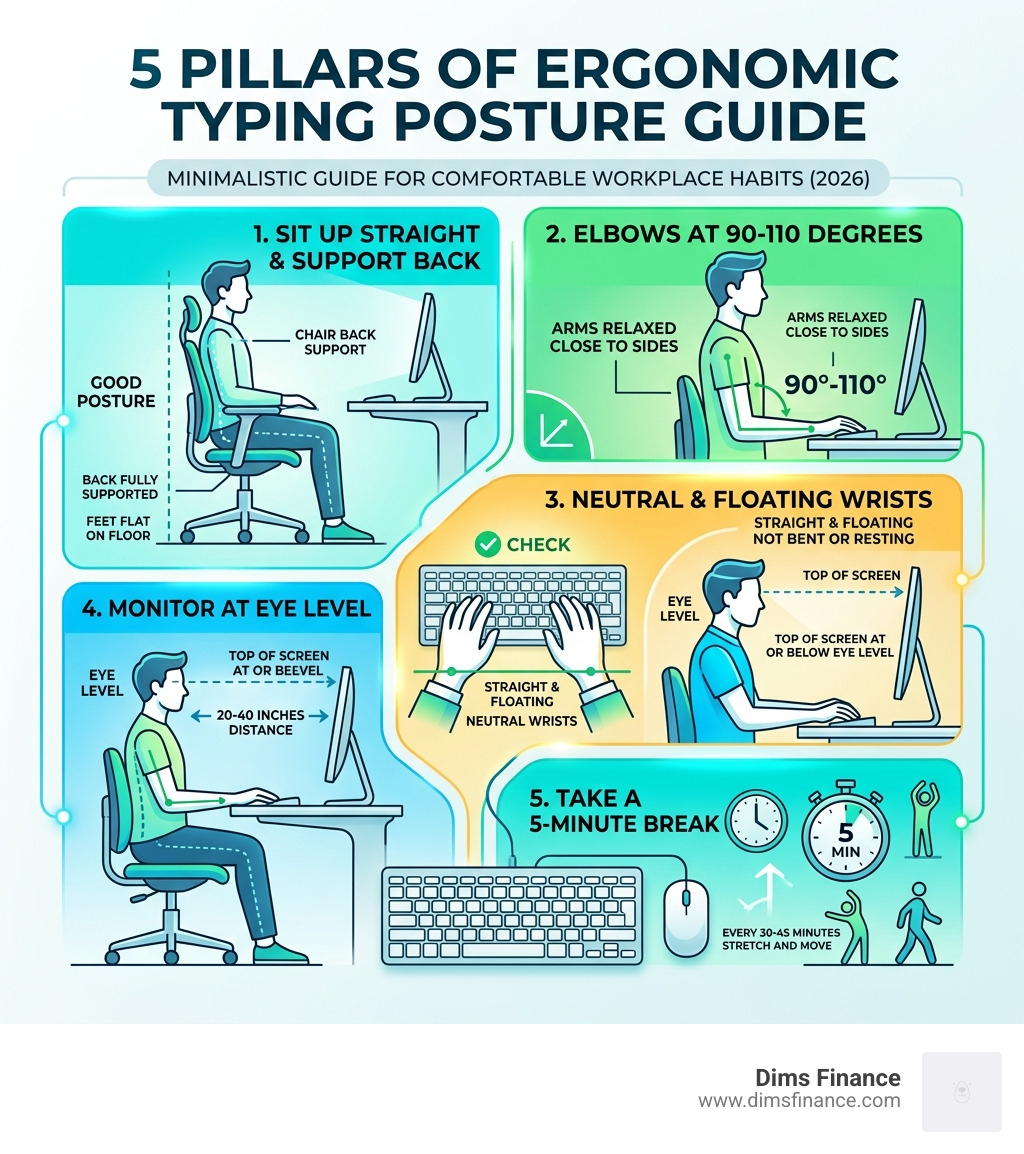
- Sit up straight with your back fully supported and feet flat on the floor
- Elbows at 90-110 degrees, arms relaxed close to your sides
- Wrists neutral — straight and floating above the keyboard, not bent or resting
- Monitor at eye level, roughly 20-40 inches from your face
- Take a 5-minute break every 30-45 minutes to stretch and move
Most people don’t think about their typing posture until something hurts. By then, the damage has often already started.
Over 60% of office workers experience typing-related discomfort at some point in their careers. And 8 in 10 adults report back pain — with more than half of desk workers pointing to their workstation as the cause.
Here’s what makes it tricky: the harm is slow. Poor posture creates microtraumas — tiny, repeated stresses on muscles, tendons, and nerves that build up quietly over months or years before you feel them. And once an injury like repetitive strain injury (RSI) or carpal tunnel syndrome sets in, it can take 6-12 months to heal, even with proper treatment.
The good news? Most of this is preventable. The right posture, the right setup, and a few simple habits can make a significant difference — whether you work at a standing desk, a kitchen table, or a gaming setup.
This guide covers everything: full-body posture, wrist position, monitor and keyboard placement, equipment recommendations, breaks, stretches, and the early warning signs you should never ignore.
Why an Ergonomic Typing Posture Guide is Essential for Your Health
As we navigate the workplace landscape of April 2026, the lines between home and office have permanently blurred. While the flexibility is great, our bodies are paying the price for “sofa-surfing” productivity. Statistics show that office workers spend roughly 95% of their time in front of a computer, making the keyboard our most-used tool and, potentially, our greatest health risk.
When we ignore the principles of an ergonomic typing posture guide, we invite a host of musculoskeletal issues. The most common is back pain, which affects 8 out of 10 adults. However, the more insidious risks are Repetitive Strain Injuries (RSIs). These occur when repetitive motions—like those thousands of keystrokes you perform daily—place excessive stress on your joints and soft tissues.
A major concern is Carpal Tunnel Syndrome. This happens when the median nerve, which runs from your forearm into the palm of your hand, becomes pressed or squeezed at the wrist. Research indicates that typing more than 28 hours per week significantly elevates your risk for this condition. By following Proper Sitting Posture for Typing | HealthLink BC, you can ensure your workstation supports your body rather than straining it.
We also need to consider Typing Posture Tips To Prevent Digital Injuries to protect ourselves from muscle fatigue. When you sit in a “problematic” posture for more than three or four hours, your muscles inevitably tire out, leading to slouching, which further compresses nerves and restricts blood flow. Proper ergonomics isn’t just about comfort; it’s about career longevity.
The Full-Body Blueprint: Achieving the Ideal Typing Posture
Achieving the perfect posture is like building a house; you need a solid foundation from the ground up. It isn’t just about where your fingers land; it’s about how your entire body is aligned.
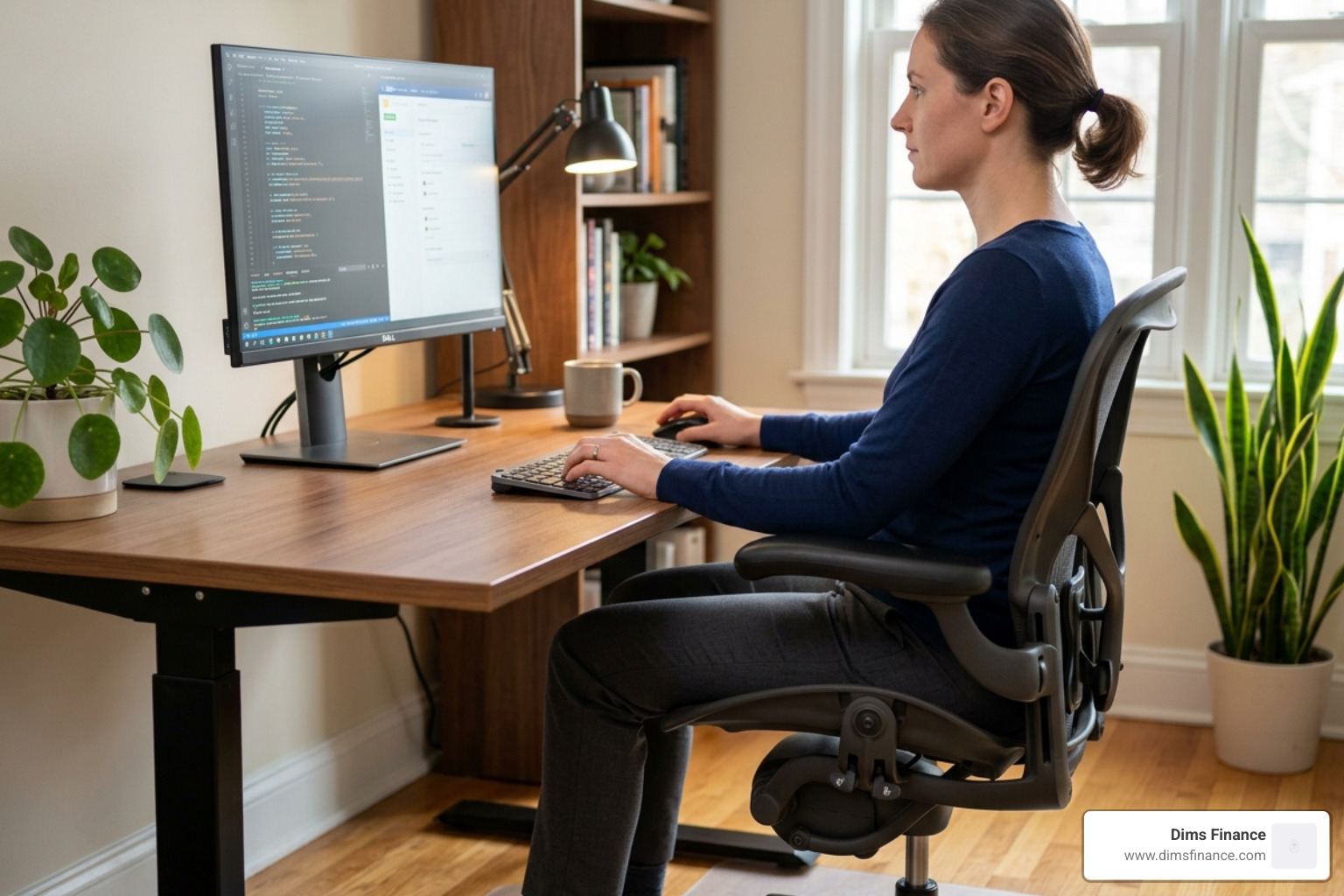
- Head and Neck: Your head should be balanced directly over your shoulders, not leaning forward (a phenomenon often called “tech neck”).
- Shoulders and Arms: Keep your shoulders relaxed—don’t shrug them up toward your ears. Your upper arms should hang naturally, close to your sides.
- The 90-Degree Rule: Your elbows should be bent at an angle between 90 and 110 degrees. This “open” angle helps maintain circulation and prevents nerve compression.
- Back and Hips: Sit back in your chair so your spine maintains its natural “S” curve. If your chair doesn’t have built-in support, we recommend adding a lumbar pillow. Interestingly, some experts suggest a slight recline (110–130 degrees) can reduce pressure on the spinal discs.
- Legs and Feet: Your thighs should be parallel to the floor, with the “popliteal” area (the back of your knees) slightly away from the seat edge to ensure blood flow. Most importantly, your feet must be flat on the floor. If you are on the shorter side, a footrest is a non-negotiable tool for The Home Office Ergonomics Equation For Pain Free Typing.
By maintaining these angles, you minimize both static muscle load (holding a position) and dynamic muscle load (moving while typing). For a deeper dive into these mechanics, check out the guidelines for Proper Sitting Posture for Typing | HealthLink BC.
Mastering the Neutral Wrist Position in Your Ergonomic Typing Posture Guide
If there is one “holy grail” in this ergonomic typing posture guide, it is the neutral wrist position. This means your wrists are straight—not bent up (extension), down (flexion), or side-to-side (ulnar or radial deviation).
The secret to Mastering The Neutral Wrist Position For Your Keyboard Setup is to let your wrists “float” above the keyboard. Think of a concert pianist; their hands hover, allowing their fingers to move freely. When you rest your wrists on the desk or a pad while typing, you create “contact stress,” which can compress the carpal tunnel.
Your fingers should be loosely curved, striking the keys with the pads of your fingertips rather than the tips of your nails. This technique, combined with How To Master The Wrist Neutral Keyboard Position, reduces the force required for each keystroke, saving your tendons from unnecessary friction.
Optimizing Your Workstation: Keyboard, Mouse, and Monitor Placement
Your equipment needs to meet you where you are, not the other way around. If you are reaching for your mouse or squinting at your screen, your setup is failing you.
Keyboard Placement The height of your keyboard is critical. It should be just below elbow height. A common mistake is using the “little plastic feet” at the back of the keyboard. These actually create a “positive tilt,” forcing your wrists to bend upward. For most people, a flat keyboard or a “negative tilt” (where the top of the keyboard is lower than the bottom) is the safest bet for Keyboard Placement 101 Stop The Wrist Strain.
| Feature | Flat Keyboard | Negative Tilt Keyboard |
|---|---|---|
| Wrist Position | Neutral/Straight | Most Natural/Neutral |
| Forearm Strain | Low | Lowest |
| Accessibility | Standard | Requires Tray/Adjustable Stand |
| Best For | General Users | Professional Typists/RSI Prevention |
Monitor and Mouse Your monitor should be directly in front of you, about an arm’s length away (20–40 inches). The top of the screen should be at or slightly below eye level. This prevents you from tilting your head up or down, which is a leading cause of neck strain.
As for the mouse, keep it as close to the keyboard as possible. You want to avoid “reaching” outward, which strains the shoulder. We often suggest Finding Your Neutral Zone The Ultimate Guide To Keyboard Placement to help you map out where your most-used items should live.
Essential Equipment for Your Ergonomic Typing Posture Guide
While good habits are free, the right tools act as a “cheat code” for better health. If you struggle with wrist pain, The Ultimate Ergonomic Keyboard Setup For Happy Wrists often involves a split keyboard. These designs allow your hands to stay at shoulder-width, preventing your wrists from bending outward (ulnar deviation).
Other helpful tools include:
- Trackball Mice: These allow you to move the cursor with your thumb or fingers, keeping your wrist stationary and neutral.
- Vertical Mice: These mimic a “handshake” position, which is more natural for the forearm bones.
- Laptop Stands: If you use a laptop, the screen is almost certainly too low. Use a stand to raise the screen and add external peripherals.
- External Peripherals: Never rely solely on a laptop trackpad and keyboard for long sessions. It’s a recipe for Is Your Typing Style Cramping Your Style Solving Keyboard Wrist Pain.
Preventing Injury: Breaks, Stretches, and Warning Signs
Even the most perfect ergonomic setup can’t protect you if you stay frozen in one position all day. Movement is medicine.
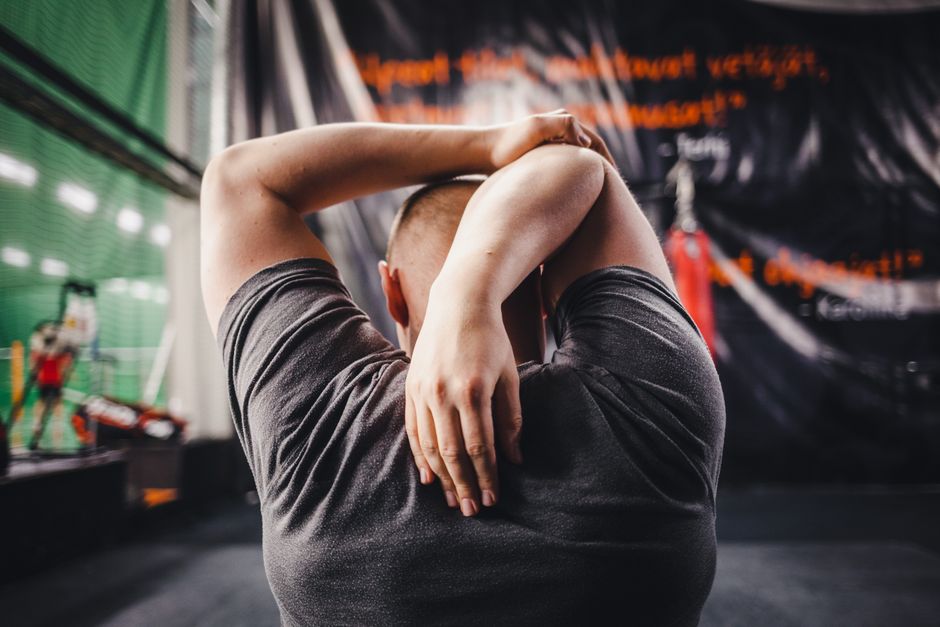
We recommend the 20-20-20 rule for eye health: every 20 minutes, look at something 20 feet away for 20 seconds. For your body, follow the 50/10 rule: work for 50 minutes, then get up and move for 10. During these breaks, try these 7 Proven Solutions For Typing Without The Ouch:
- Wrist Circles: Gently rotate your wrists in both directions.
- Finger Spreads: Make a tight fist, then splay your fingers as wide as possible.
- Neck Tilts: Gently lower your ear toward your shoulder (don’t force it!).
Warning Signs You Shouldn’t Ignore
Your body usually whispers before it screams. You should learn How To Reduce Typing Related Wrist Strain Before It Becomes A Problem by watching for these early red flags:
- Tingling or “pins and needles” in the fingers (especially at night).
- A dull ache in the forearm or wrist.
- Loss of grip strength (dropping your coffee mug isn’t just “clumsiness”).
- Coldness in the fingertips or swelling in the hands.
If you notice these, don’t wait. Early intervention is the difference between a week of rest and a year of physical therapy. For more prevention techniques, see Dont Let Typing Hurt Rsi Prevention Keyboard Techniques And Tips and learn how to achieve Typing Without The Tension.
Frequently Asked Questions about Typing Ergonomics
Should I use a wrist rest while typing?
This is one of the biggest misconceptions in ergonomics. Wrist rests are for resting, not for typing. You should only use them to support the fleshy “heel” of your palm during pauses in typing. If you rest your wrists on them while actively hitting keys, you create a pivot point that increases pressure on the carpal tunnel. It’s better to let your wrists float.
How do I set up a laptop ergonomically?
Laptops are “ergonomic nightmares” because the screen and keyboard are joined. To fix this, you must separate them. Use a laptop riser (or a stack of sturdy books) to get the top of the screen to eye level. Then, connect an external keyboard and mouse at desk level so your elbows can stay at that magic 90-degree angle.
What are the first signs of carpal tunnel?
The “classic” first sign is often numbness or tingling in the thumb, index, and middle fingers, frequently occurring at night. You might find yourself “shaking out” your hands to get the feeling back. You may also notice a decrease in fine motor skills, like struggling to button a shirt.
Conclusion
At Dims Finance, we believe that your productivity shouldn’t come at the cost of your physical well-being. By implementing this ergonomic typing posture guide, you aren’t just avoiding a “crick in the neck”—you are investing in your long-term career health.
Ergonomics is a personal journey. What works for a 6’4″ programmer might not work for a 5’2″ freelance writer. Take the time to experiment with your chair height, monitor tilt, and keyboard angle until you find your “neutral zone.”
Ready to take the next step in your pain-free journey? Check out The Complete Office Ergonomics Guide to Stop RSI Before It Starts for a comprehensive checklist to transform your workspace today. Remember: stop the slouch, and you’ll stop the ouch!