Why Your Ergonomic Mouse Grip Matters More Than You Think
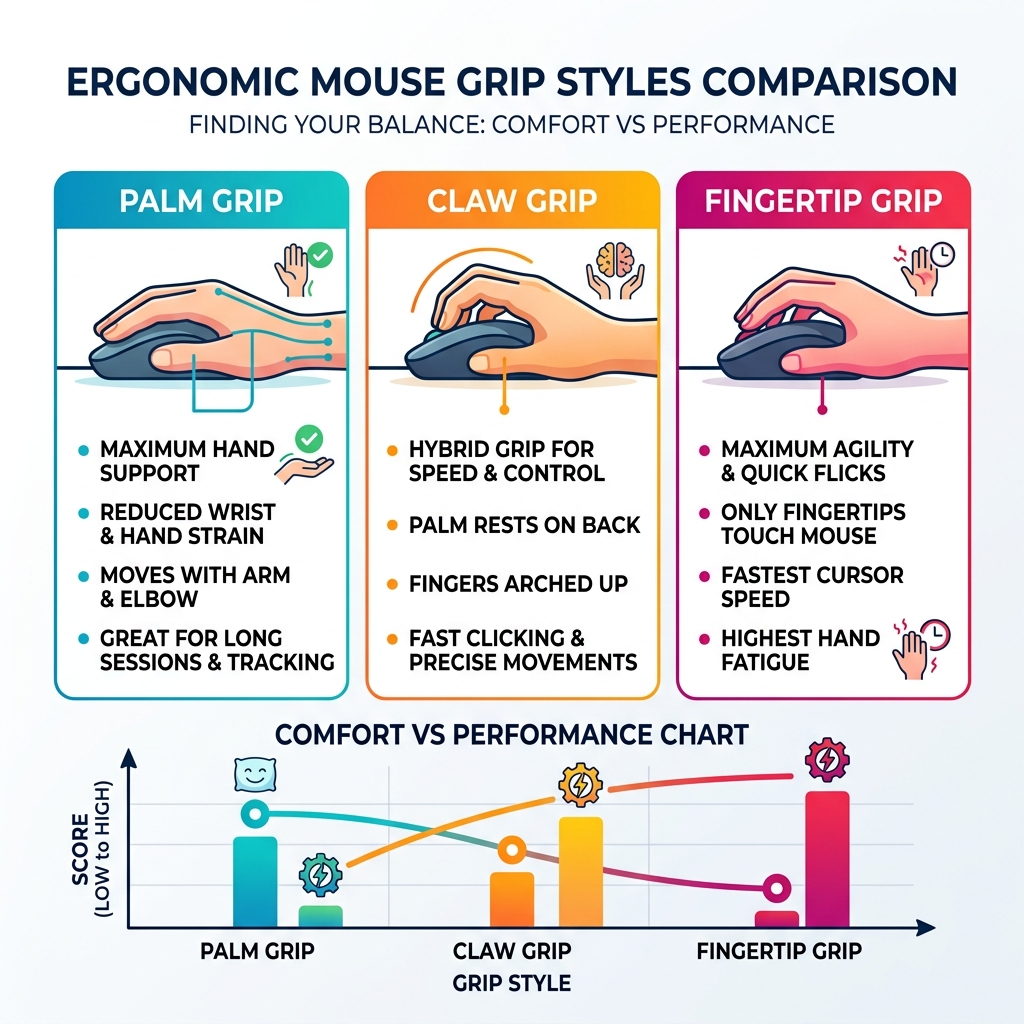
Ergonomic mouse grip refers to how you position your hand on a mouse to reduce strain, prevent injury, and maintain comfort during long computer sessions. There are three main grip styles to know:
- Palm grip – Your whole hand rests on the mouse. Most relaxed. Best for long sessions.
- Claw grip – Your palm touches the back, fingers arch up. Fast clicks, good control.
- Fingertip grip – Only your fingertips touch the mouse. Most agile, most tiring.
The right grip depends on your hand size, the mouse shape, and how long you use a computer each day.
Most people never think about how they hold a mouse. They buy a mouse, plug it in, and just start clicking. But if you’re dealing with wrist pain, tension in your forearm, or tingling fingers after a long workday, your grip could be the problem.
Research shows that the wrong mouse size alone can push physical stress to dangerous levels. For example, a petite user with a 16.5 cm hand using a standard 125 mm mouse can reach a Strain Index of over 10 — double the threshold considered hazardous for repetitive strain injury (RSI).
That’s not a minor discomfort. That’s a path toward carpal tunnel syndrome and chronic wrist damage.
Your mouse grip affects:
- Joint alignment in your wrist and fingers
- Muscle tension across your hand and forearm
- Long-term injury risk, including RSI and carpal tunnel
- Precision and control during everyday tasks
The good news: small changes to how you grip your mouse — and which mouse you use — can make a big difference.
Understanding the Three Primary Mouse Grip Styles
When we talk about an ergonomic mouse grip, we aren’t just talking about comfort; we are talking about the biomechanical efficiency of your hand. While every hand is unique, research generally categorizes how we hold mice into three dominant styles. According to ResearchGate: Influence of Mouse Grip Type on Flicking and Tracking Tasks Performance, these styles significantly impact how we perform both “flicking” (quick movements) and “tracking” (smooth, sustained movements).
- Palm Grip: This is the most common style, especially for office work. Your entire palm rests on the shell of the mouse, and your fingers lie flat on the buttons. It provides maximum stability because the movement comes from your arm and elbow rather than your wrist.
- Claw Grip: Here, the base of your palm rests on the back of the mouse, but your fingers are arched up like a claw. This allows for faster clicking and more precise vertical movements. It is a favorite among competitive gamers but can lead to higher tension in the finger tendons.
- Fingertip Grip: In this style, your palm doesn’t touch the mouse at all. Only your five fingertips make contact. This offers the greatest agility and speed for micro-adjustments, but it is also the most fatiguing because your hand muscles are constantly engaged to suspend your palm.
The Anatomy of a Healthy Ergonomic Mouse Grip
A healthy grip is one that promotes neutral skeletal alignment. When your wrist is forced into an upward angle (extension) or a sideways bend (ulnar deviation), you compress the carpal tunnel.
An critical design element often overlooked is the “hump position.” A study published in the American Journal of Occupational Therapy (AJOT) study on hump position found that the placement of the mouse’s highest point—the hump—directly affects efficiency and comfort.
- Rear-hump designs provide better “cutaneous feedback.” Essentially, the back of the mouse touching the base of your palm gives your brain more information about where the mouse is in space, leading to more consistent movements.
- Center-hump designs offer more general support for palm grippers, helping to maintain a natural arch in the hand.
Pros and Cons for Gaming and Productivity
Choosing the right ergonomic mouse grip involves balancing your need for stability with your need for speed.
- Palm Grip Pros: Excellent for long-term endurance and tracking tasks (like highlighting text or following a moving target). It minimizes wrist flicking, which reduces the risk of localized strain.
- Palm Grip Cons: It can feel “clunky” for tasks requiring rapid, tiny movements because the large muscle groups of the arm are less suited for micro-adjustments.
- Claw Grip Pros: Offers a great balance of speed and control. It allows for rapid “flick” shots in gaming or quick navigation between multiple monitors in a professional setting.
- Claw Grip Cons: Arched fingers can lead to “trigger finger” or tendonitis if you don’t take regular breaks to stretch.
- Fingertip Grip Pros: Unmatched agility. It allows for pixel-perfect precision because you are using the fine motor skills of your fingers.
- Fingertip Grip Cons: Very high fatigue. Without palm support, your hand carries the full weight of its own posture, which can lead to rapid cramping.
How Hand Size and Mouse Shape Dictate Comfort
We often see people trying to force a specific grip onto a mouse that simply wasn’t built for it. To find your ideal ergonomic mouse grip, you must first understand the dimensions of your hand.
According to research in MDPI: A Design Contribution to Ergonomic PC Mice Development, optimal mouse design should actually accommodate 15–20mm of “dynamic adjustment.” This means the mouse should allow your hand to shift slightly as you transition between tasks without losing support.
Matching Hand Size to Your Ergonomic Mouse Grip
To measure your hand, start at the base of your palm (the first crease in your wrist) and measure to the tip of your middle finger. Then, measure the width of your hand across the knuckles.

| Hand Size | Length | Recommended Mouse Length |
|---|---|---|
| Small | < 17 cm | 110 mm – 115 mm |
| Medium | 17 – 19.5 cm | 120 mm – 125 mm |
| Large | > 19.5 cm | 128 mm+ |
If you have large hands and try to use a small mouse with a palm grip, your fingers will overhang the buttons, forcing you into a cramped claw grip. Conversely, if a small-handed user tries to palm a large mouse, they may struggle to reach the scroll wheel, leading to excessive wrist stretching.
The Role of Hump Position and Shell Geometry
The geometry of the mouse shell is the silent partner in your comfort.
- Asymmetrical (Ergonomic) Shapes: These are contoured specifically for one hand (usually the right). They often feature a thumb rest and a slope that mimics the natural resting angle of the hand. These are generally best for palm grips.
- Symmetrical (Ambidextrous) Shapes: These are the same on both sides. They are often lower in profile and excel for claw and fingertip grips because they don’t lock the hand into a single “correct” position.
The “hump” is where the mouse is tallest. If the hump is at the very back, it supports the palm (great for claw/palm hybrids). If it’s in the middle, it fills the hand (perfect for pure palm). If the mouse is flat with a low hump, it’s designed for fingertip agility.
Biomechanical Risks: Preventing RSI and Carpal Tunnel
At Dims Finance, we emphasize science-based advice because the stakes are high. Repetitive Strain Injury (RSI) isn’t just about “sore muscles.” It involves micro-tears in tendons and compression of nerves.
When you use a non-ergonomic grip, you often fall into two traps:
- Wrist Extension: Your hand is bent upward. This increases pressure in the carpal tunnel.
- Ulnar Deviation: Your hand is bent toward your pinky finger. This strains the tendons on the thumb side of your wrist.
Research in the AJOT: Ergonomic Design of a Computer Mouse for Clients With Wrist Pain highlights that a mouse should ideally promote a “neutral” posture, where the forearm and hand form a relatively straight line. For more details on setting up your workspace, check out our guide on ergonomic keyboard and mouse setup for enhanced comfort.
The “Petite User” Case Study
One of the most eye-opening statistics in mouse ergonomics is the “Petite User” simulation. A user with a 16.5 cm hand length using a standard 125mm mouse (which is common in most offices) results in a Moore-Garg Strain Index (SI) of 10.125.
To put that in perspective:
- SI < 3: Safe
- SI > 5: Hazardous (Increased RSI risk)
- SI 10.125: Double the hazardous threshold.
For petite users, an oversized mouse isn’t just “big”—it’s a health risk. It forces the hand into a constant state of over-extension just to click the buttons.
Alternatives for Extreme Ergonomic Needs
If you already suffer from wrist pain, a standard horizontal mouse might not be enough.
- Vertical Mice: These allow you to hold the mouse in a “handshake” position. This eliminates forearm pronation (twisting your arm flat), which significantly reduces pressure on the median nerve.
- Pen-Grip Mice: These are held like a pen. They are incredibly lightweight (often under 30g) and use the muscles we use for writing, which are designed for fine precision without the heavy load of a full mouse shell.
- Trackballs: These stay stationary. You move the cursor with your thumb or fingers, which is excellent for those with shoulder or elbow pain who cannot move their arm across a desk.
Technical Synergy: Weight, Polling Rates, and Sensors
You might think weight and sensors are only for gamers, but they play a huge role in an ergonomic mouse grip for productivity too.
Impact of Mouse Weight on Grip Fatigue
The heavier the mouse, the more force required to start and stop its movement (inertia).
- Lightweight ( < 65g): These feel “floaty.” They are excellent for reducing muscle micro-fatigue during long days of clicking. However, some users find them too sensitive, leading them to grip the mouse tighter to maintain control—which defeats the ergonomic purpose.
- Medium (70g – 85g): This is the “sweet spot” for most users. It provides enough weight for stability without being heavy enough to cause strain.
- Heavy ( > 90g): These feel “planted.” They are good for steady work but can lead to fatigue in the wrist and forearm over several hours.
Polling Rates and Sensor Performance
The “polling rate” is how many times per second the mouse reports its position to your computer.
- 1000Hz (1ms delay): The standard for high-quality mice.
- 8000Hz (0.125ms delay): The cutting edge.
While 8000Hz sounds better, it can cause “CPU bottlenecks” on older computers, leading to stuttering. For most of us, a stable 1000Hz is perfect. High-quality sensors also allow you to use a lower “Lift-Off Distance” (LOD), meaning you don’t have to lift the mouse as high off the pad to reposition it—saving your wrist from unnecessary vertical movements.
Step-by-Step Guide to Finding Your Natural Ergonomic Mouse Grip
Finding your grip isn’t about choosing one from a menu; it’s about discovering what your hand does naturally. Interestingly, about 62% of competitive gamers use hybrid grips that transition mid-task. You might palm your mouse while reading an article but switch to a claw grip when you need to do precise photo editing.
For more on optimizing your entire desk, see our guide on ergonomic keyboard and mouse setups for maximum comfort.
Identifying Your Natural Hand Posture
- The “Freeze” Test: Use your computer for 20 minutes. Suddenly stop and “freeze” your hand. Look down.
- Is your palm flat against the mouse? (Palm)
- Is only the base of your palm touching? (Claw)
- Is your hand hovering entirely? (Fingertip)
- The “Relaxed Drop”: Place your hand on your desk in a completely relaxed state. Now, slide a mouse under it. How does your hand naturally want to rest? Don’t force it to fit the mouse; see if the mouse fits the hand.
- Check Contact Points: Use a bit of washable marker or chalk on your palm. Use the mouse for a minute. See where the marks transferred to the mouse. This reveals your true contact points.
Testing for the Best Fit
When testing a new mouse, look for these three benchmarks:
- No “Pinky Drag”: Your pinky should have a place to rest or grip without dragging on the mouse pad, which causes friction and strain.
- Easy Reach: You should be able to click the primary buttons and reach the scroll wheel without shifting your entire hand forward.
- Neutral Wrist: Your wrist should feel like it’s in a straight line with your arm, not tilted up or to the side.
Frequently Asked Questions about Mouse Grips
Which ergonomic mouse grip is best for FPS gaming?
Generally, claw or fingertip grips are preferred for First-Person Shooters (FPS) because they allow for faster micro-adjustments and “flicks.” However, many pros use a “relaxed claw” which provides palm stability for tracking while keeping the fingers ready for rapid clicks.
Can I switch my grip style to reduce wrist pain?
Yes, but do it gradually. If you are a fingertip gripper experiencing wrist pain, switching to a palm grip and a larger, more supportive mouse can help by shifting the workload from your wrist to your forearm. However, your accuracy will feel “off” for a week or two as your brain adjusts.
Do vertical mice work for competitive gaming?
While vertical mice are the gold standard for ergonomics, they have a higher center of gravity, which can make fast, precise movements (like those in competitive gaming) more difficult. For “serious” gaming, many prefer an asymmetrical ergonomic mouse that offers a slight tilt without being fully vertical.
Conclusion
At Dims Finance, we believe that your tools should work for you, not against you. Choosing the most ergonomic mouse grip isn’t just about buying the most expensive mouse on the market; it’s about understanding the biomechanics of your own hand and matching it to the right shell geometry and weight.
Remember:
- Measure your hand before you buy.
- Identify your natural grip before you try to change it.
- Prioritize neutral wrist alignment to prevent long-term RSI.
Small adjustments today can prevent chronic pain tomorrow. By pairing a science-based grip with a properly sized mouse, you can boost your productivity and protect your health for years to come.
Ready to upgrade the rest of your workstation? Explore more ergonomic desk accessories to complete your setup.