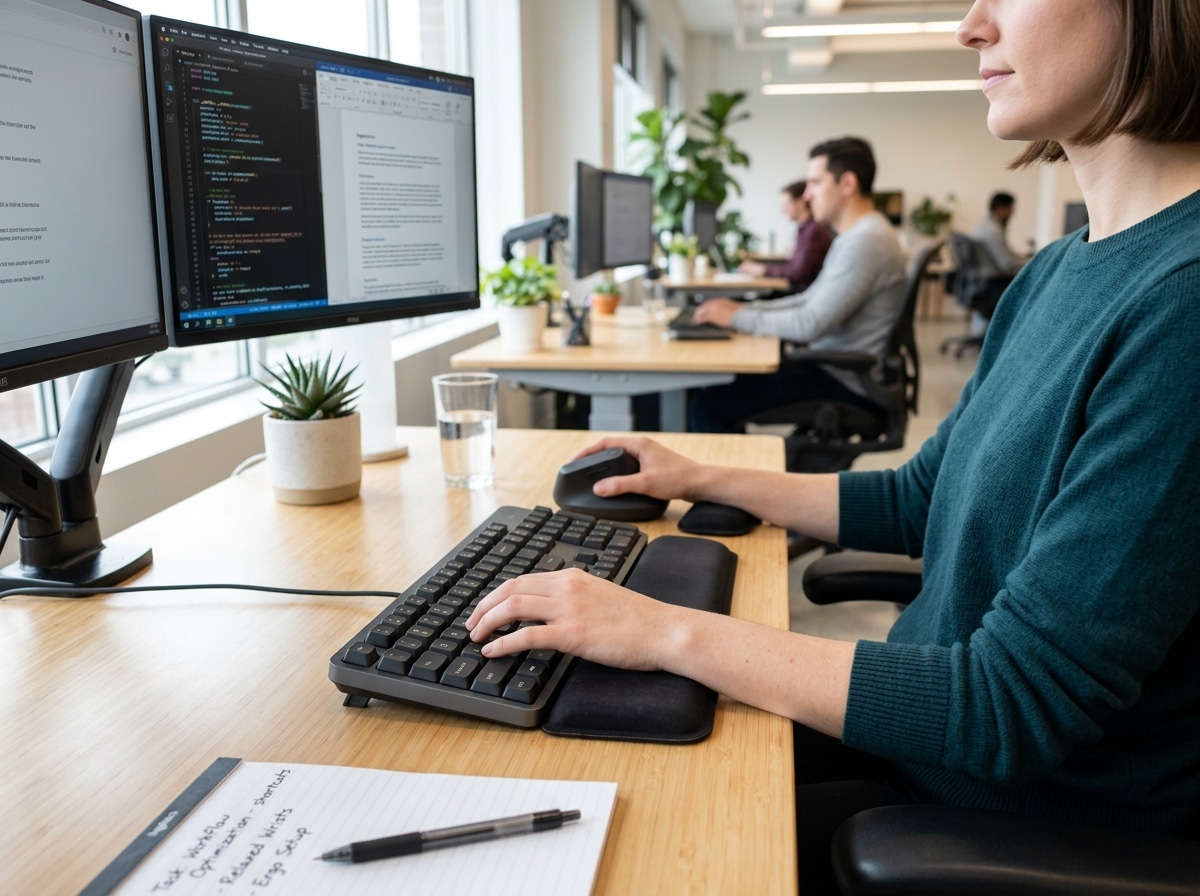
Your Hands Are Paying the Price for Your Mouse
Keyboard shortcut injury prevention is one of the most practical and underrated ways to protect your hands, wrists, and arms from long-term damage at your desk. Here’s a quick summary if you’re in a hurry:
How keyboard shortcuts prevent RSI:
- They reduce how often you reach for the mouse
- Less reaching means less shoulder elevation and muscle strain
- Staying on the keyboard keeps your wrists in a more neutral position
- Combining shortcuts with tools like Vimium can cut keyboard-to-mouse movement by up to 80%
- Fewer repetitive micro-movements = less cumulative damage over time
Think about what happens during a typical workday. You type a sentence, reach for the mouse, click a menu, scroll, click again, move back to the keyboard. Repeat that hundreds of times a day, for years.
That constant back-and-forth isn’t just annoying. It’s damaging.
One writer described what many office workers eventually experience: after weeks of heavy mouse use during a document archiving project, their right forearm hurt so badly they needed two weeks off work, physiotherapy, ointments, and painkillers just to recover. Another person, after 15 years of daily computer work, lost the ability to use a mouse without significant pain.
These aren’t rare horror stories. They’re common outcomes of ignoring a very fixable problem.
The good news? Small, consistent changes — starting with how often you reach for that mouse — can make a dramatic difference.

Understanding RSI and the Danger of Mouse Dependency
When we talk about Repetitive Strain Injury (RSI) or Repetitive Motion Injury (RMI), we are describing a family of conditions caused by putting too much stress on muscles, nerves, and tendons through repetitive tasks. In the office world, the primary culprit is often “mouse arm.”
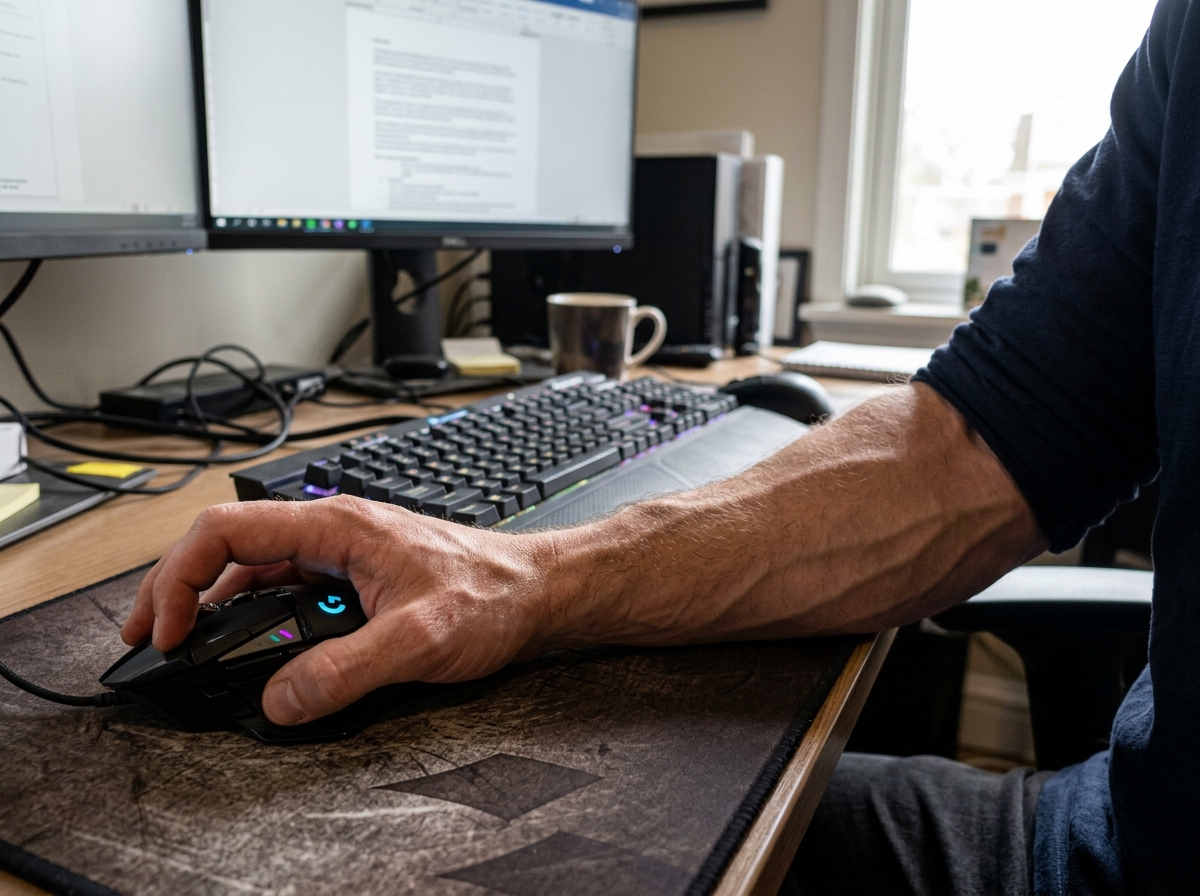
While typing certainly carries risks, the mouse is frequently more treacherous. Why? Because using a mouse requires high-precision micro-movements. These tiny, jerky motions of the fingers and wrist are actually more taxing on your soft tissues than the larger movements of typing. Furthermore, every time you reach for your mouse, you engage in “shoulder elevation.” This constant lifting and reaching increases muscle activation in the neck and shoulder, leading to fatigue and chronic tension.
Contact stress is another silent killer. When you rest your wrist on the edge of a desk to move the mouse, you are compressing the nerves and blood vessels that serve your hand. Over time, this compression leads to the numbness and tingling associated with carpal tunnel syndrome. We have seen cases where users, after a decade or more of heavy computer use, find that even using a trackpad becomes painful because the cumulative damage has reached a breaking point.
To dive deeper into the specific mechanics of these injuries, you can read more info about keyboard wrist injury and check out the Harvard RSI Action guide on preventing RSI.
The Science of Keyboard Shortcut Injury Prevention
The core philosophy of keyboard shortcut injury prevention is simple: keep your hands in one place. By mastering shortcuts, we drastically reduce the physical distance our hands travel during the day.
Research and personal case studies show that combining keyboard shortcuts with specialized browser tools can minimize movement from the keyboard to the trackpad or mouse by at least 80%. This reduction in “travel time” translates directly to tendon relief. When your hands stay on the keyboard, you are more likely to maintain a neutral posture—where the wrist is straight and not tilted up, down, or to the side.
Efficiency isn’t just about speed; it’s about biological economy. Every mouse click you replace with a keystroke is a victory for your nervous system. By staying on the “home row,” you utilize the stronger muscles of your arms to move your hands, rather than straining the delicate tendons in your wrists to guide a cursor.
For a detailed look at how to align your body for this style of work, see our guide on mastering the neutral wrist position for your keyboard setup.
Essential Windows and Mac Keyboard Shortcut Injury Prevention
To start your journey toward a mouse-free (or mouse-light) workflow, you need to master the “Big Five” categories of shortcuts. Whether you are on Windows or macOS, these commands handle the vast majority of repetitive tasks that usually require a mouse.
| Task | Windows Shortcut | Mac Shortcut |
|---|---|---|
| Copy Text/Files | Ctrl + C | Cmd + C |
| Paste Text/Files | Ctrl + V | Cmd + V |
| Undo Last Action | Ctrl + Z | Cmd + Z |
| Save Document | Ctrl + S | Cmd + S |
| Close Window/Tab | Ctrl + W | Cmd + W |
| New Tab/Document | Ctrl + T | Cmd + T |
| Switch Applications | Alt + Tab | Cmd + Tab |
| Find on Page | Ctrl + F | Cmd + F |
| Select All | Ctrl + A | Cmd + A |
| Bold Text | Ctrl + B | Cmd + B |
By using these, you eliminate the need to hunt through menus or right-click repeatedly. For Mac users, the “Command” key is your best friend, while Windows users rely on “Control.”
Ergonomic Workstation Setup for Shortcut Mastery
You can’t effectively use shortcuts if your body is twisted like a pretzel. A proper setup is the foundation of keyboard shortcut injury prevention.
First, look at your chair. Your feet should be flat on the floor with your knees at a 90-degree angle. If your chair is too high and your feet are dangling, you’ll naturally lean forward, putting pressure on your wrists.
Next, consider the “negative tilt.” Ideally, your keyboard should be slightly below elbow height and tilted away from you. This allows your wrists to remain perfectly straight while you type. Many people make the mistake of propping up the little feet on the back of the keyboard, which forces the wrists into an upward bend (extension)—a major cause of RSI.
If possible, place your keyboard on your lap or a low keyboard tray. This keeps your shoulders relaxed and your elbows at a comfortable open angle (slightly more than 90 degrees). Your monitor should be at eye level so you aren’t craning your neck, which can cause “downstream” pain in your hands.
For more specifics on hardware placement, explore our resources on ergonomic keyboard and mouse setup for enhanced comfort and our office chair tips for posture improvement.
Advanced Tools for Keyboard Shortcut Injury Prevention
Once you’ve mastered basic shortcuts, you can take your ergonomics to the next level with specialized tools.
- Vimium Extension: This is a browser extension (for Chrome and Firefox) that lets you navigate the web entirely with your keyboard. It assigns letters to every link on a page; you just type the letter to “click” the link. This is a game-changer for reducing mouse usage.
- Dvorak Layout: While QWERTY was designed to slow down old-fashioned typewriters, the Dvorak layout is designed for comfort. It places the most common letters on the home row, reducing finger travel distance significantly. Users often report that switching to Dvorak improved their pain more than any other change.
- Kinesis Advantage: This high-end ergonomic keyboard uses a “contoured” design that fits the natural shape of your hands. It also moves heavy-use keys like Backspace, Enter, and Space to your thumbs, which are much stronger than your pinkies.
- Remapping Caps Lock: The Caps Lock key is prime real estate that most people rarely use. Many power users remap it to act as an extra “Control” or “Escape” key. This prevents the “pinky stretch” required to hit the standard Control key, which can lead to ulnar neuropathy.
For a deep dive into these advanced strategies, we recommend reading this expert guide on preventing and healing repetitive strain injury (RSI) and carpal tunnel syndrome.
Proper Typing Techniques and Posture Tips
How you physically interact with the keys is just as important as which keys you press. Many of us “hammer” the keys with excessive force. Modern keyboards require a very light touch; typing with a heavy hand is a fast track to joint inflammation.
We recommend the “floating hands” technique. Instead of resting your wrists on the desk or a wrist rest while you type, let your hands hover slightly above the keyboard. This allows you to use your larger arm muscles to move your hands across the keys, rather than twisting your wrists to reach the corners. Think of a concert pianist—their hands move freely, they don’t anchor their wrists to the piano.
Touch typing is also a critical skill for keyboard shortcut injury prevention. When you know where the keys are without looking, you eliminate the repetitive neck strain of looking down and up. It also encourages a more stable, centered posture.
If you find it difficult to keep your wrists straight, you might consider ergonomic wrist rests for typing, but remember: these are for resting between bursts of typing, not for leaning on while you work. For more on this, check out Mastering the Keyboard: Proper Typing Techniques to Prevent Hand Fatigue and Injury.
Recovery Strategies: Breaks, Stretches, and Warning Signs
Even with the best shortcuts and the most expensive keyboard, your body isn’t meant to sit still for eight hours. We suggest the “10-minute rule”: for every hour of work, take 10 minutes of total break time. These don’t have to be taken all at once; “exercise snacks”—short 30-second stretches every 20 minutes—can be even more effective.
The Prayer Stretch: This is a classic RSI prevention move. Place your palms together in front of your chest (like you’re praying). Slowly lower your hands toward your waist while keeping your palms pressed together until you feel a gentle stretch in your undersides of your wrists. Hold for 15-30 seconds.
RSI Warning Signs: You should never ignore the signals your body sends. If you experience any of the following, it’s time to re-evaluate your setup:
- Numbness or tingling in the fingers (especially at night).
- A dull ache in the forearm that persists after you stop working.
- Loss of grip strength or “clumsiness” with your hands.
- Tenderness or swelling at the wrist or elbow.
- Pain that radiates from the wrist up to the shoulder.
For more advice on managing these symptoms, see the Cleveland Clinic’s guide on avoiding wrist pain and our article on wrist management and finding the best RSI mouse.
Frequently Asked Questions about Keyboard Ergonomics
How long does it take to build muscle memory for new shortcuts?
It typically takes about two to four weeks of consistent use to build solid muscle memory for new shortcuts. At first, you will feel slower, and it might be frustrating to “stop and think” about the command. However, if you stick with it, the “diminishing returns” of the learning curve will disappear, and the shortcuts will become second nature. Pro tip: print out a small “cheat sheet” and tape it to the side of your monitor so you don’t have to use the mouse to look up the shortcut!
Can I use a wrist rest while typing?
This is a common point of confusion. You should use a wrist rest (or palm rest) only to support your palms during brief pauses in typing. You should not rest your wrists on them while actively typing, as this creates pressure on the carpal tunnel and encourages you to “pivot” your wrists rather than moving your whole arm. The goal is neutral alignment at all times.
When should I see a doctor for wrist pain?
If your pain is persistent, recurs every day, or interferes with your sleep, you should seek professional medical evaluation. A certified hand therapist or an orthopedic surgeon can help determine if you have underlying damage like carpal tunnel syndrome or tendonitis. Early intervention is key; healing from a severe RSI can take months or even years if left untreated.
Conclusion
At Dims Finance, we believe that your career shouldn’t come at the cost of your physical health. Keyboard shortcut injury prevention is a powerful, science-based strategy to reduce strain, boost your well-being, and keep you productive for the long haul. By making small adjustments to your workflow today—like remapping a few keys or learning to “float” your hands—you are investing in a pain-free future.
Ready to transform your workspace? Start your journey to a pain-free workspace with our comprehensive ergonomic guides and expert advice. Your hands will thank you!