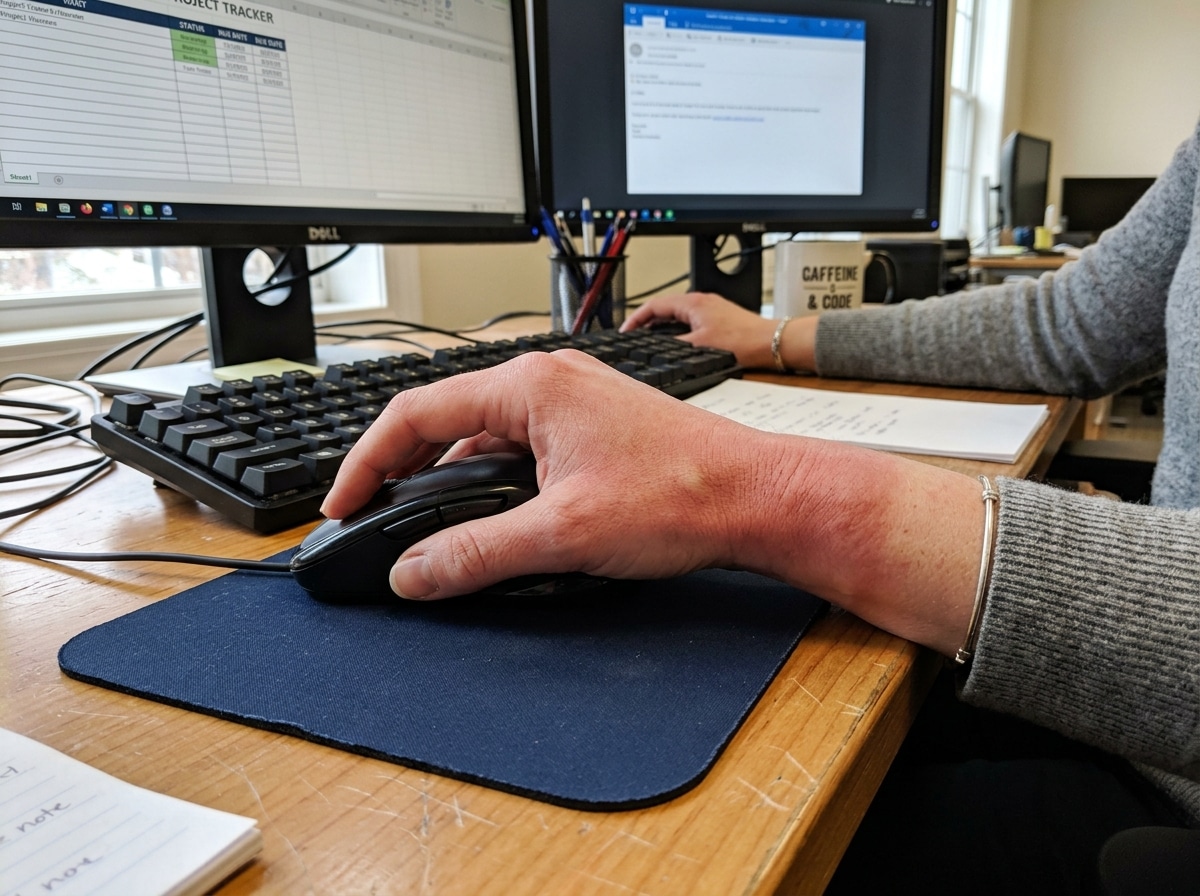
Why Ergonomic Mouse Wrist Pain Affects So Many Desk Workers
Ergonomic mouse wrist pain is one of the most common complaints among people who work at a desk — and the right mouse can make a real difference.
Quick answer: the best mouse types for wrist pain relief
| Mouse Type | Best For | Key Benefit |
|---|---|---|
| Vertical mouse | Pronation and nerve pain | Handshake grip reduces forearm twist |
| Trackball mouse | Arm and shoulder strain | Cursor moves without moving your arm |
| Sculpted ergonomic mouse | General wrist fatigue | Contoured shape supports natural hand position |
Here is what most people get wrong: they assume any ergonomic mouse will fix the problem. But the wrong shape, the wrong grip match, or a poorly adjusted desk can actually make things worse.
The core issue is simple. A standard mouse forces your forearm to rotate palm-down — a position called pronation. This crosses the two bones in your forearm, creates tension, and puts pressure on the tendons and nerves packed tightly inside your wrist. Over time, that adds up.
Carpal tunnel syndrome alone affects at least five million Americans, and repetitive mouse use is a major contributing factor. Computer users also spend nearly three times more time on the mouse than the keyboard — so the exposure risk is significant.
The good news? Small, targeted changes to your mouse and setup can go a long way.

Understanding Ergonomic Mouse Wrist Pain and Its Causes
To understand why your hand feels like it’s been through a marathon after a eight-hour shift, we have to look at the “hidden” mechanics of mousing. Most of us grew up using the standard, flat office mouse. While it looks harmless, it forces your hand into a position called forearm pronation.
Think of your arm in a natural resting state—like when you’re walking. Your palms face your thighs. When you place that hand on a flat mouse, you rotate your wrist 90 degrees. This rotation causes the two bones in your forearm (the radius and ulna) to cross over each other. This “twist” creates constant muscular tension and narrows the already cramped space in your wrist.
Inside that narrow space sits the median nerve, the primary communication line for your thumb and first three fingers. When you combine pronation with repetitive clicking and scrolling, you create a “perfect storm” for several conditions:
- Carpal Tunnel Syndrome (CTS): This is a neurological condition where the median nerve becomes squeezed or compressed as it passes through the wrist. According to the National Institute of Neurological Disorders and Stroke, it is a progressive condition that affects millions.
- Tendinopathy and Tendonitis: These involve inflammation or irritation of the tendons that connect your forearm muscles to your finger bones. Every time you “hover” your finger over a button to click, you’re actually engaging these tendons in a high-tension state.
- Muscle Fatigue: Sometimes, the pain isn’t a “disease” but simply overwork. Using small, flicking wrist movements to move a cursor across a large screen overworks tiny muscles that weren’t designed for heavy lifting.

Identifying Symptoms and When to See a Doctor
How do you know if you’re just tired or if you’re heading toward a serious Repetitive Strain Injury (RSI)? At Dims Finance, we believe early intervention is the best medicine.
Here are the common red flags to watch for:
- Dull aching: Usually felt at the back or base of the wrist after a long day.
- Tingling or “Pins and Needles”: Specifically in the thumb, index, and middle fingers. This is often a hallmark of nerve compression.
- Weakness in Grip: If you find yourself struggling to open a jar or dropping small objects, your muscles might be losing their “juice.”
- Burning Sensations: A sign of significant inflammation or nerve irritation.
- Night Pain: If your wrist pain wakes you up at night, it’s a strong indicator of Carpal Tunnel Syndrome.
We recommend the “10-Day Rule”: if you’ve made ergonomic adjustments and the pain persists for more than ten days, it’s time to see a professional. You should also seek help immediately if you notice visible swelling, redness, or if the pain radiates all the way up into your shoulder. For more on how to manage these early signs, check out our guide on wrist management and finding the best RSI mouse.
The Best Mouse Designs for Wrist Relief
Choosing a mouse isn’t just about picking the one that looks the “coolest” or most “sci-fi.” It’s about matching the device to your specific biology and workflow.
| Feature | Vertical Mouse | Trackball Mouse | Sculpted Horizontal Mouse |
|---|---|---|---|
| Primary Goal | Eliminates pronation | Eliminates arm movement | Provides palm support |
| Wrist Angle | 50–90 degrees (Handshake) | Neutral (Varies) | 10–30 degrees (Slight tilt) |
| Movement Source | Elbow and Shoulder | Thumb or Fingers only | Wrist or Elbow |
| Learning Curve | Moderate | High | Low |
The goal for any of these devices is to maintain a neutral wrist position. This means your hand is a straight extension of your forearm, neither bent up (extension), down (flexion), nor side-to-side (ulnar/radial deviation). Understanding these designs is part of how employees can stop repetitive strain injuries before they start.
Vertical Mice for Ergonomic Mouse Wrist Pain
The vertical mouse is the “gold standard” for many ergonomic specialists. By turning the buttons on their side, it forces your hand into a handshake grip. This position naturally uncrosses the bones in your forearm and significantly reduces pressure on the carpal tunnel.
One of the biggest benefits of a vertical mouse is that it discourages “wrist flicking.” Because of the vertical orientation, you are much more likely to move the mouse using your larger elbow and shoulder muscles. This protects the delicate tendons in your wrist from the micro-trauma of thousands of tiny movements.
Trackball and Sculpted Mice for Ergonomic Mouse Wrist Pain
If you have limited desk space or find that moving your entire arm causes shoulder pain, a trackball mouse might be your savior. Instead of sliding the mouse across a pad, the device stays stationary. You move the cursor by rolling a ball with your thumb or fingers. This completely eliminates the repetitive “swipe and lift” motion that many office workers perform hundreds of times an hour.
Sculpted mice, on the other hand, look more like traditional mice but feature deep contours and “humps” that support the palm. These are great for people who aren’t ready for a full vertical transition but need a larger surface area to rest their hand. A good sculpted mouse should have a high DPI (Dots Per Inch) setting, allowing you to move the cursor across the screen with very minimal physical movement.
Optimizing Your Workstation for a Neutral Wrist
Even the world’s most expensive ergonomic mouse can’t save you if you’re sitting on a kitchen stool at a coffee table. Your workstation is an ecosystem where every part affects the others.
To achieve the “Boss-Happy” neutral posture, follow the 90-Degree Rule:
- Elbows: Your elbows should be bent at roughly 90 degrees, with your forearms parallel to the floor.
- Mouse Placement: Keep your mouse as close to the side of your keyboard as possible. If you have to reach outward to grab your mouse, you’re straining your shoulder and neck.
- Wrist Rests: Use them for the heel of your palm, not the wrist itself. Putting direct pressure on the underside of your wrist can actually compress the carpal tunnel further.
- Chair Height: Adjust your seat so your feet are flat on the floor. If your chair is too low, you’ll end up reaching “up” to your mouse, putting your wrist in a constant state of extension.
For a deep dive into the perfect layout, see our resources on mastering the neutral wrist position and our comprehensive ergonomic keyboard and mouse setup guide.
Stretches and Habits for Long-Term Prevention
Beyond the hardware, your habits are your best defense against ergonomic mouse wrist pain. We like to use the “Hierarchy of Controls”—a fancy way of saying we should try to eliminate the risk before we just try to “stretch it away.”
- The 20-20-20 Rule: Every 20 minutes, look at something 20 feet away for 20 seconds. This isn’t just for eyes; it’s a reminder to let go of the mouse and drop your hands to your lap.
- The 30-30 Rule: For every 30 minutes of work, perform 30 seconds of stretching.
- Wrist Flexor Stretch: Extend your arm in front of you, palm up, and gently pull your fingers back toward your body with the other hand.
- Pectoral Stretches: Often, wrist pain starts in the chest. “Hunched” shoulders pull on the nerves that lead to your hand. Stretching your chest at a doorway can open up the neural pathways to your arms.
- Mouse Grip: Don’t “choke” your mouse. Hold it as lightly as possible—like you’re holding a delicate egg.
By practicing active RSI prevention, you ensure that your body can handle the demands of a modern digital career.
Frequently Asked Questions about Mouse Wrist Pain
Can an ergonomic mouse actually make my pain worse?
Surprisingly, yes. This usually happens due to a grip mismatch. If you have small hands but buy a “large” vertical mouse, you’ll end up stretching your fingers too far to reach the buttons, creating new strain. There is also an adjustment period. Your muscles have been “trained” to work in a dysfunctional way for years; switching to a healthy position might feel “sore” for a few days, similar to how your legs feel after the first day back at the gym.
How do I choose the right size mouse for my hand?
Measure from the base of your palm to the tip of your middle finger. Most manufacturers provide a sizing chart. Additionally, consider your grip style. “Palm grippers” need a mouse with a high arch, while “fingertip grippers” might prefer something smaller and more agile. Always check the return policy—sometimes you need a full week of testing to know if a mouse truly fits.
What is the difference between muscle fatigue and tendonitis?
Muscle fatigue usually feels like a dull, heavy ache that goes away after a night of rest. Tendonitis is often sharper and occurs specifically when you move a certain way (like clicking). It also tends to linger even after you’ve stopped working. If you feel “creaking” in your wrist (tenosynovitis), that is a sign of inflammation in the tendon sheath and requires immediate rest.
Conclusion
At Dims Finance, we believe that productivity shouldn’t come at the cost of your physical health. Ergonomic mouse wrist pain is a signal from your body that your current system isn’t working. By combining a science-based mouse choice with a properly adjusted workstation and healthy movement habits, you can stay pain-free and focused.
Ergonomics is a holistic endeavor. Your mouse is just one piece of the puzzle. To truly optimize your workspace, you might need to look at your chair, desk height, and typing habits as well. Explore ergonomic office furniture to find the right tools for a healthier, more comfortable workday. Stay neutral, stay healthy, and keep those deadlines moving!