
Why Your Keyboard Setup for Comfort Is More Important Than You Think
A proper keyboard setup for comfort can be the difference between a productive workday and one that ends with aching wrists, tight shoulders, and creeping hand pain.
Here’s a quick summary of the key steps:
- Set keyboard height at elbow level – elbows bent at 90-110°, shoulders relaxed
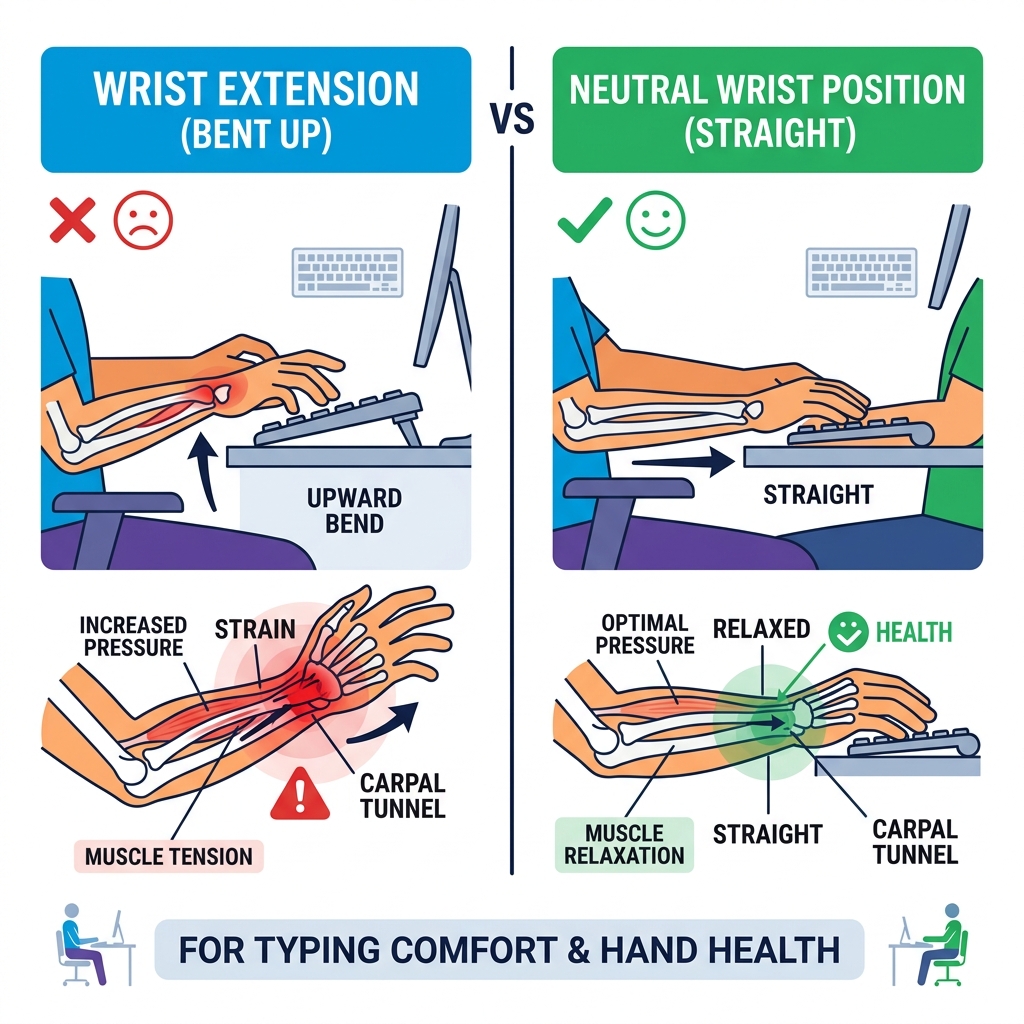
- Keep wrists neutral – straight, not bent up or down
- Tilt keyboard flat or slightly downward – avoid positive (upward) tilt
- Place keyboard 5cm from the desk edge – forearms supported, not stretched
- Position mouse close to the keyboard – no reaching or twisting
- Use a compact or low-profile keyboard – reduces wrist extension and shoulder strain
- Take movement breaks every 30 minutes – stretch fingers, wrists, and forearms
Consider this: your fingers strike keys roughly 10,000 times in a single workday. Over a career, adults spend an average of 90,000 hours at work. Small discomforts compound fast.
The problem is that most people set up their keyboards by eye – visually centering it on the desk and calling it done. But standard desk heights (typically 29-30 inches) were designed for writing, not typing. That small mismatch forces your wrists upward, and even a 15-degree upward wrist bend significantly increases pressure inside the carpal tunnel.
The good news? You don’t need expensive equipment to fix this. Most improvements come from small, deliberate adjustments to how your keyboard relates to your body.
The Foundation: Achieving the Ideal Keyboard Height for Comfort
When we talk about a keyboard setup for comfort, the most critical factor isn’t actually the keyboard itself—it’s where that keyboard sits in relation to your elbows. Most of us are working on desks that are simply too high. A standard office desk is roughly 29 to 30 inches tall, which was the golden standard for handwriting on paper. However, when you place a keyboard on top of that surface, your elbows are forced to flare out or your shoulders have to shrug up to reach the keys.
The goal is to achieve a “neutral” position. This means your shoulders are dropped and relaxed, and your elbows are bent at an angle between 90 and 110 degrees. If your keyboard is too high, you’ll likely compensate by bending your wrists upward (extension), which is a primary driver of carpal tunnel syndrome, according to scientific research on keyboard height and carpal tunnel pressure.

Measuring Your Personal Elbow Height
To find your “comfort zone,” we recommend measuring by feel and physics rather than visual cues.
- Sit in your chair with your feet flat on the floor (or a footrest) and your back supported.
- Relax your shoulders and let your upper arms hang naturally at your sides.
- Bend your elbows to about 90 degrees.
- Measure the distance from the floor to the underside of your elbows. This is your target typing height.
That the “typing surface” isn’t the desk—it’s the top of the keys (the home row). Therefore, your desk or tray height should actually be your elbow height minus the thickness of your keyboard. For example, if your elbow height is 70 cm and your keyboard is 3 cm thick, your desk surface needs to be at 67 cm.
The Role of Keyboard Trays in Ergonomics
If you find that your desk is too high (which it likely is if you are under 6 feet tall), a keyboard tray is a transformative solution. An adjustable tray allows you to decouple the keyboard height from the desk height.
When shopping for a tray, look for one that offers “negative tilt” (where the back of the keyboard is lower than the front) and enough width to fit both your keyboard and your mouse. This ensures your arm doesn’t have to reach up to the desk surface every time you want to move the cursor. You can learn more info about desk accessories to see how these tools integrate into a healthy workspace.
Mastering Wrist Alignment and Neutral Typing Technique
Even with the perfect height, your typing technique can still cause fatigue. We often see people “planting” their wrists on the desk or a wrist rest while typing. This creates a pivot point that forces the fingers to reach and stretch, putting unnecessary strain on the small tendons in your hands.
The gold standard for a keyboard setup for comfort is the “floating” technique. Your wrists should stay straight and level with your forearms, hovering slightly above the keyboard. This allows your larger arm muscles to move your hands across the keys, rather than forcing your fingers to do all the heavy lifting.
Proper Hand Placement and Finger Movement
Proper hand placement starts at the “home row” (A-S-D-F and J-K-L-;). We suggest keeping your fingers naturally curved, like you’re holding a tennis ball. This curved position is the strongest and most relaxed state for your hands.
Muscle memory is your best friend here. By using the home row as an anchor, you minimize the “hunt and peck” movements that cause you to twist your wrists side-to-side (known as ulnar deviation). Your thumbs should hover gently over the spacebar, ready to strike without requiring a thumb-stretch.
Optimizing Actuation Force and Key Travel
The “feel” of your keys matters more than you might think. Your fingers hit the keys roughly 10,000 times a day; if you have to press hard on every single stroke, that’s a lot of wasted energy.
- Actuation Force: This is how much pressure is needed to register a keypress. Most comfortable keyboards fall between 45 and 65 grams.
- Key Travel: This is the distance the key moves down. “Bottoming out” (hitting the base of the keyboard with force) can cause joint pain.
- Switch Types: Mechanical switches often provide tactile feedback, telling your brain the key has registered before you hit the bottom, allowing for a lighter touch. Scissor switches (found on many low-profile keyboards) offer a shorter travel distance which can reduce finger travel fatigue for light-touch typists.
Optimizing Your Keyboard Setup for Comfort: Angle and Placement
The angle of your keyboard is a silent contributor to wrist health. Most keyboards come with “feet” at the back to tilt the keyboard up. We recommend never using these. Tilting the back of the keyboard up forces your wrists into extension.
Instead, a flat or “negative tilt” (front higher than the back) is much better. This keeps your wrists in a straight line with your forearms.
| Tilt Type | Wrist Position | Ergonomic Impact |
|---|---|---|
| Positive (Upward) | Extended/Bent Up | High risk of carpal tunnel; high pressure |
| Flat (0°) | Neutral | Good for most users; low strain |
| Negative (Downward) | Straight/Neutral | Ideal for preventing extension; lowest strain |
Adjusting Your Keyboard Setup for Comfort on Standing Desks
Standing desks are great for circulation, but they change the geometry of your keyboard setup for comfort. When you transition to standing, you must recalibrate your height. Your elbows should still maintain that 90-110 degree angle.
We also suggest following the 20-8-2 rule: sit for 20 minutes, stand for 8 minutes, and move or stretch for 2 minutes. When standing, ensure your keyboard cables have enough slack so they don’t pull the device out of alignment as the desk rises.
Common Mistakes in Keyboard Setup for Comfort
- Visual Setup: Setting the height based on where it “looks” right rather than where your elbows actually sit.
- The “Reach”: Placing the keyboard too far forward, which forces you to hunch your shoulders. Keep it about 5cm from the desk edge.
- Asymmetry: Placing the mouse far to the right of a full-sized keyboard, causing “reach pain” in the right shoulder.
- Wrist Resting: Resting the “carpal” area (the base of your palm) on a hard desk edge, which can compress nerves.
Hardware Selection: Split, Compact, and Low-Profile Benefits
Sometimes, the standard rectangular keyboard is the problem. Because a standard keyboard is narrow, it forces your hands inward and your elbows out. This is called ulnar deviation, and it’s a recipe for wrist pain.
Why Compact and 75% Keyboards Reduce Strain
A full-sized keyboard includes a number pad on the right. For most people, this pushes the mouse way out to the side. By switching to a compact (60%) or 75% keyboard, you bring the mouse closer to your body’s center of gravity. This reduces “shoulder abduction” and prevents that nagging pain between your shoulder blades.
The Ergonomic Advantage of Low-Profile Designs
Low-profile keyboards are generally between 17mm and 22mm thick. Because they sit closer to the desk, the “climb” your wrists have to make is much smaller. This naturally reduces wrist extension by 8 to 10 degrees compared to a traditional “chunky” mechanical keyboard. If you’re looking to improve your workstation with professional desk accessories, a low-profile board is a great place to start.
Frequently Asked Questions about Ergonomic Typing
Should I use a wrist rest while typing?
Ideally, you should “float” your wrists while typing. A wrist rest is actually a palm rest—it’s meant for the fleshy part of your palm between typing sessions. Never rest your actual wrists on them while actively hitting keys, as this can put pressure on the carpal tunnel and restrict blood flow.
Is a split keyboard better for wrist pain?
Yes, for many people. A split keyboard allows you to set the halves at shoulder width. This opens up your chest and allows your forearms to point straight ahead rather than angling inward. It also allows for “tenting” (tilting the inner sides up), which reduces forearm pronation.
How often should I take breaks from typing?
We recommend “micro-breaks” every 20 to 30 minutes. These don’t have to be long—just 30 to 60 seconds of shaking out your hands, stretching your fingers back gently, and looking away from the screen. This restores blood flow and breaks the cycle of static muscle tension.
Conclusion
Mastering your keyboard setup for comfort isn’t a luxury; it’s a necessity for anyone spending their day behind a screen. By focusing on neutral wrist alignment, proper elbow height, and choosing hardware that fits your body’s natural geometry, you can prevent repetitive strain injuries before they start.
At Dims Finance, we believe in science-based ergonomics to help you work smarter and feel better. Small changes—like dropping your keyboard height by an inch or moving your mouse closer—can yield massive results for your long-term health. Take a moment today to reassess your desk, and don’t hesitate to check out our guides on how to improve your workstation with professional desk accessories. Your future self (and your wrists) will thank you.