
Why a 27 Inch Dual Monitor Arm Is a Game-Changer for Your Workspace
A 27 inch dual monitor arm is one of the most effective upgrades you can make for both productivity and physical health at your desk. Whether you’re dealing with neck pain, eye strain, or just a cluttered workspace, the right dual arm mount can make a real difference.
Here’s a quick comparison of the most popular types to help you decide fast:
| Type | Best For | Key Benefit | Typical Price Range |
|---|---|---|---|
| Desk clamp arm | Standard desks | Easy install, no drilling | $30 – $200 |
| Grommet mount arm | Permanent setups | Extra stability | $30 – $200 |
| Freestanding stand | Glass desks, renters | No installation needed | $25 – $120 |
| Wall mount arm | Space-saving setups | Maximum desk clearance | $40 – $250 |
| Premium spring arm | Heavy-duty / ergonomic | Smooth, effortless adjustment | $100 – $450+ |
The short answer: For most office workers using dual 27-inch monitors, a gas spring desk clamp arm with VESA 100x100mm compatibility and at least 17-22 lbs capacity per arm hits the sweet spot of performance, ergonomics, and value.
Most people buying a dual monitor arm are trying to solve one or more of these problems:
- Neck and shoulder pain from monitors that are too low or at the wrong angle
- A cluttered, cramped desk with no room to work
- Mismatched monitor heights that force awkward head tilting
- Poor posture that builds up into repetitive strain over time
The good news is that a quality 27-inch dual monitor arm directly addresses all of these. It lifts your screens to eye level, frees up desk space, and gives you the flexibility to dial in the exact position your body needs.
In this guide, we compare the top options on the market so you can find the right arm for your setup, budget, and monitors.
Essential Specifications for a 27 Inch Dual Monitor Arm
When we look for the perfect 27 inch dual monitor arm, we aren’t just looking at aesthetics. The technical specifications are the backbone of a safe and functional setup. If you choose an arm that can’t handle the weight or doesn’t fit your screen size, you risk damaging your expensive hardware or, worse, your desk.
A standard 27-inch monitor typically requires an arm that can reach at least 22 to 24 inches in horizontal extension to allow for comfortable side-by-side positioning. Furthermore, the vertical reach should offer enough clearance so that the center of the screen can sit at eye level. For more insights on how these tools impact your health, check out our guide on monitor stands for better posture.
Weight Capacity and VESA Standards for a 27 Inch Dual Monitor Arm
The most critical factor in your search is weight capacity. While a 27-inch screen is the size, the weight can vary wildly between an older LCD and a modern, high-performance gaming display.
- Weight Limits: Most quality arms for 27-inch screens support between 15 lbs and 22 lbs per arm. For example, some heavy-duty models like the Ergotron HX can support much larger screens, but for a standard dual 27-inch setup, a capacity of 17.6 lbs to 19.8 lbs per arm is the industry standard.
- VESA Compatibility: This refers to the hole pattern on the back of your monitor. Almost all 27 inch dual monitor arm options support the standard 75x75mm and 100x100mm patterns established by the Video Electronics Standards Association (VESA).
- Build Quality: We recommend opting for arms made of high-grade aluminum or solid steel. Aluminum models, such as those from AVLT or StarTech, offer a premium feel and better weight-to-strength ratios, often backed by 10-year warranties.
Achieving Perfect Ergonomics with a 27 Inch Dual Monitor Arm
Ergonomics is at the heart of what we do at Dims Finance. A monitor that is too low forces you into a “C-shape” posture, leading to chronic neck strain and tension headaches. By utilizing a 27 inch dual monitor arm, you gain the ability to adjust height, tilt, and swivel independently.
Ideally, your eyes should be level with the top third of the screen. A good arm will offer a height adjustment range of at least 10 to 13 inches, allowing you to transition between sitting and standing if you use a height-adjustable desk. To dive deeper into the health benefits, see our article on monitor stands that improve posture and health.
Comparing Mounting Stability: Clamp vs. Grommet vs. Freestanding
How you attach the arm to your desk determines how much “wobble” you’ll experience while typing. If you’ve invested in best ergonomic office chairs for home use, you know that stability is key to a focused work environment.
| Mounting Type | Stability Level | Desk Impact | Best Use Case |
|---|---|---|---|
| C-Clamp | High | Minimal (pressure only) | Standard wooden/MDF desks |
| Grommet | Maximum | Requires a hole | Permanent, heavy-duty setups |
| Freestanding | Moderate | None | Glass desks or temporary setups |
| Wall Mount | Extreme | Permanent wall damage | Small desks with zero surface area |
Desk Clamp and Grommet Options
The C-Clamp is the most popular choice because it requires no drilling. Most clamps accommodate desk thicknesses up to 3.1 or 3.3 inches. It’s a fantastic space-saver, as the base typically only takes up a few square inches of desk real estate.
The Grommet mount (or bolt-through) is the gold standard for stability. If your desk has a pre-drilled cable hole, this mount goes through the hole and secures with a large washer and nut underneath. This is the safest way to mount heavy 27-inch screens, especially if the desk is made of a softer material like particle board.
Freestanding and Wall Mount Alternatives
If you have a glass desk, a clamp might crack the surface. In this case, a freestanding dual monitor stand is your best bet. While these don’t offer the same “floating” aesthetic, modern versions like the MOUNTUP MU1002 provide significant height and tilt adjustment without any installation hassle.
Wall mounts are the ultimate “clean desk” solution. By mounting your 27 inch dual monitor arm directly to a wall stud, you completely clear your desk surface. This is ideal for deep-focus workstations where every inch of desk space is needed for documents or hardware.
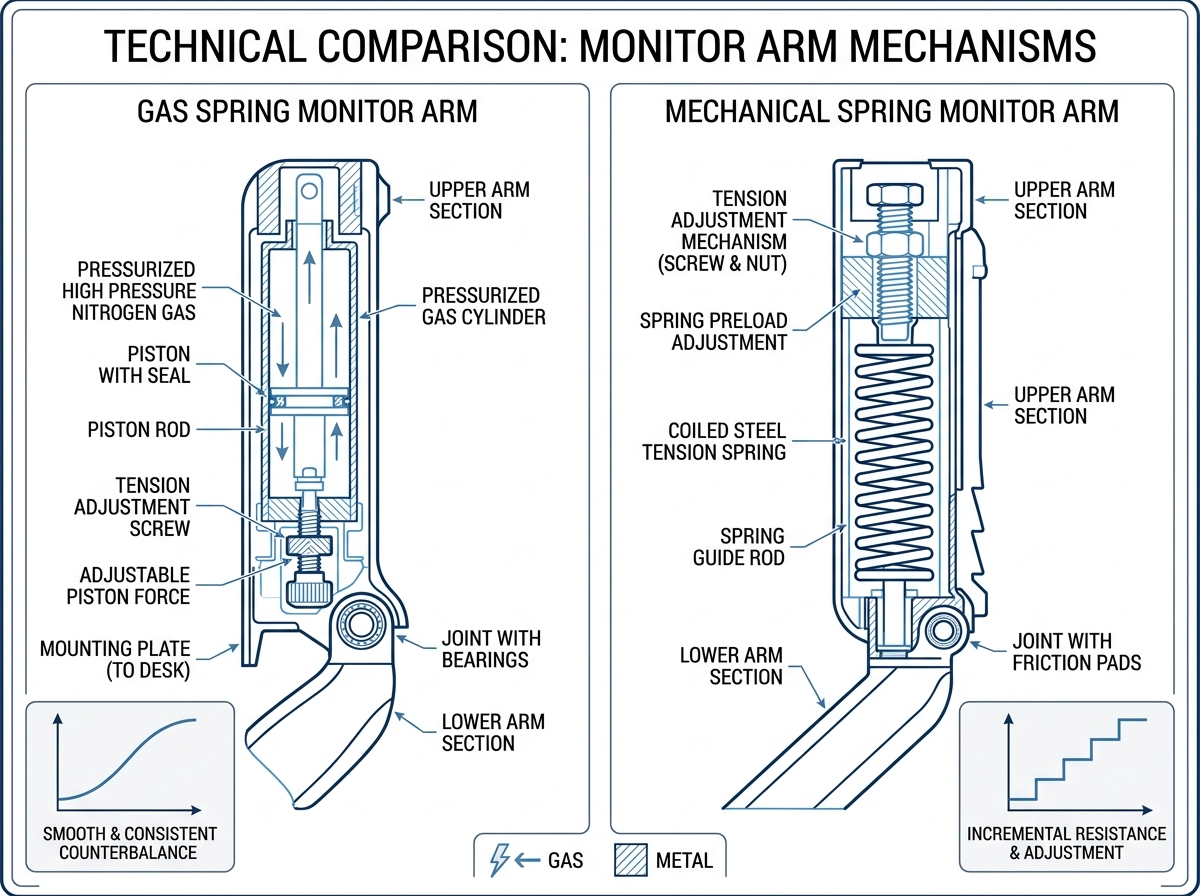
Mechanical vs. Gas Spring: Which Mechanism is Best for Heavy Screens?
The “engine” of your monitor arm is the internal spring. This mechanism counterbalances the weight of your 27-inch screens so they stay exactly where you put them.
Smooth Motion with Gas Springs
Gas spring arms use a cylinder filled with pressurized gas. They are famous for “one-touch” adjustment. If you frequently move your monitors—perhaps pulling one closer for detailed design work and pushing it back for a meeting—a gas spring 27 inch dual monitor arm is the way to go.
Brands like HUANUO and AVLT specialize in these. The main advantage is the fluidity of movement; it feels like the monitors are weightless. However, gas springs can lose tension over many years of heavy use.
Durability of Mechanical Spring Arms
Mechanical springs use a traditional coiled metal spring. While they might require a bit more effort to move initially, they are incredibly robust. StarTech often utilizes mechanical springs in their TAA-compliant, heavy-duty mounts because they resist wear and tear better than gas cylinders. If you plan on setting your monitors once and rarely moving them, a mechanical spring offers unmatched longevity and reliability.
Installation and Cable Management Best Practices
Nothing ruins a beautiful dual-monitor setup faster than a “rat’s nest” of dangling power and HDMI cables. Proper installation ensures your screens are safe, and cable management ensures your brain stays clutter-free. For a complete ergonomic overhaul, don’t forget to pair your setup with a proper ergonomic keyboard and mouse setup.
Step-by-Step Setup Guide
Installing a 27 inch dual monitor arm is a straightforward process, but there are a few “pro tips” we recommend following:
- Check VESA Plates: Before you start, ensure your monitors have the four screw holes on the back. If they don’t, you’ll need a VESA adapter kit.
- Attach the Base First: Secure the clamp or grommet to the desk before attaching the arms. Ensure it is centered.
- Mount the Monitors: Many premium arms use a “quick-release” VESA plate. You screw the plate to the monitor first, then simply click the monitor onto the arm.
- Tension Tuning: This is where most people get stuck. Once the monitors are on, they will likely either sag or pop up. Use the included Allen key to adjust the tension. For gas springs, turn toward the “+” if the monitor falls and “-” if it rises.
- Safety Check: Double-check all screws. A slight sway can lead to a monitor falling over time.
Integrated Cable Management Solutions
Modern 27 inch dual monitor arm designs almost always include hidden channels. These are plastic covers that snap onto the arms, allowing you to tuck cables inside.
- Leave Slack: Always leave enough slack in the cables at the “elbow” of the arm. If the cables are too tight, you won’t be able to rotate or extend the monitors without unplugging them or damaging the ports.
- Base Clips: Use the clips at the base of the pole to guide cables neatly under the desk.
- Professional Finish: Combine your arm’s cable management with under-desk trays or cable sleeves for a truly professional, distraction-free environment.
Frequently Asked Questions about Dual Monitor Mounting
Can a 27 inch dual monitor arm support curved screens?
Yes, most can! However, curved screens often have a different center of gravity than flat screens. When mounting a curved 27-inch monitor, you may need to tighten the tilt tension more than usual to prevent the screen from “dipping” forward. Always check the weight of your curved monitor against the arm’s capacity, as they can be heavier than flat models.
Do I need a special desk for a dual monitor mount?
While you don’t need a “special” desk, the material matters. Solid wood, plywood, and thick metal desks are perfect. If you have a honeycomb-core desk (like some budget options from big-box retailers), the pressure of a C-clamp in one small area can actually crush the desk. In those cases, using a small block of wood between the clamp and the desk can help distribute the weight.
How do I adjust the tension on a gas spring arm?
You must have the monitor installed before you can adjust the tension. If the arm is “naked,” it will always spring to the highest position. Once the monitor is attached, use the Allen key on the adjustment bolt (usually located at the main joint). Turn it several full rotations until the monitor “floats” effortlessly without sinking or rising.
Conclusion
Investing in a 27 inch dual monitor arm is an investment in your long-term health and daily productivity. By lifting your screens, you open up desk space for creativity and align your body for comfort. At Dims Finance, we believe that a science-based approach to your workspace is the best way to prevent repetitive strain injuries and boost your overall well-being.
Whether you choose a high-end gas spring arm for fluid movement or a sturdy mechanical mount for permanent stability, the benefits of a dual-monitor setup are undeniable. Ready to further optimize your workstation? Explore more info about desk accessories to complete your ergonomic journey.